Getting Started
How to link your phone or tablet as a scanning device
Scanaroo is the free till-side app that stamps customer cards. Pairing it with your Keeperoo account takes about five minutes.
Before you start
You'll need:
- A phone or tablet with a camera (iOS or Android). An old phone works fine
- The owner or manager login for your Keeperoo dashboard, open on a computer
- Wi-Fi or mobile data on the device — Scanaroo talks to Keeperoo on every stamp
You can add as many devices as you like: one per till, one per location, or a spare in the back office. Each device has its own name and PIN, and works on one phone or tablet at a time. To run two phones at once, add a device for each. The dashboard shows which device recorded each stamp.
Step-by-step guide
Step 1: Install Scanaroo on the phone or tablet
- Log in to your Keeperoo dashboard on a computer
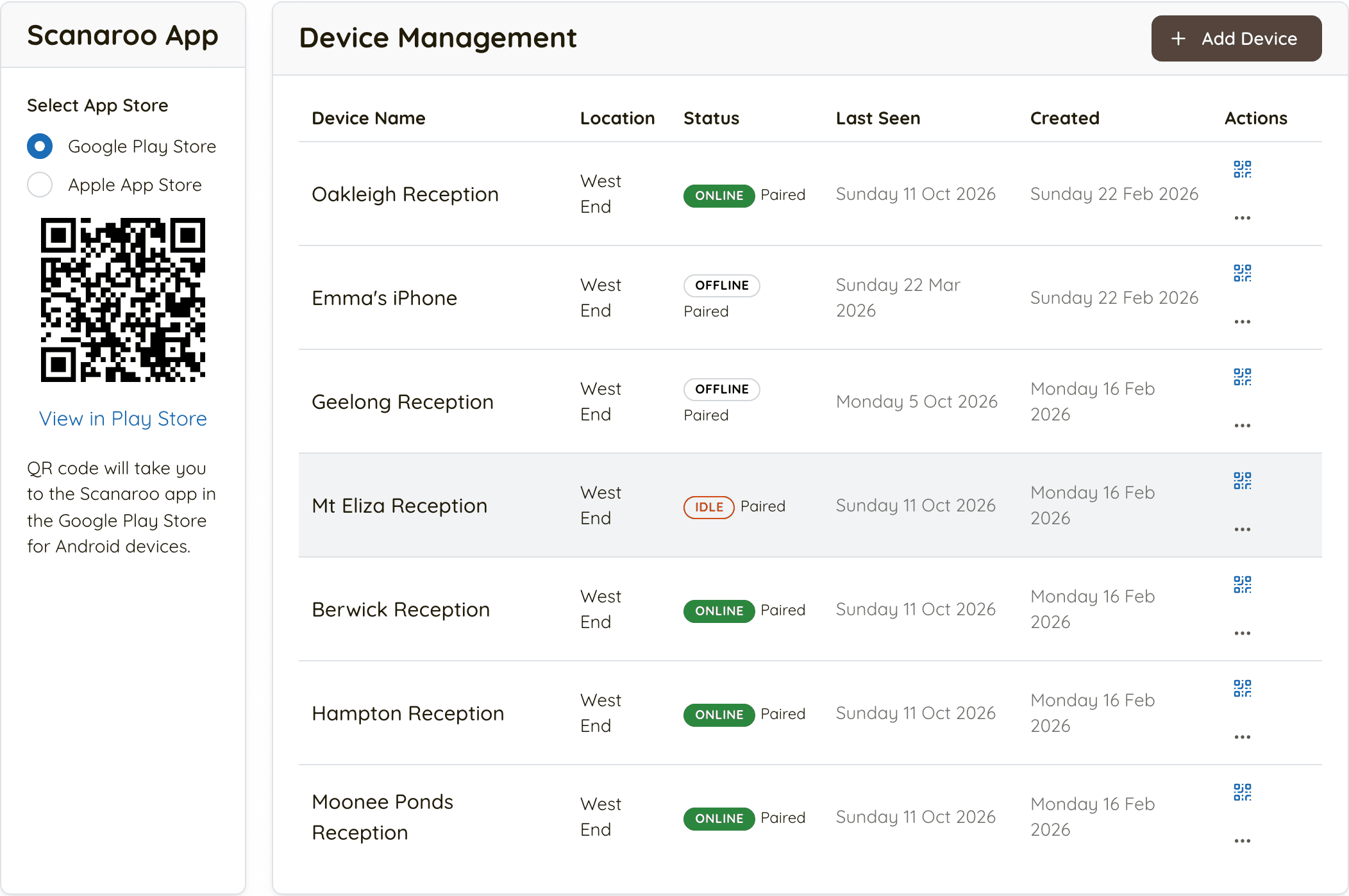
- Scroll to the Scanaroo App card, next to Device Management
- Pick
Google Play StoreorApple App Storeand scan the QR code with the device you want to use at the till - Install the app. You do not need to open it yet
Step 2: Add the device in Keeperoo
- In Device Management, click
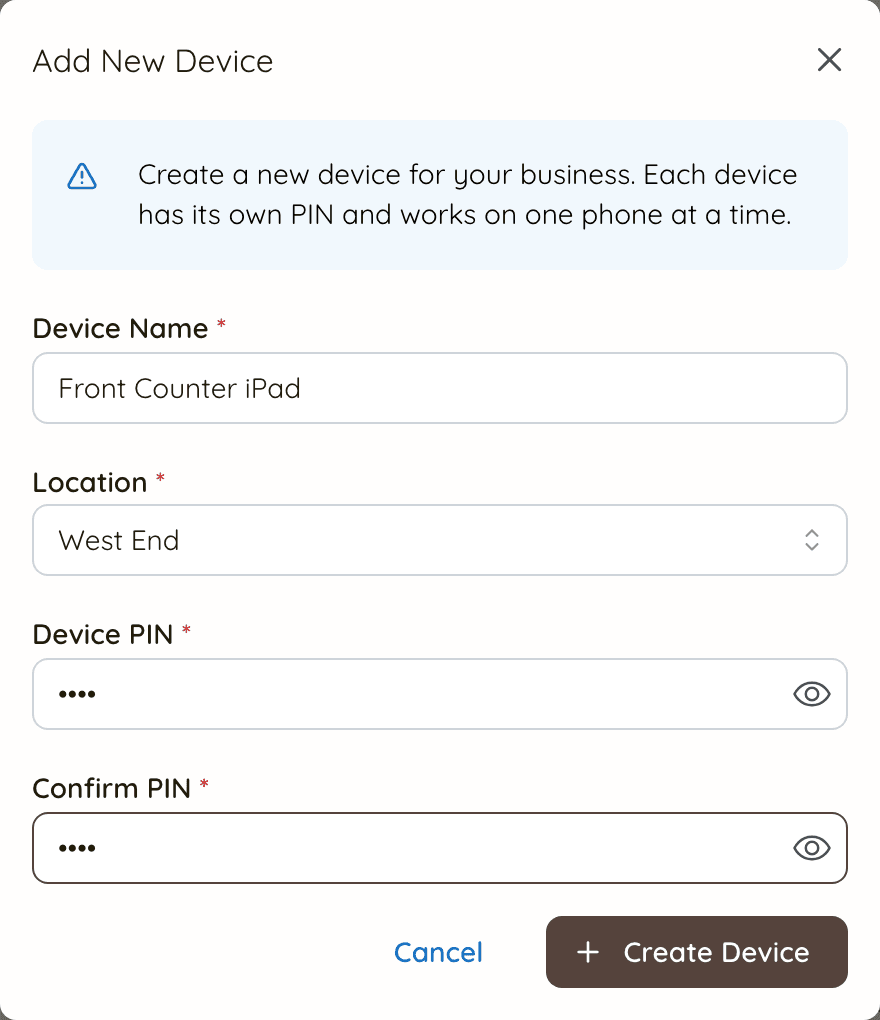
Add Device - Give it a name your staff will recognise, like "Front Counter iPad"
- If you have more than one location, choose where the device sits
- Choose a 4-digit PIN and confirm it. Staff type this PIN to unlock Scanaroo, so pick something the team can remember
- Click
Create Device. It appears in the table as Unpaired
Step 3: Make a pairing code
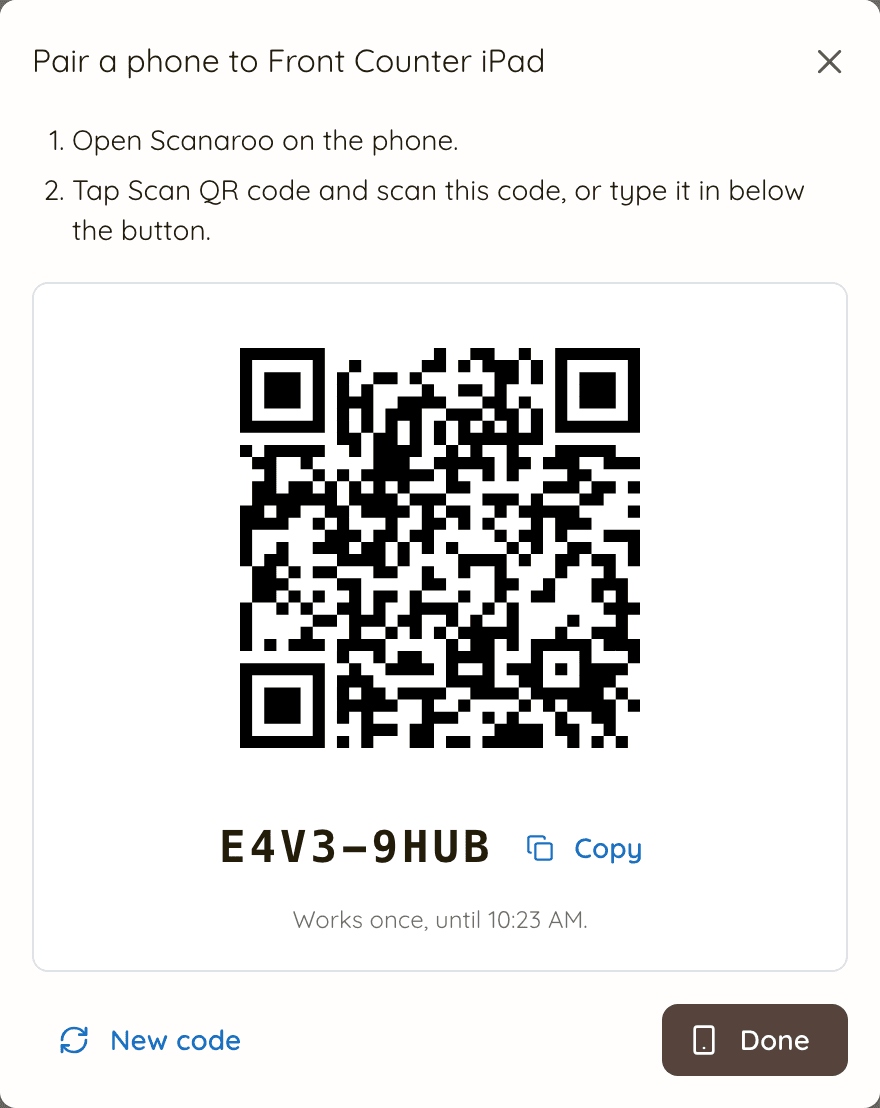
- In the device's row, click the QR code icon (Pair a phone) under Actions
- A QR code appears, with an 8-character pairing code under it
- The code works once, for 15 minutes. If it runs out, click
New code - Leave this window open on your computer screen
Step 4: Pair the phone
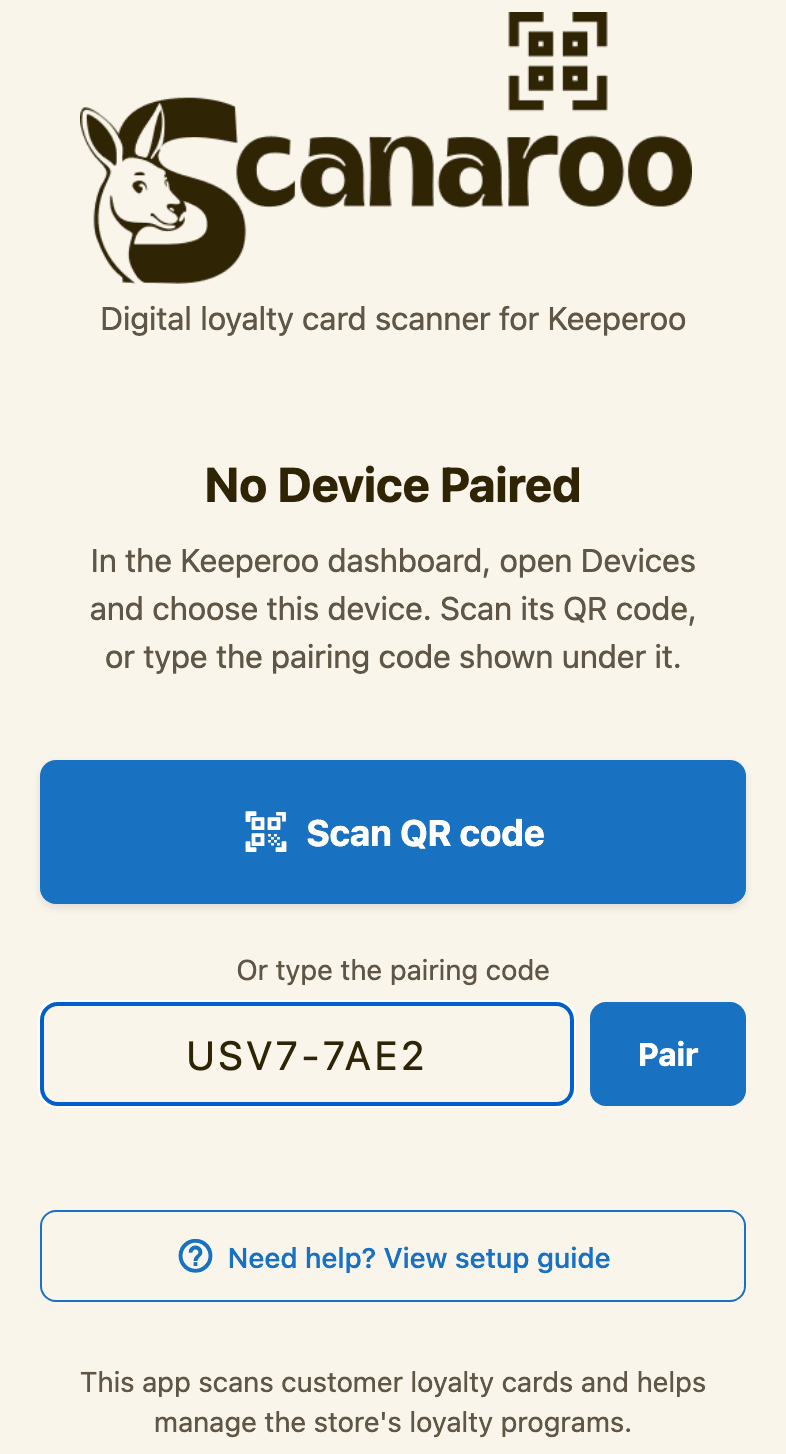
- Open Scanaroo on the phone or tablet. You'll see No Device Paired
- Tap
Scan QR code, allow camera access when asked, and point the camera at the QR code on your computer screen - Or type the 8-character code into Or type the pairing code and tap
Pair. This is the way to do it when the dashboard is open on the same phone - Scanaroo shows Device Paired Successfully! with your business name and the loyalty cards it can stamp
- Tap
Start scanning loyalty cards
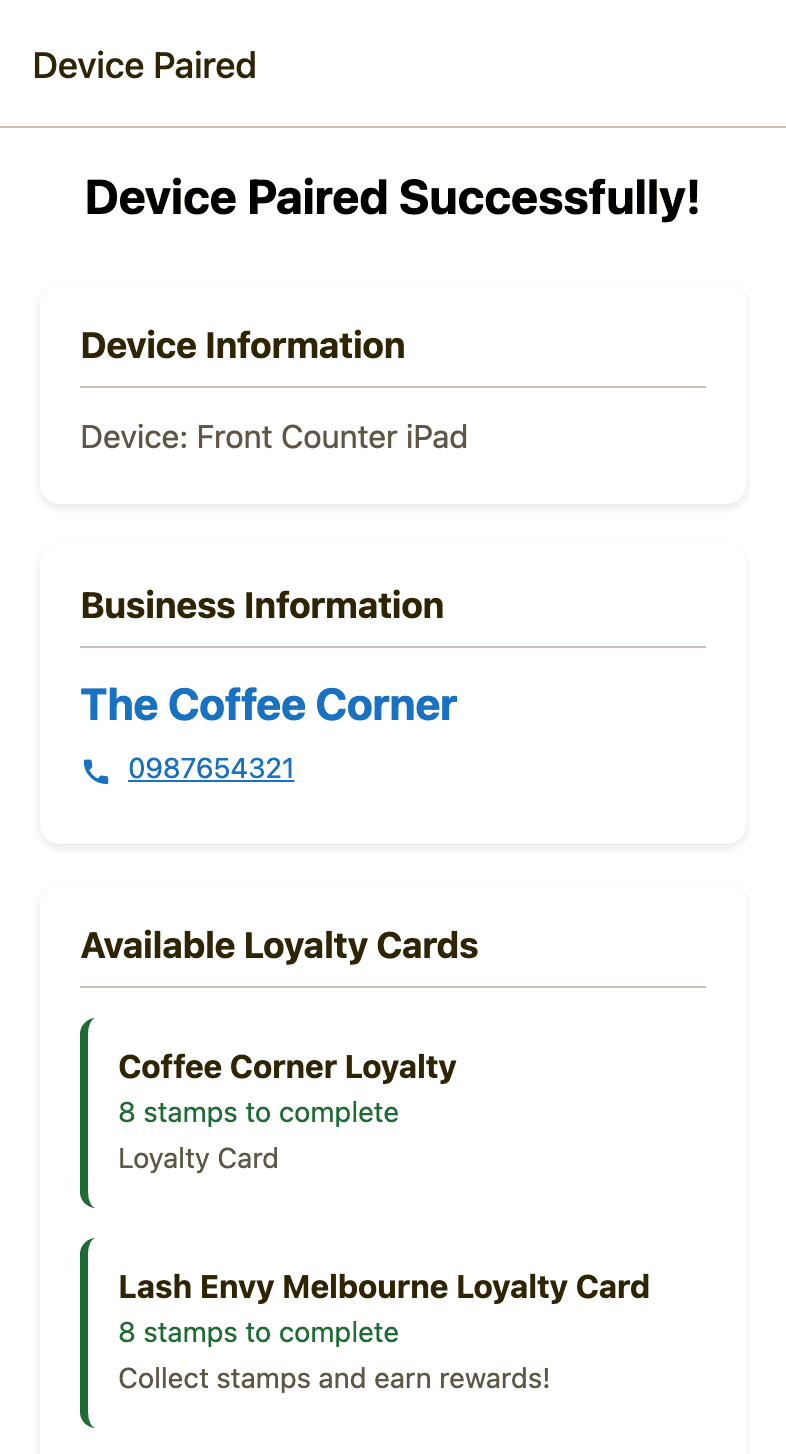
Step 5: Enter the PIN and you’re ready
- Type the 4-digit PIN from Step 2 and tap
Authenticate - The main screen shows your business name and Ready to scan
- Back on the dashboard, the device now shows as Paired and Online, with the phone's model under it
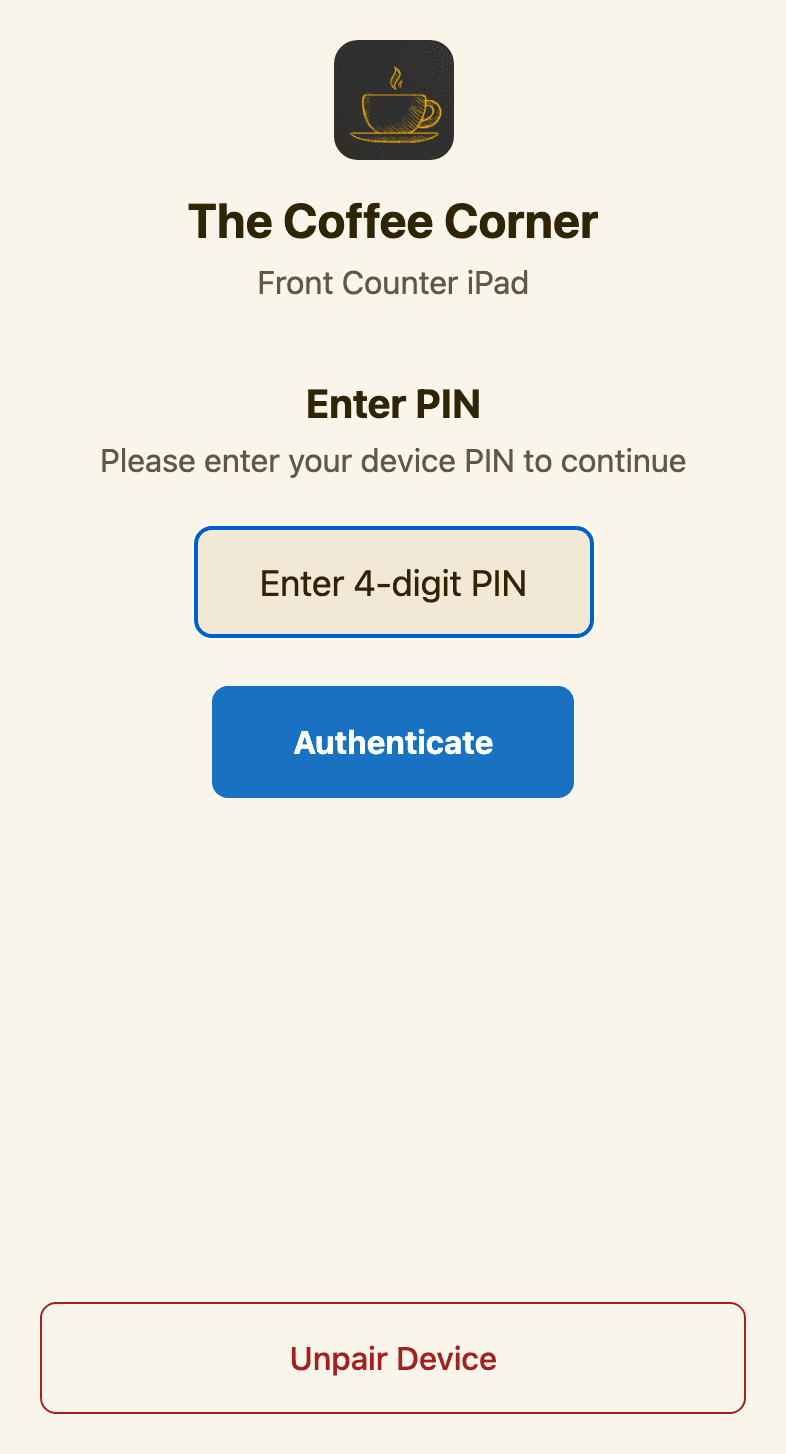
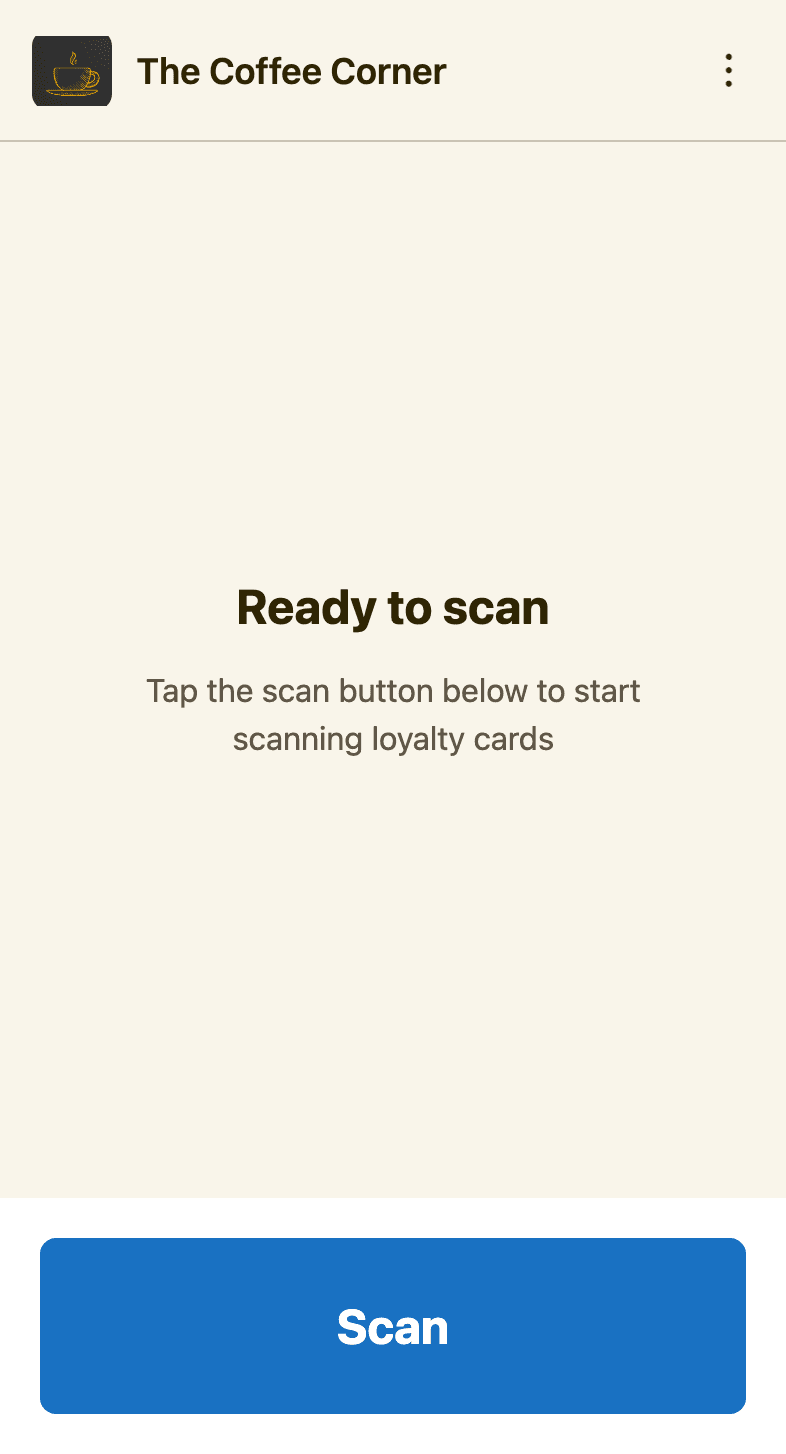
Scanaroo asks for the PIN again from time to time, and whenever the app is unpaired. Keep the PIN somewhere staff can find it, or reset it from the dashboard (below).
Managing devices
Pair a phone is the QR code icon on the device's row in Device Management. Everything else is in the ⋯ menu beside it.
- Pair a phone — to move the device to a new or replacement phone. Make a code and pair the new phone. If the device is still on another phone, Scanaroo asks first, then signs the other phone out.
- Reset PIN — if staff have forgotten it. The device stays paired; they just use the new PIN next time Scanaroo asks.
- Unpair — if the phone is lost or stolen. It signs the phone out and stops it logging in. The device, its PIN and its stamp history stay, ready to pair to another phone.
- Change location — shown when you have more than one location.
- Retire Device — when you stop using a till for good. It is signed out and removed from the list; the stamps it recorded stay under Activity by device on your dashboard.
- Status — Online means the device checked in within the last hour, Idlewithin the last day, Offline longer than that. Use it to spot a till that has stopped scanning.
Managers can pair and unpair the devices at their own locations. Adding, moving, retiring and resetting PINs is for owners.
Troubleshooting
The QR code won't scan?
- Type the 8-character code instead — it does the same thing
- Check Scanaroo has camera permission in the phone's settings
- Turn up the screen brightness on the computer and avoid glare
- Hold the phone still, 15–25 cm from the screen, with the whole code in view
The code didn't work?
- Each code works once, for 15 minutes, and making a new code cancels the last one. Click
New codeand use that - Capitals, spaces and the dash don't matter, and codes never use 0, O, 1 or I
“Already set up on another phone”?
The device is paired to a different phone. Tap Use this phone to move it here; the other phone is signed out. If you want both phones scanning, tap Cancel and add a second device instead.
“Phone no longer paired”?
The device was moved to another phone, or unpaired from the dashboard. Tap Unpair, then pair this phone again with a new code — to a new device if the other phone is still using that one.
PIN not accepted?
- It is exactly 4 digits, and it belongs to this device — each device has its own
- Ask an owner to reset it from the dashboard, then try again
Paired the wrong device, or want to start over?
In Scanaroo, tap the ⋮ menu (top right) and choose Unpair Device. The app returns to No Device Paired. Make a code for the right device and pair again.
What's next?
Your device is connected. Now put it to work: