Back to Academy
Essential Guide
How to publish your first digital loyalty card
From a blank card to one your customers can add to Apple or Google Wallet — about 30 minutes, no design skills needed.
Decide three things first
The editor is quick once you know what you want. Settle these before you open it:
- How many stamps? Up to 10. Fewer stamps means customers reach a reward sooner and stay interested.
- What is the reward? Something you would happily give a regular anyway — a free coffee, 10% off, a free add-on.
- What earns a stamp? One per visit, one per coffee, one per $20 — whatever your staff can apply consistently at the till.
Have your square logo and a wide logo or photo ready as PNG or JPG files. If you uploaded them in Settings already, the editor picks them up automatically.
Create and publish the card
Step 1: Start a new card
- Log in to your Keeperoo dashboard and open Loyalty in the menu
- Click the
Create Loyalty Cardtile (orAdd Loyalty Cardat the top right) - The card editor opens in edit mode with a live preview on the right
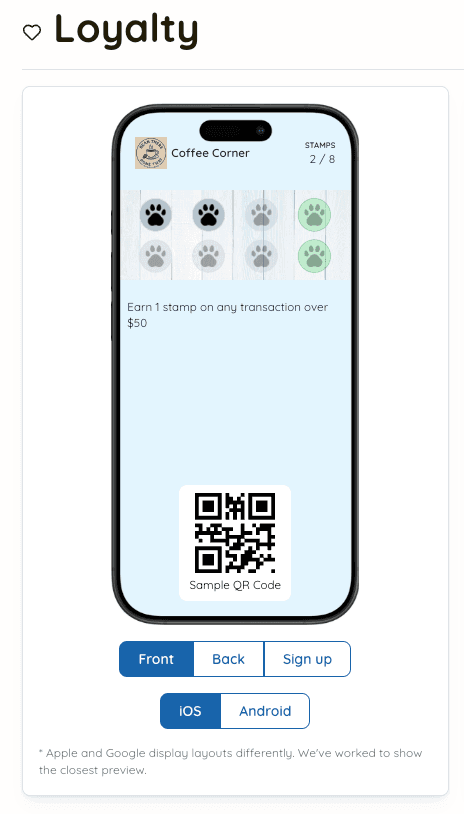
Step 2: Details — name, stamps and rewards
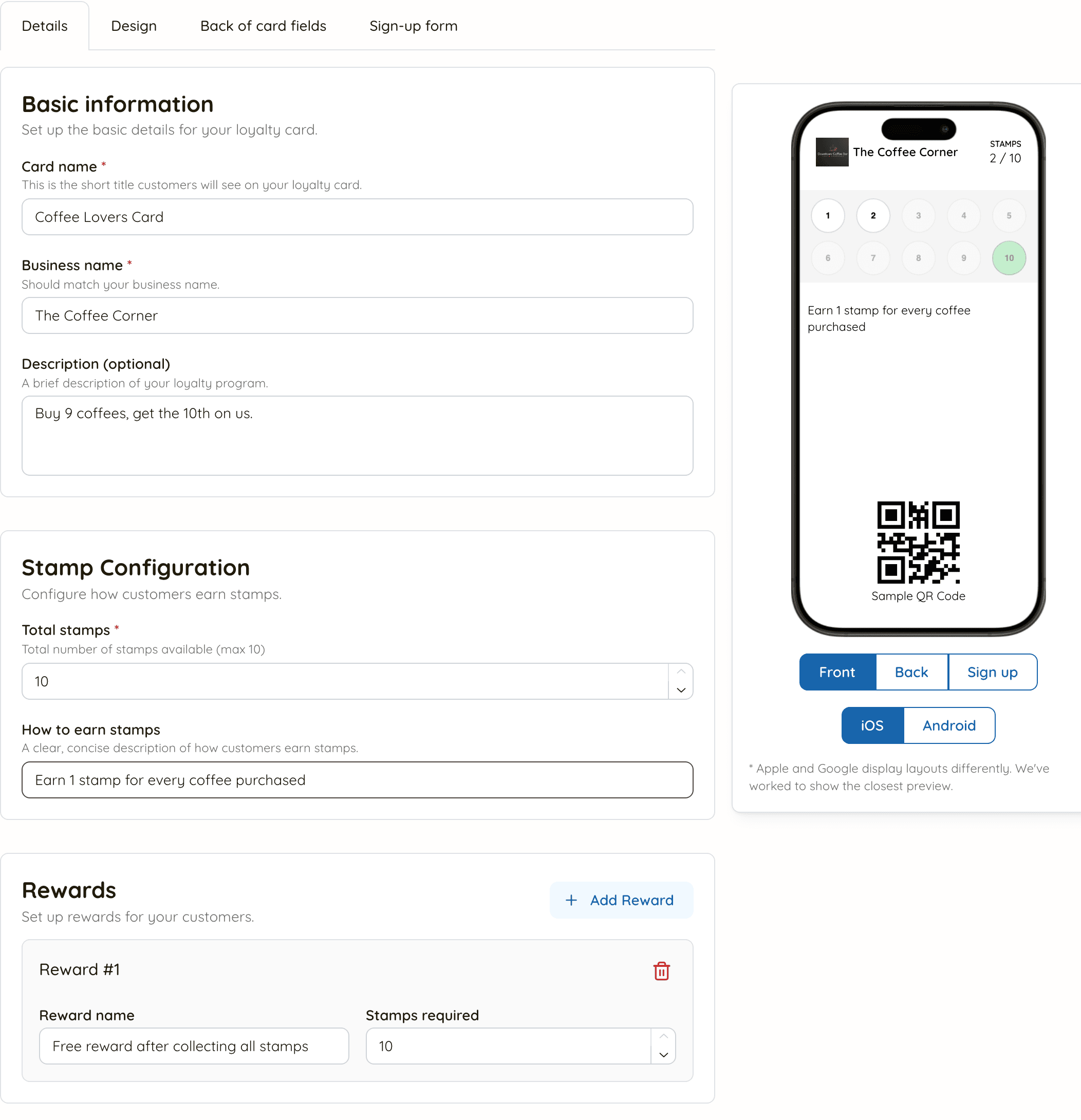
- Card name: the short title customers see in their wallet, e.g. "Coffee Lovers Card"
- Business name is pre-filled from your settings
- Total stamps: how many stamps fill the card (up to 10)
- How to earn stamps: one plain sentence that is printed on the card, e.g. "Earn 1 stamp for every coffee purchased"
- Rewards: name the reward and how many stamps it takes. Click
Add Rewardfor a mid-card reward, e.g. a free upsize at 4 stamps and a free coffee at 8
Keep it simple
"Buy 9, get the 10th free" is understood instantly and works for most cafés, salons and shops. You can always add a second card later.
Step 3: Design — images and colours
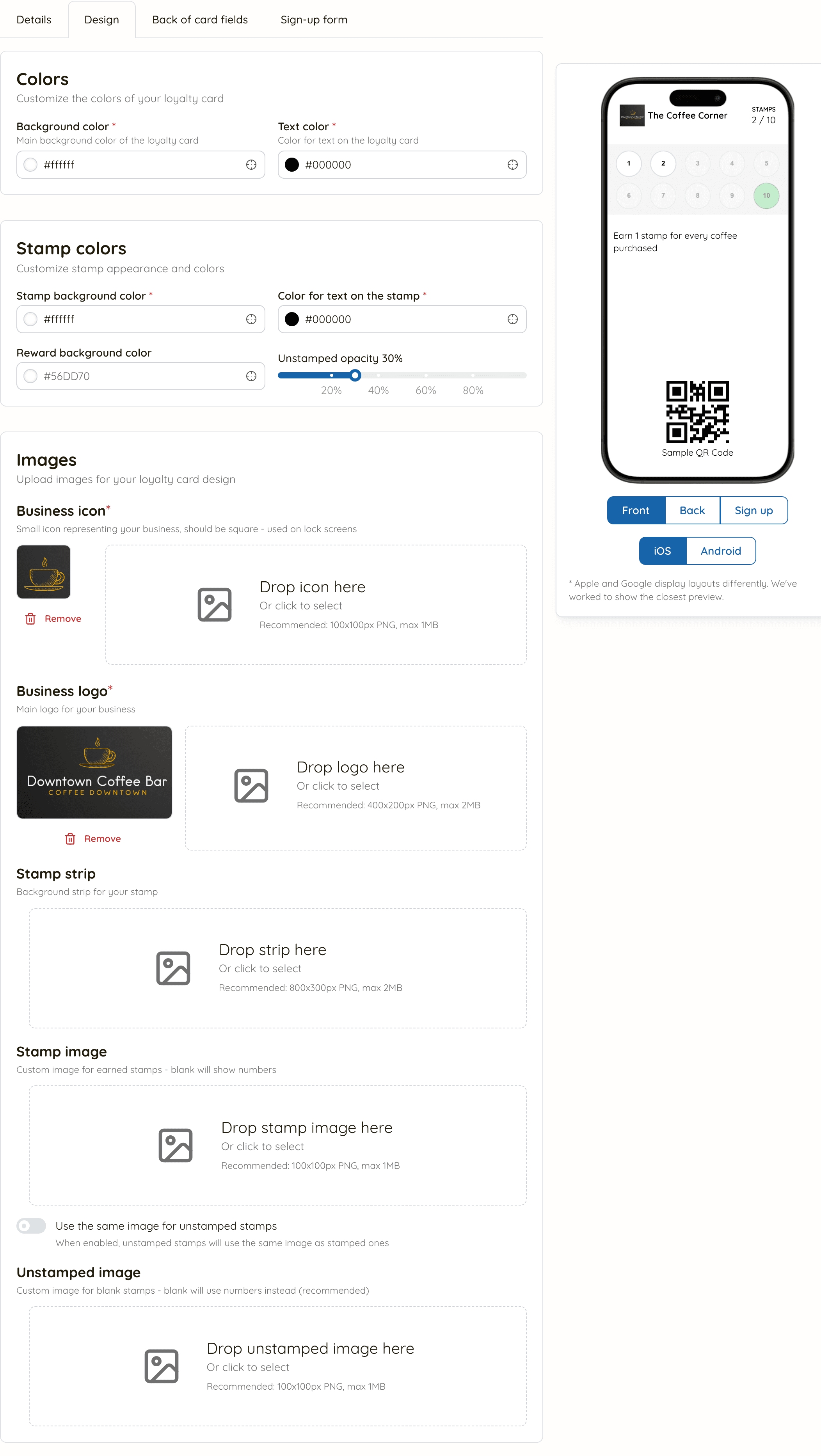
- Business icon (square) and Business logo are required before you can publish. They are pre-filled from your business settings if you have uploaded them there
- Stamp strip: an optional background photo behind the stamps — a shot of your product or shopfront works well
- Stamp image: an optional icon for earned stamps (a coffee cup, a paw print). Leave it blank and the stamps show numbers
- Pick a background, text and stamp background colour. Check the preview for contrast on both iOS and Android
Step 4: Back of card fields
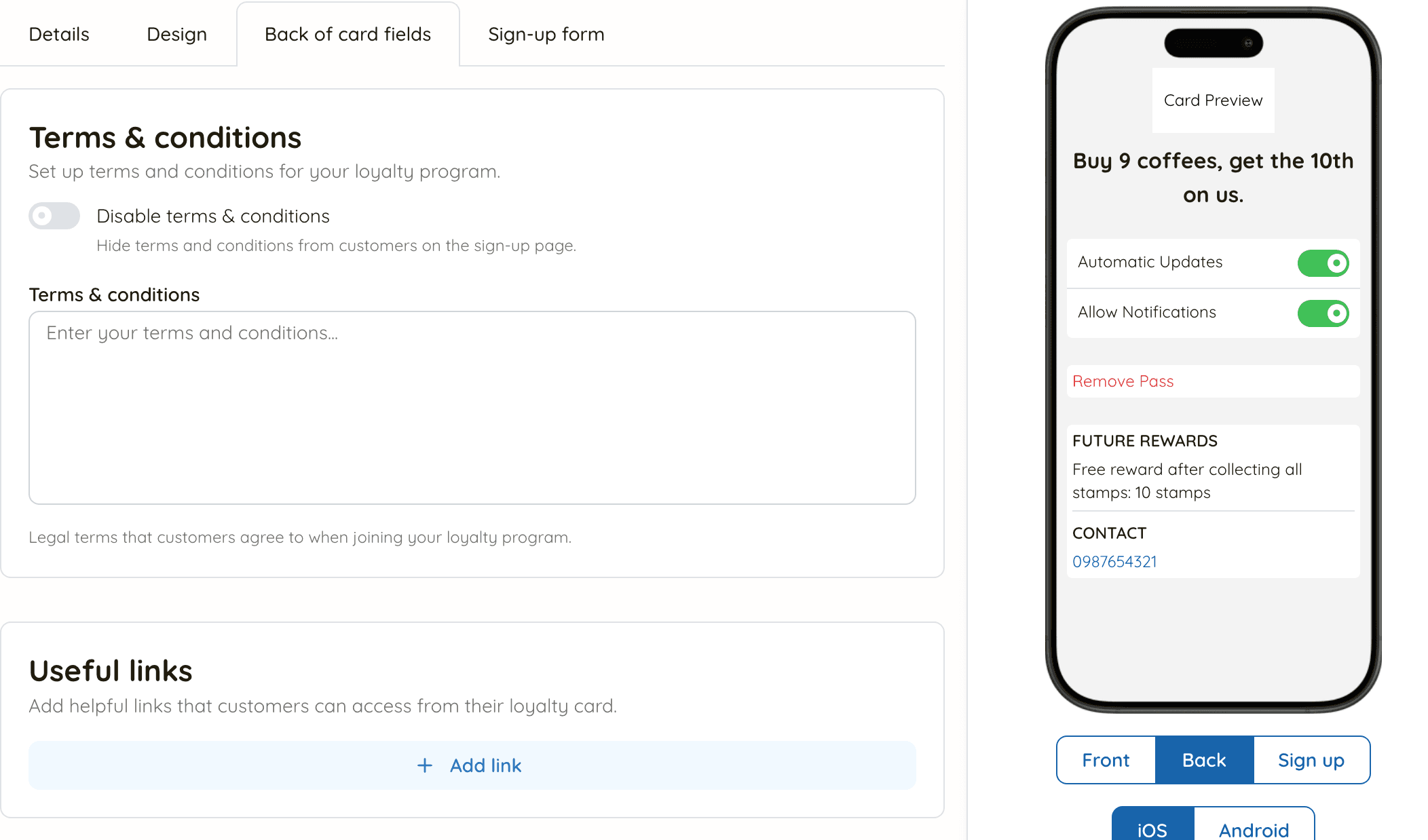
- Add your terms & conditions (or tick Disable terms & conditions to hide them)
- Add useful links that appear on the back of the pass: your website, booking page, Instagram, phone number
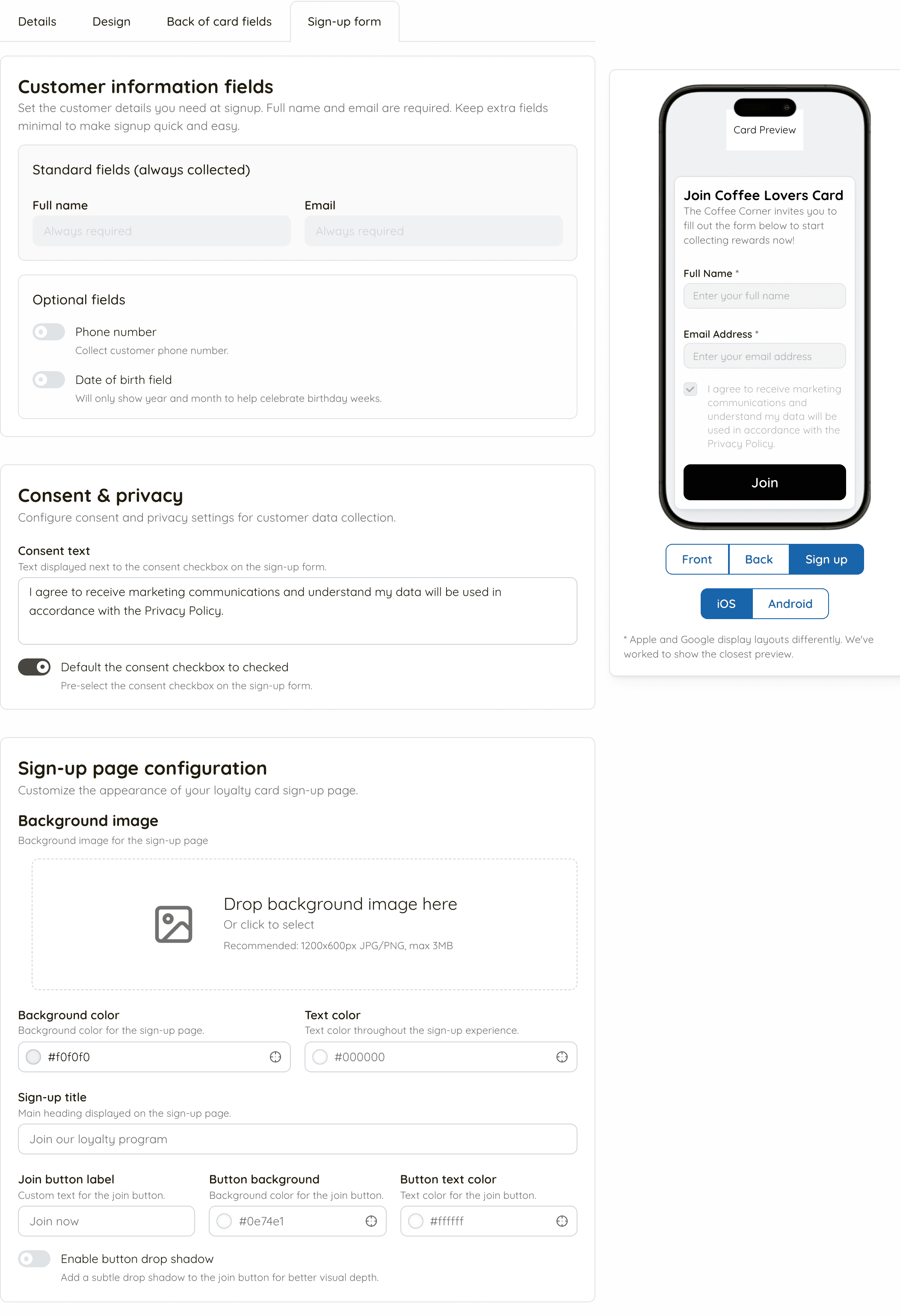
Step 5: Sign-up form
- Choose what to ask for when a customer joins. Full name and email are always collected
- Turn on phone number or date of birth only if you will use them. Date of birth is month and year only, so you can send birthday-week offers
- Edit the consent text shown beside the marketing checkbox
Step 6: Save, then publish
- Click
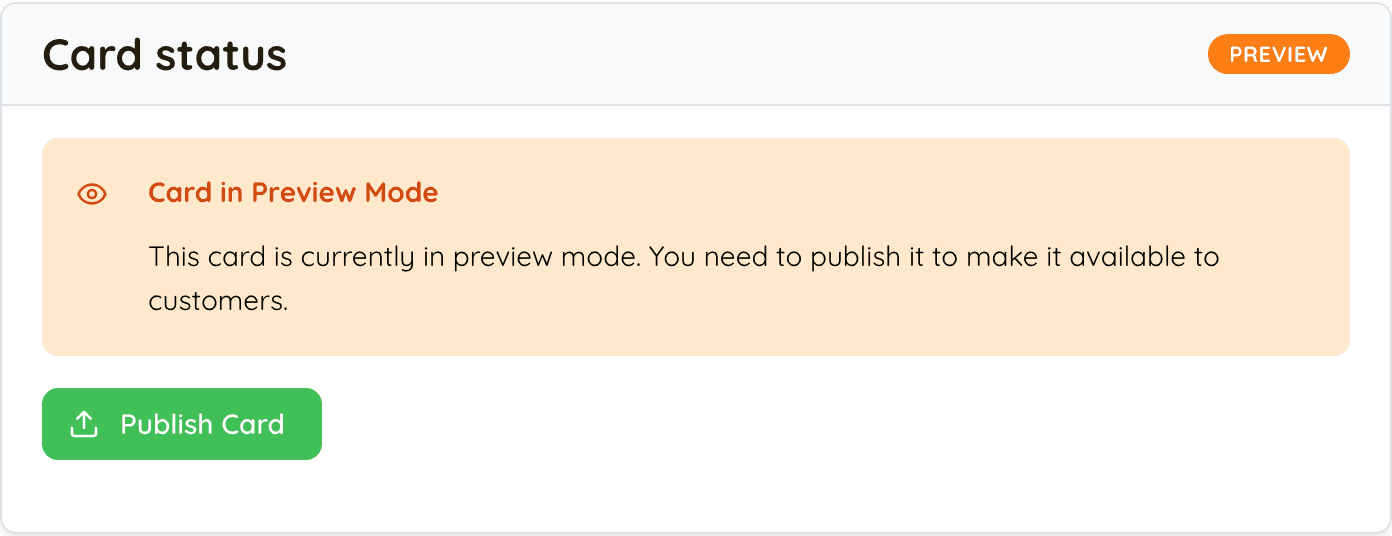
Saveat the top of the page. The card is saved in Preview — nobody can sign up to it yet - Check the preview one last time: spelling, colours, the reward
- Click
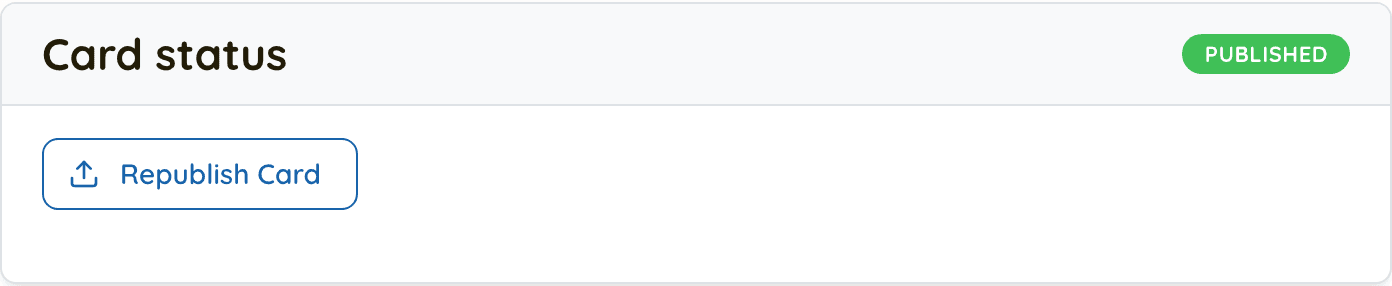
Publish Card. Keeperoo generates the wallet artwork and registers the card with Google Wallet; this takes a few seconds - The status badge turns to PUBLISHED. Your card is live
After publishing
Once the card is published, its page on the Loyalty tab gains a Customer Signup section with your card's link and a printable QR code.
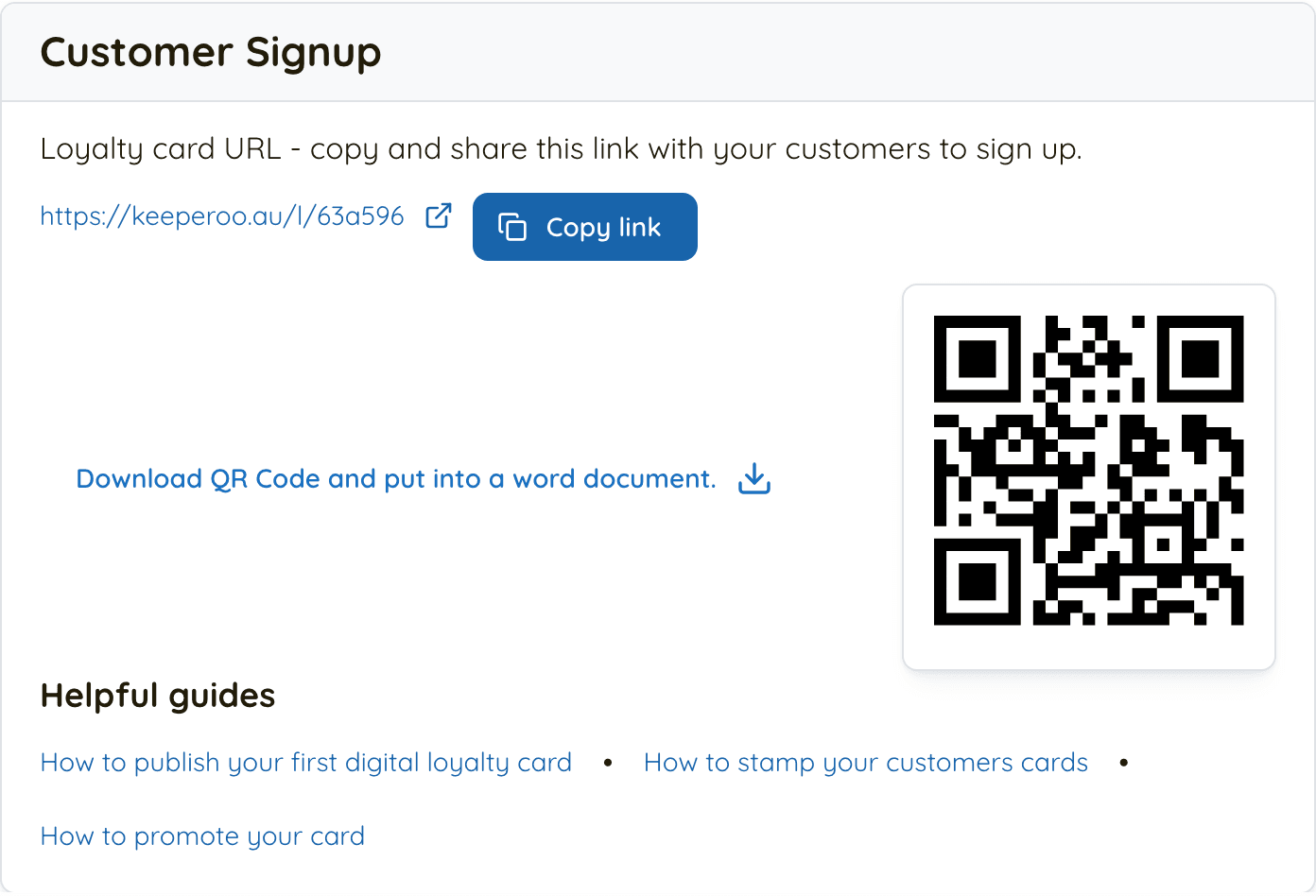
- Scan the QR code yourself and add the card to your own wallet — you'll see exactly what customers see
- Pair a phone or tablet with Scanaroo so staff can stamp cards
- Put the QR code where customers pay, and tell them about it
Do and don't
Do
- Start with one card and one clear reward
- Use your real brand colours and a photo customers will recognise
- Write "how to earn stamps" the way you would say it across the counter
- Republish after changing images or colours so existing passes update
Avoid
- Rewards that need 10 stamps and only apply on Tuesdays
- Low-contrast colours — check the preview on both iOS and Android
- Asking for phone number and date of birth when you won't use them
- Changing the reward after customers have started collecting