Daily Use
How to stamp your customers’ cards
Scan, tap, done. The whole exchange at the till takes about five seconds once staff have done it twice.
Quick overview
Customer shows their card → you scan it in Scanaroo → tap Add 1 stamp → confirm. When the card fills up, a reward appears and you redeem it the same way.
Scanaroo is the app on the phone or tablet you paired with Keeperoo. It only does one job — stamp and redeem — so there is very little for staff to learn.
At the till
Step 1: Ask for the card
- As you ring up the sale: "Have you got our loyalty card?"
- The customer opens the card in Apple Wallet or Google Wallet and shows you the QR code
- New customer? Point them at the signup QR code on the counter — it takes under a minute and they get stamped on this visit
Step 2: Scan it
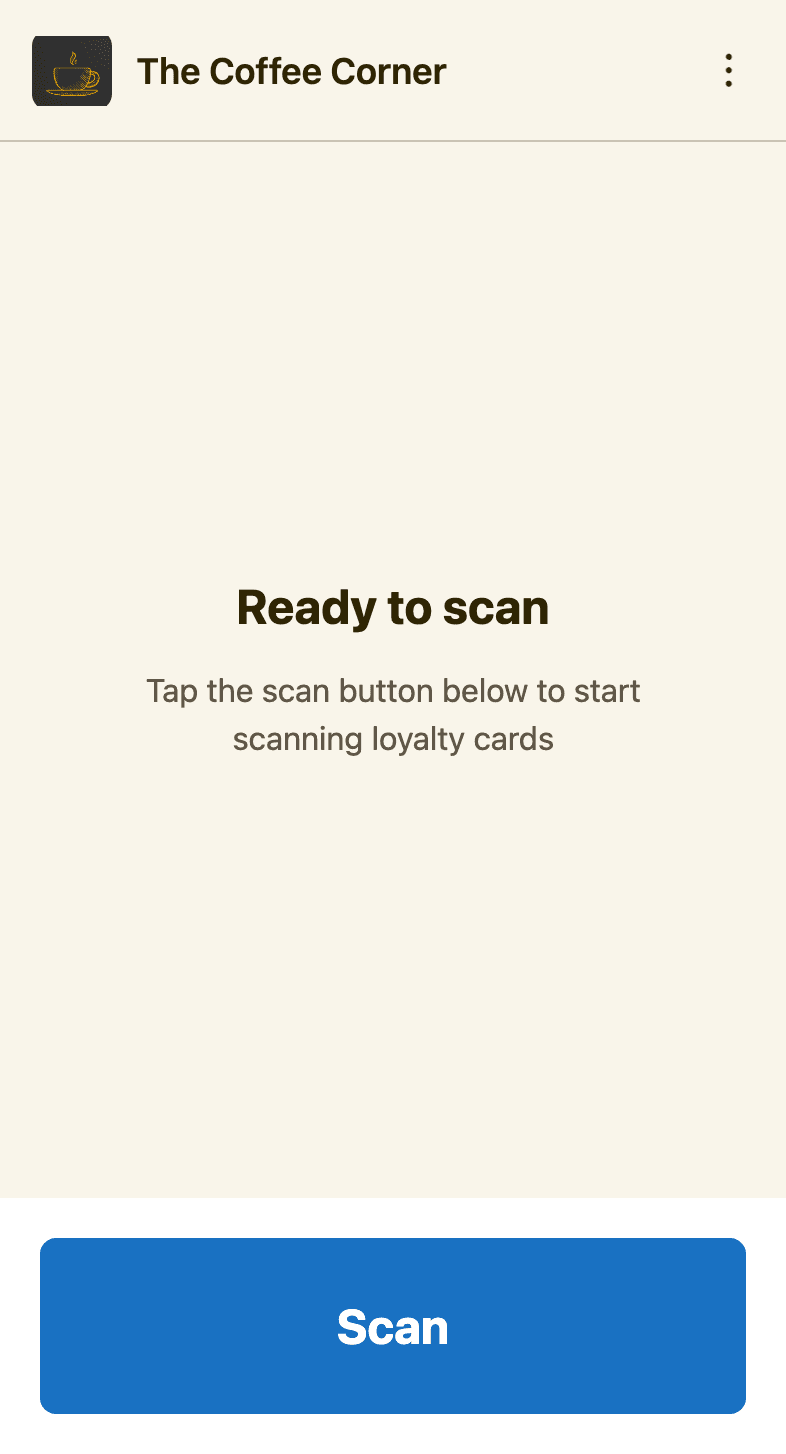
- Open Scanaroo. If it asks for the PIN, enter it and tap
Authenticate - Tap
Scanand point the camera at the customer's phone - Scanaroo reads the code and opens the customer's card straight away
Scanning tips
- Ask the customer to turn their brightness up — a dim screen is the usual cause of a slow scan
- Hold the device 15–25 cm from the phone and keep it still
- The QR code is the same whether the card is in Apple Wallet or Google Wallet
Step 3: Check the card
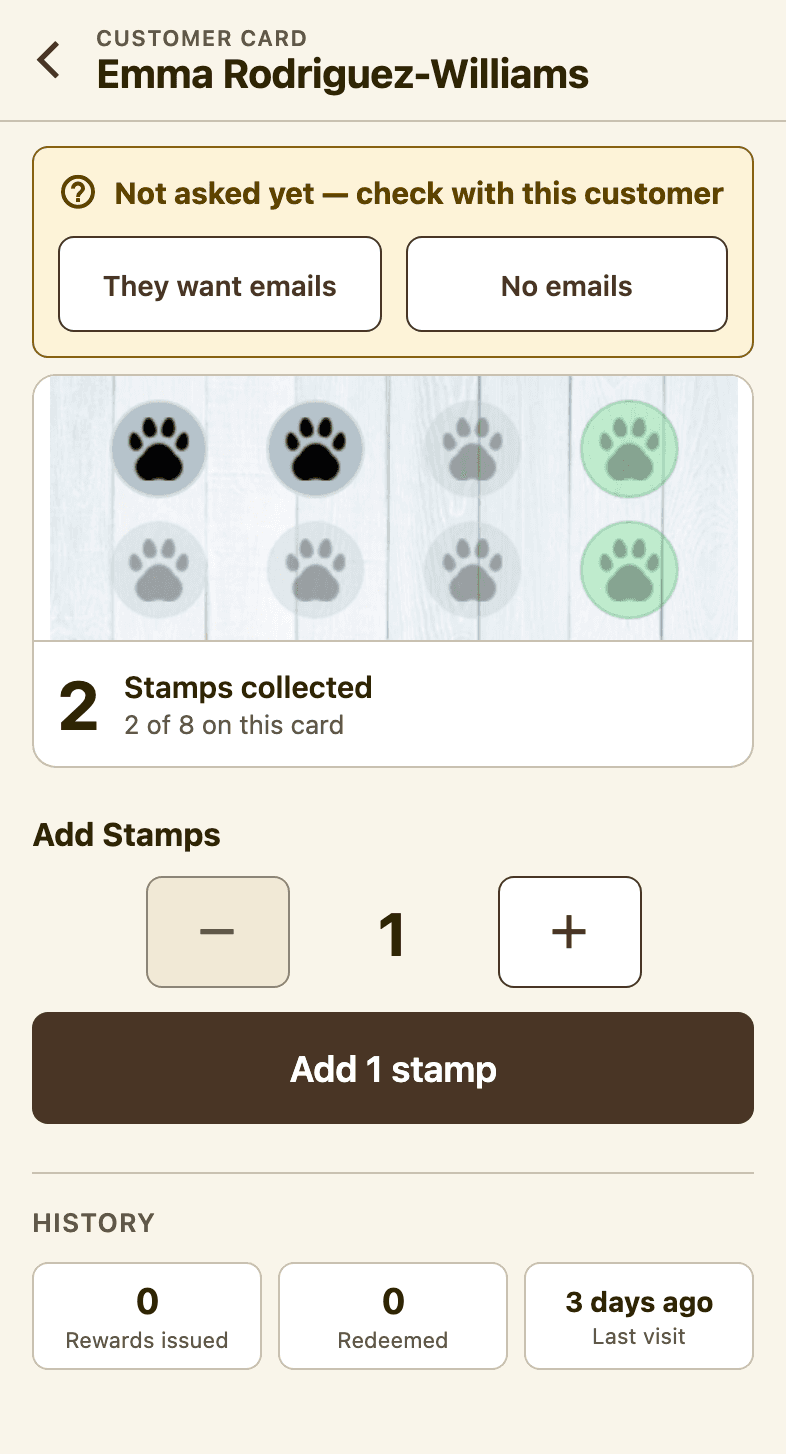
- The customer's name is at the top — a quick glance confirms you scanned the right person
- The strip shows their stamps, and Stamps collected shows how far along this card they are
- If you see Not asked yet — check with this customer, ask whether they would like emails from you and tap
They want emailsorNo emails. You only need to do this once
Step 4: Add the stamps
- The counter starts at 1, which is what most sales need. Use
+and−if this sale earns more - Tap
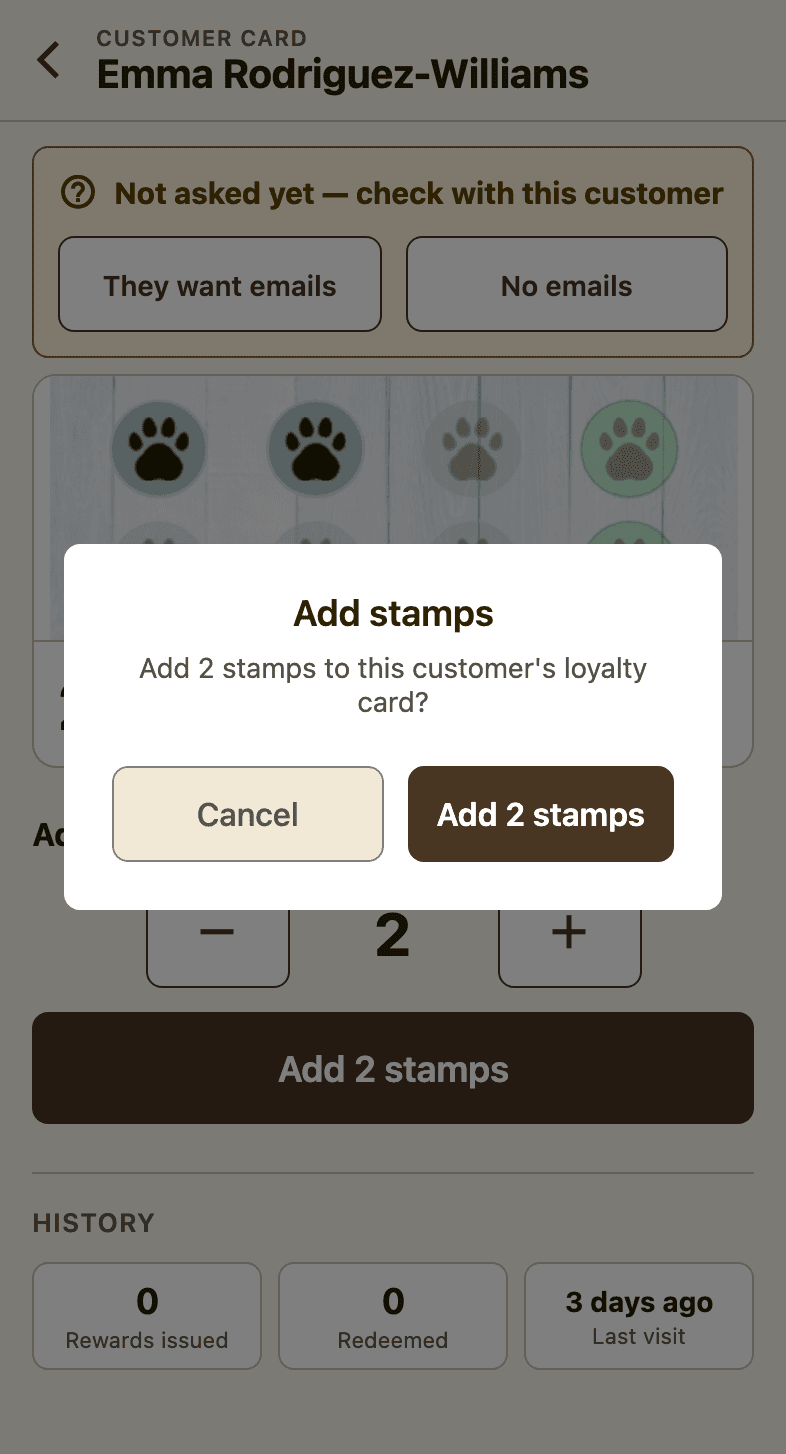
Add 1 stamp(or Add 2 stamps, and so on) - Confirm. The card on the customer's phone updates within a few seconds
- When the stamps fill the card, Scanaroo tells you a reward has been earned and the stamps reset for the next card
Step 5: Redeem a reward
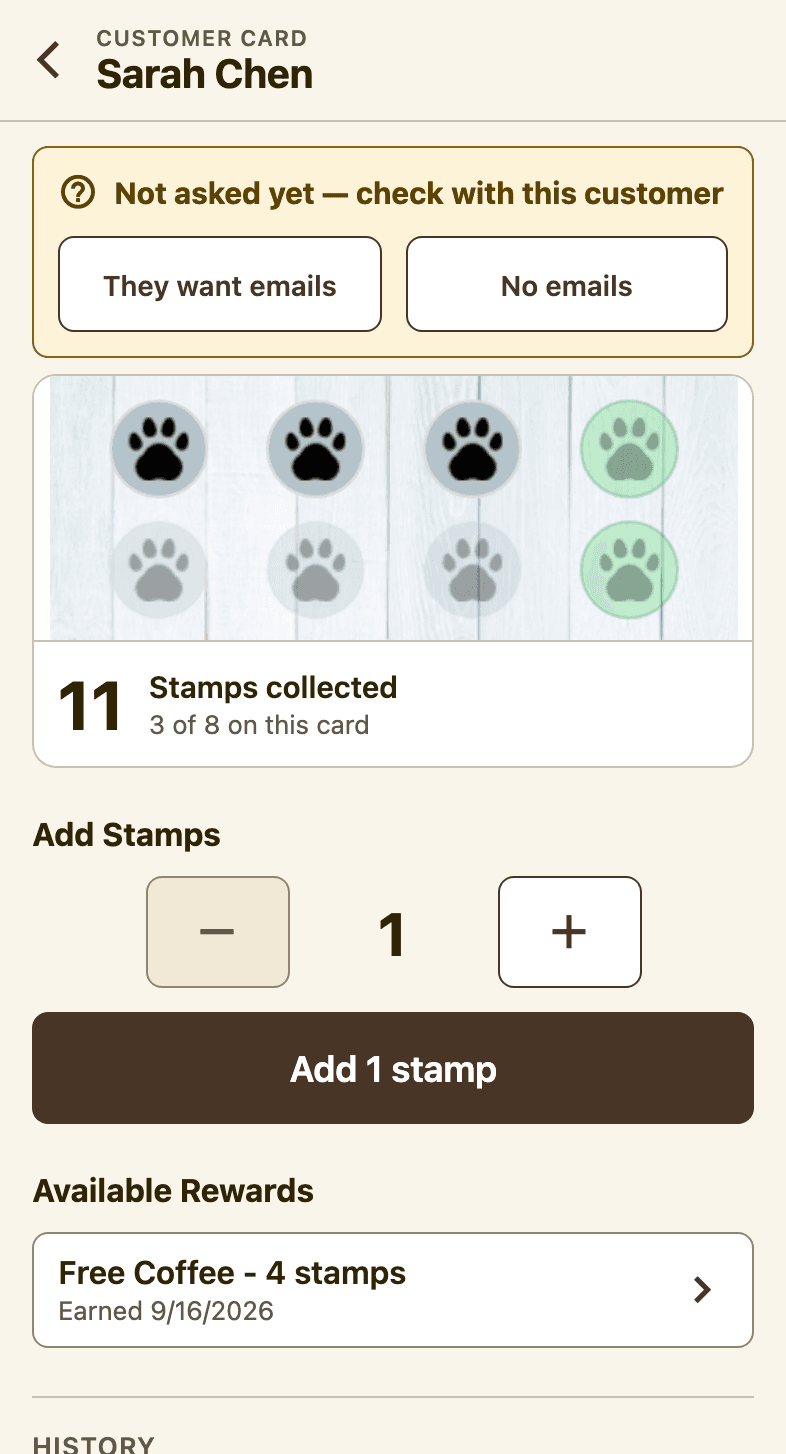
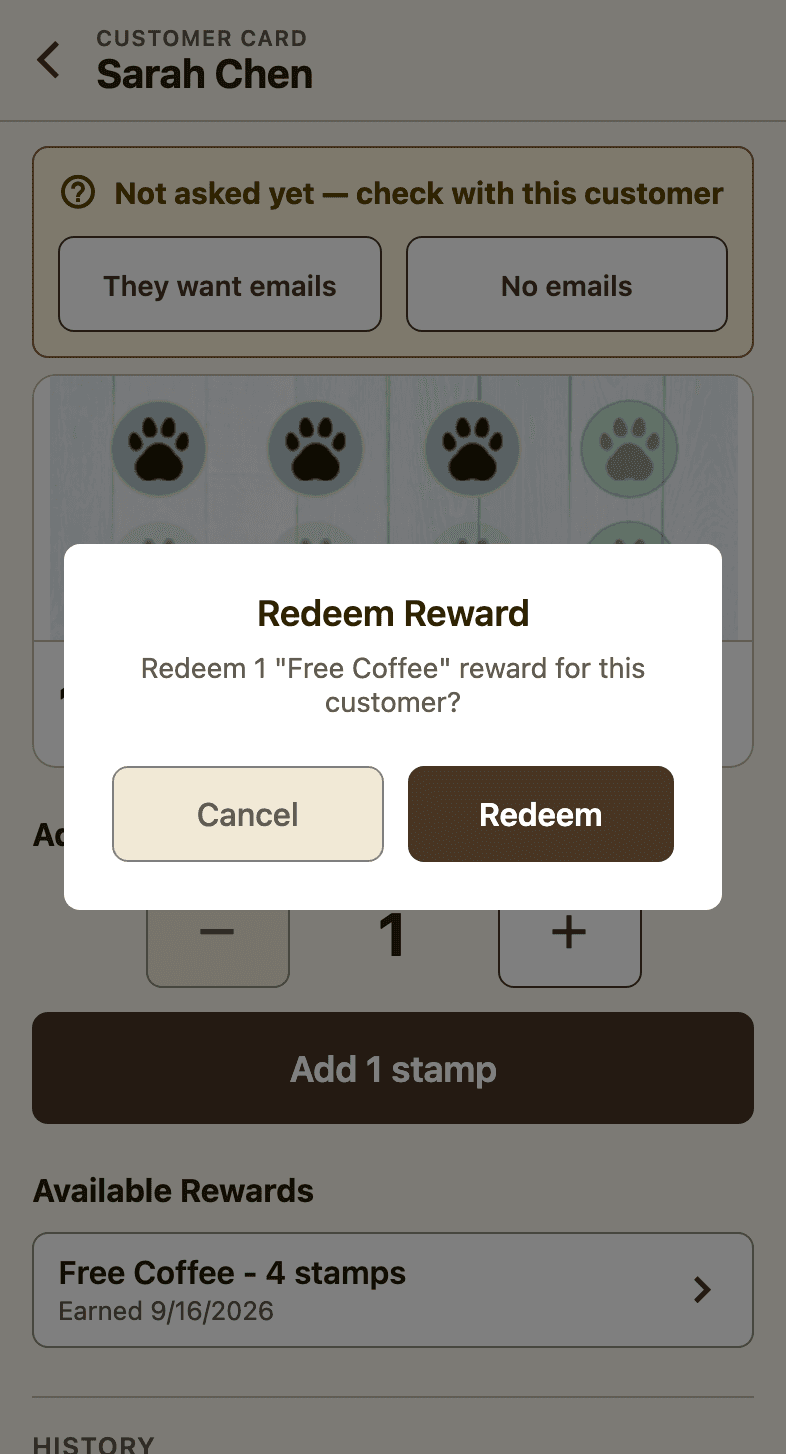
- Earned rewards appear under Available Rewards on the customer's card, below the stamp controls
- Ask whether they want to use it now or save it — rewards stay on the card until redeemed
- To redeem, tap the reward, then
Redeemon the confirmation - Hand over the free coffee, apply the discount — whatever the reward is. Scanaroo records who redeemed what and when
When things don't go to plan
Customer forgot their phone, or it's flat?
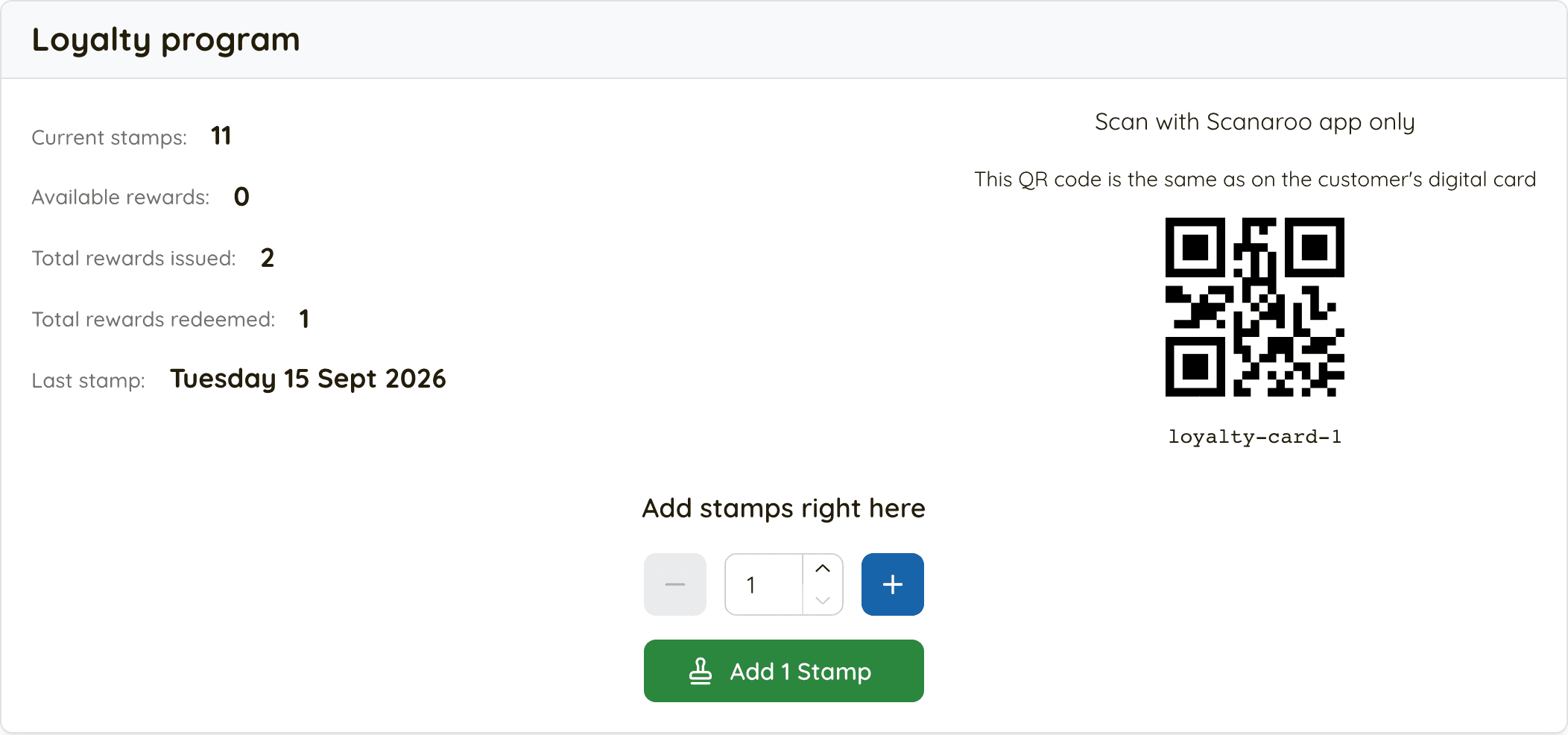
Scanaroo can only stamp a card it can scan. The business owner can add the stamp instead: in the dashboard, open Customers, find the customer by name or email, and use Add stamps right hereon their page. It lands on their wallet card just the same.
Customer bought three coffees?
Follow your own rule from the card's "how to earn stamps" line. If it's one stamp per coffee, tap + twice and add 3 stamps in one go — you don't need to scan three times.
Added a stamp by mistake?
- Straight away, on the till: after you add stamps, Scanaroo shows 1 stamp added with an
Undobutton and a countdown. Tap it within 30 seconds to take the stamps back. It also appears if you scan the same card again within those 30 seconds. - Later, from the dashboard: open Customers, find the customer, and use
Undoon the newest stamp in their Stamp history. This works for up to 48 hours, whichever till added it. - Only the card's most recent stamp can be undone. For an older one, undo the newer stamps first, one at a time. The stamp stays in the history, crossed out.
- If those stamps earned a reward, undoing them takes the reward back too. Once the reward has been redeemed the stamps can't be undone; skip a stamp on the customer's next visit instead.
Scanaroo says the card wasn't found?
- Check you are scanning the loyalty card's QR code, not a payment or ticket pass
- The card must belong to your business — a Keeperoo card from another shop won't scan
- Check the device has internet; Scanaroo needs a connection for every scan
Getting staff on board
- Make it part of the sale. "Got our card?" is the whole script. Staff who ask every time sign up far more customers than any poster.
- Say the number out loud. "That's six — two more and the next one's free." It costs nothing and customers love it.
- Practise on your own card. Add yourself as a customer, then let each staff member scan and stamp it during a quiet ten minutes.
- Keep the PIN handy. Scanaroo asks for it now and then; a sticky note under the till saves a phone call to the owner.