Marketing
How to create an email template, and copy one to make another
Build an email in Keeperoo once, with your logo, layout and the customer fields that make it personal, then copy it every time you have something new to say.
What a template is
A template is an email you design once and send to your customers. Keeperoo fills in each customer's own details (their first name, how many stamps they have, what their next reward is) as it sends, so one template reads like a personal note to every customer.
Most businesses end up with a handful: a newsletter, a sale, a "we've missed you". The quickest way to make the next one is to copy the last one and change the words, which is the second half of this guide.
Before you start
- Marketing email is switched on per business. If you don't see Marketing in your dashboard, ask Keeperoo.
- Only the business owner sees Marketing. Managers don't.
- Designing needs a computer, or a tablet turned sideways. On a phone you can preview a template and send yourself a test, but not edit it.
Part 1: Create a template
Step 1: Open Marketing → Templates
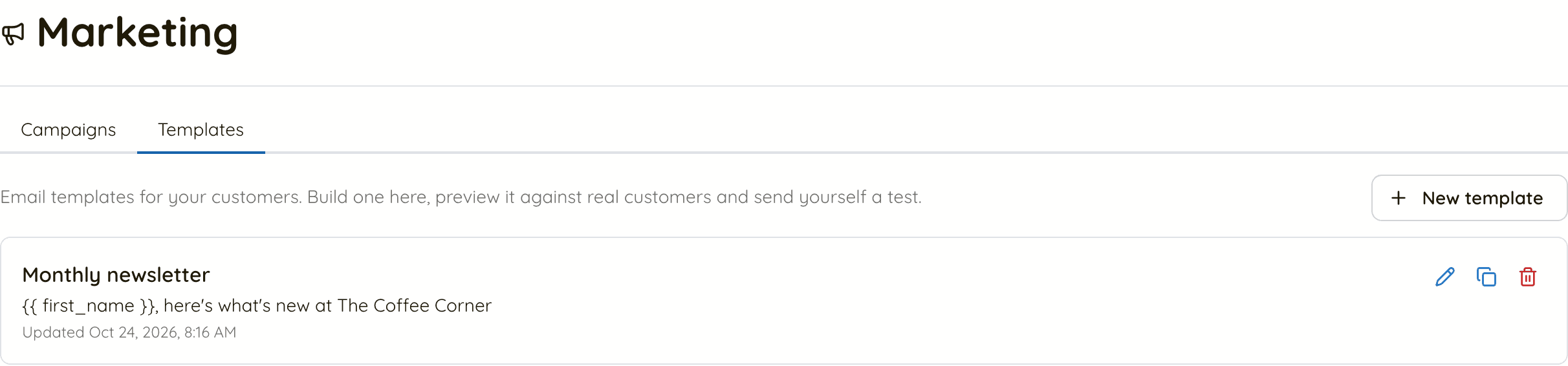
- In the dashboard, open Marketing and choose the Templates tab.
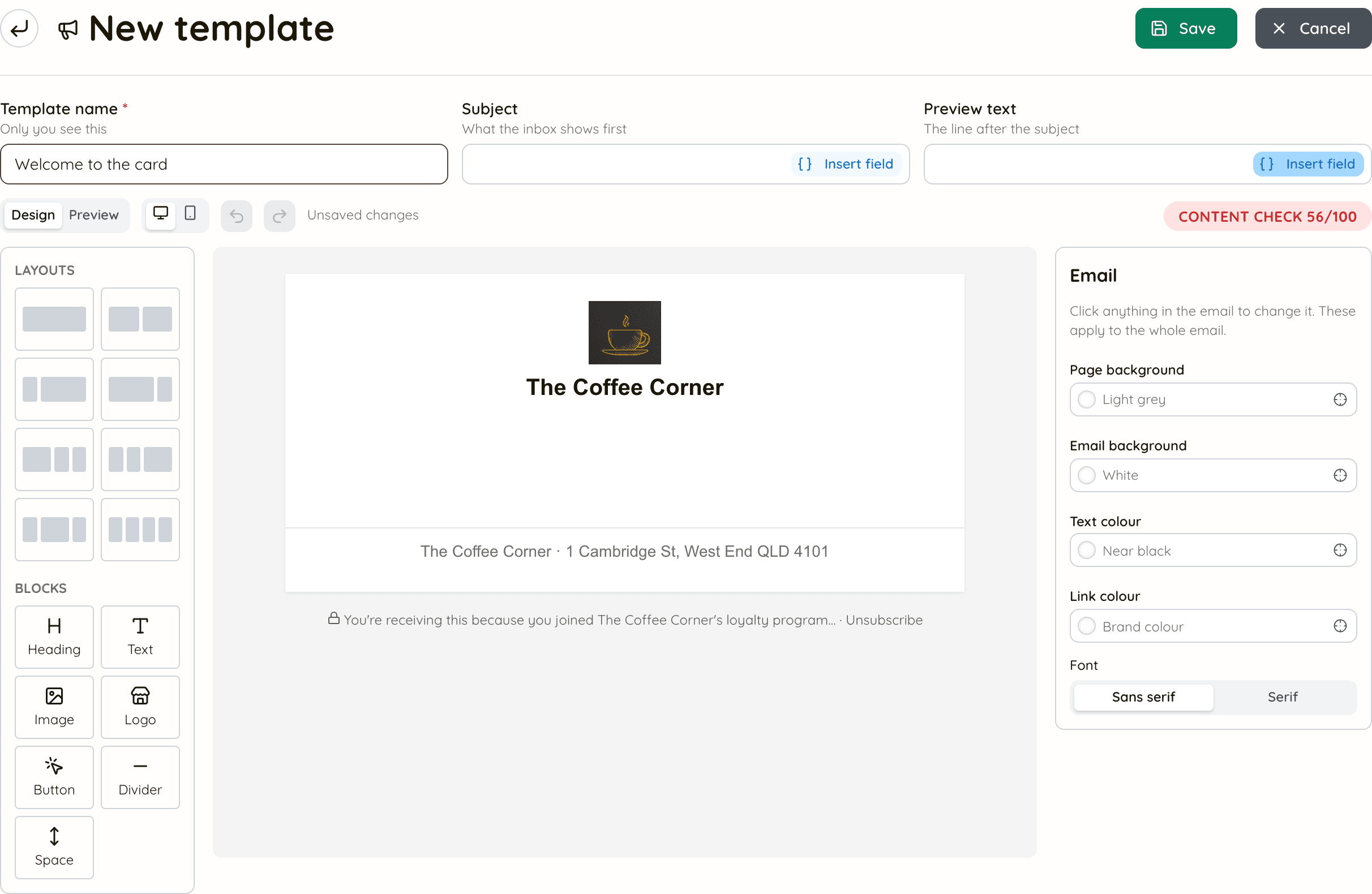
- Click New template. The editor opens with your logo and business name at the top, one empty text block, and your address and the unsubscribe line at the bottom.
Step 2: Name it, then write the subject and preview text
- Template name is only for you, so you can find it again. Customers never see it.
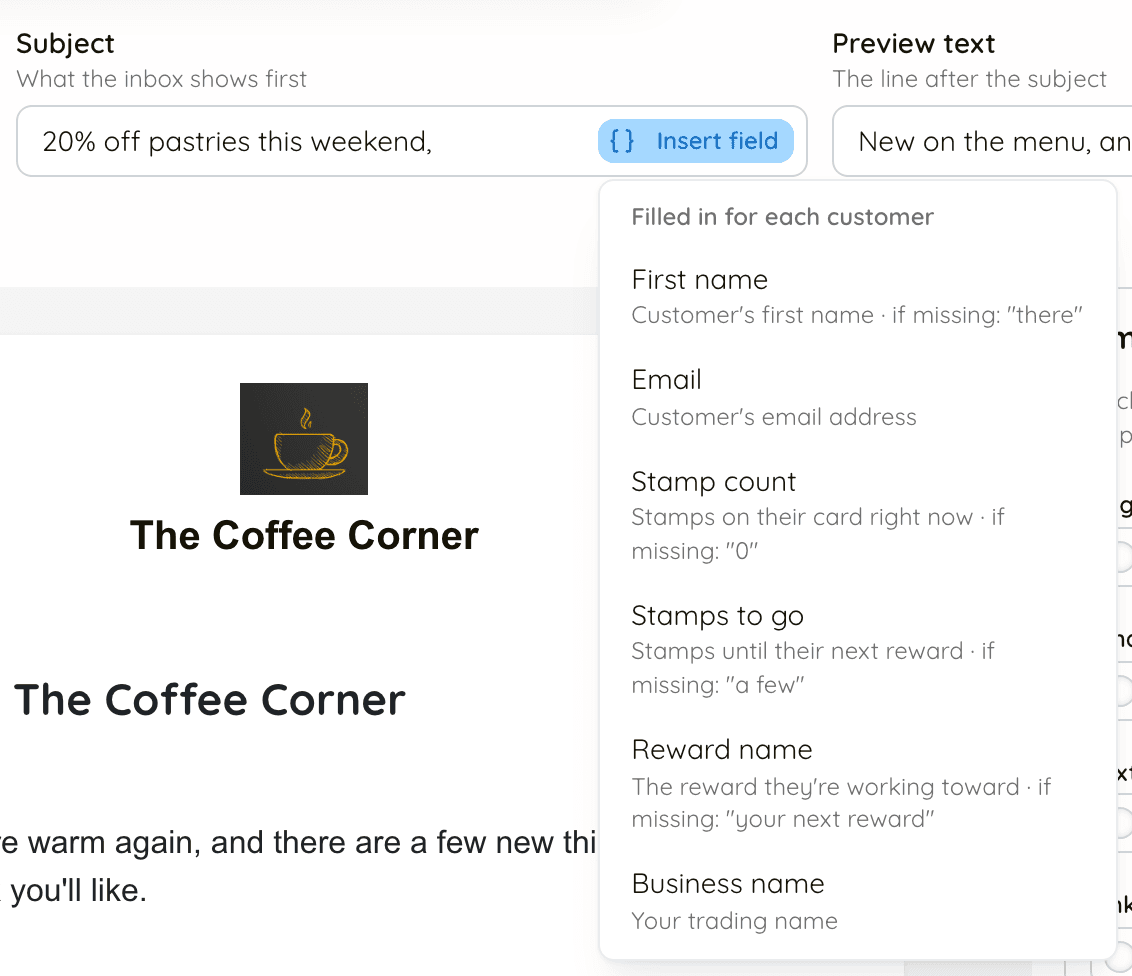
- Subject is the first thing the inbox shows. Preview text is the grey line after it. Together they decide whether the email is opened.
- Click Insert field to add something that changes per customer, such as their first name. Each field says what it is filled with if a customer has nothing on file. A customer with no first name gets “there”, for example.
Step 3: Build the email from layouts and blocks
- Layouts add a row: one wide column, two halves, or a narrow and a wide column side by side. Drag one onto the email, or click it.
- Blocks go inside a row: Heading, Text, Image, Logo, Button, Divider and Space. Drag a block into a column, or click it to add it under whatever is selected.
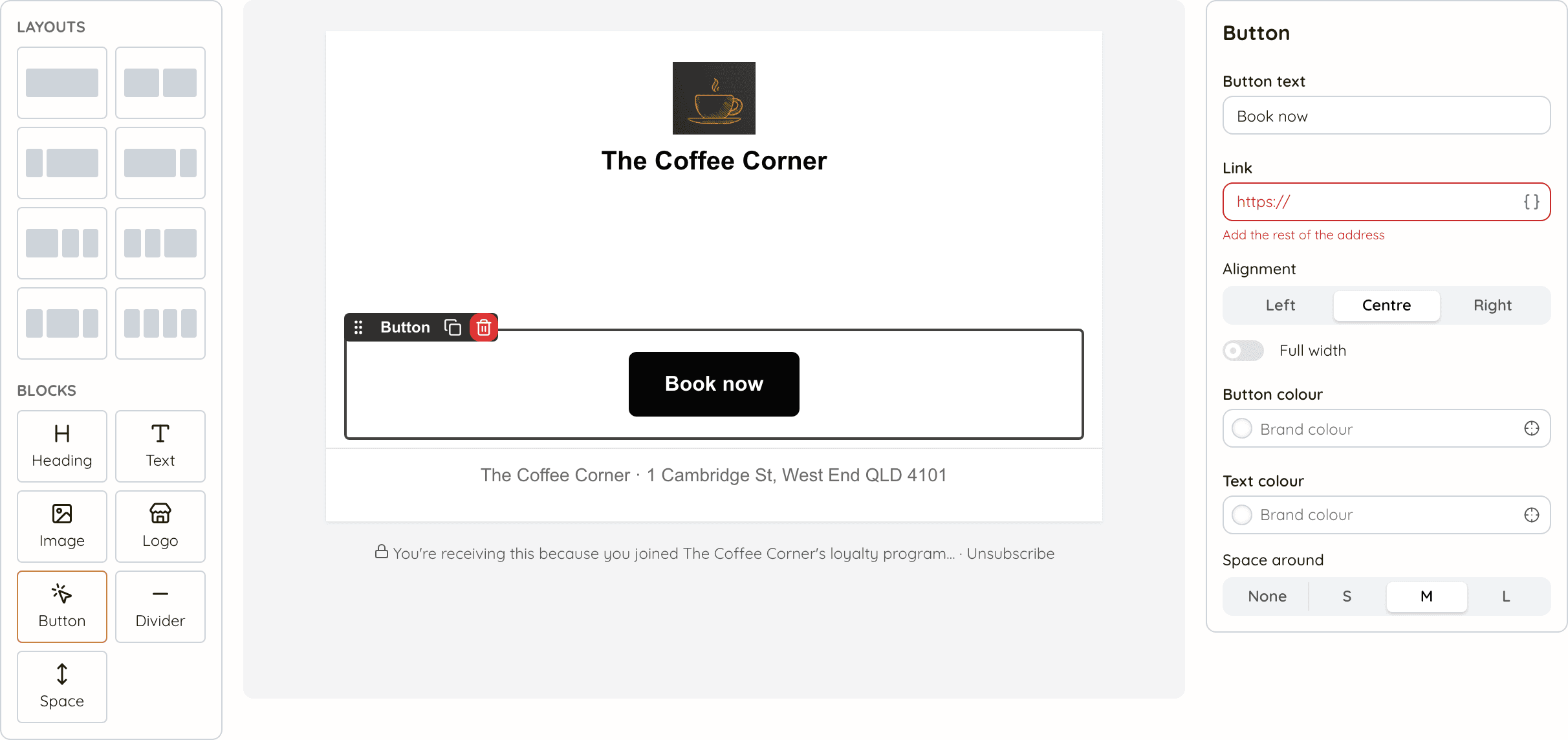
- Click anything in the email to change it. Its settings open on the right. For a button, that is the words on it, where it links to, its colour and its alignment.
- A new button links nowhere until you finish its address. The red “Add the rest of the address” goes away once you do.
Step 4: Write straight into the email
- Text and headings are typed in place, on the email itself, not in a form.
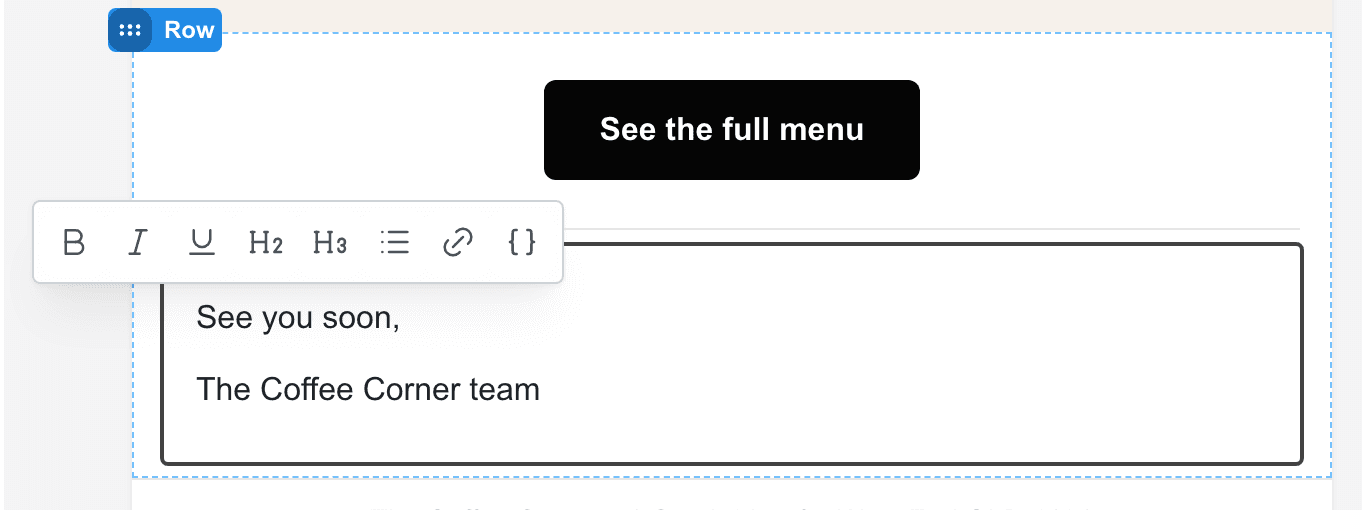
- Select a few words and a small toolbar appears: bold, italic, underline, two heading sizes, a bullet list, a link, and { } to drop in a customer field where your cursor is.
- Customer fields show as coloured tags, such as First name or Stamps to go. In the sent email each tag becomes that customer’s own detail.
Step 5: Add a photo (optional)
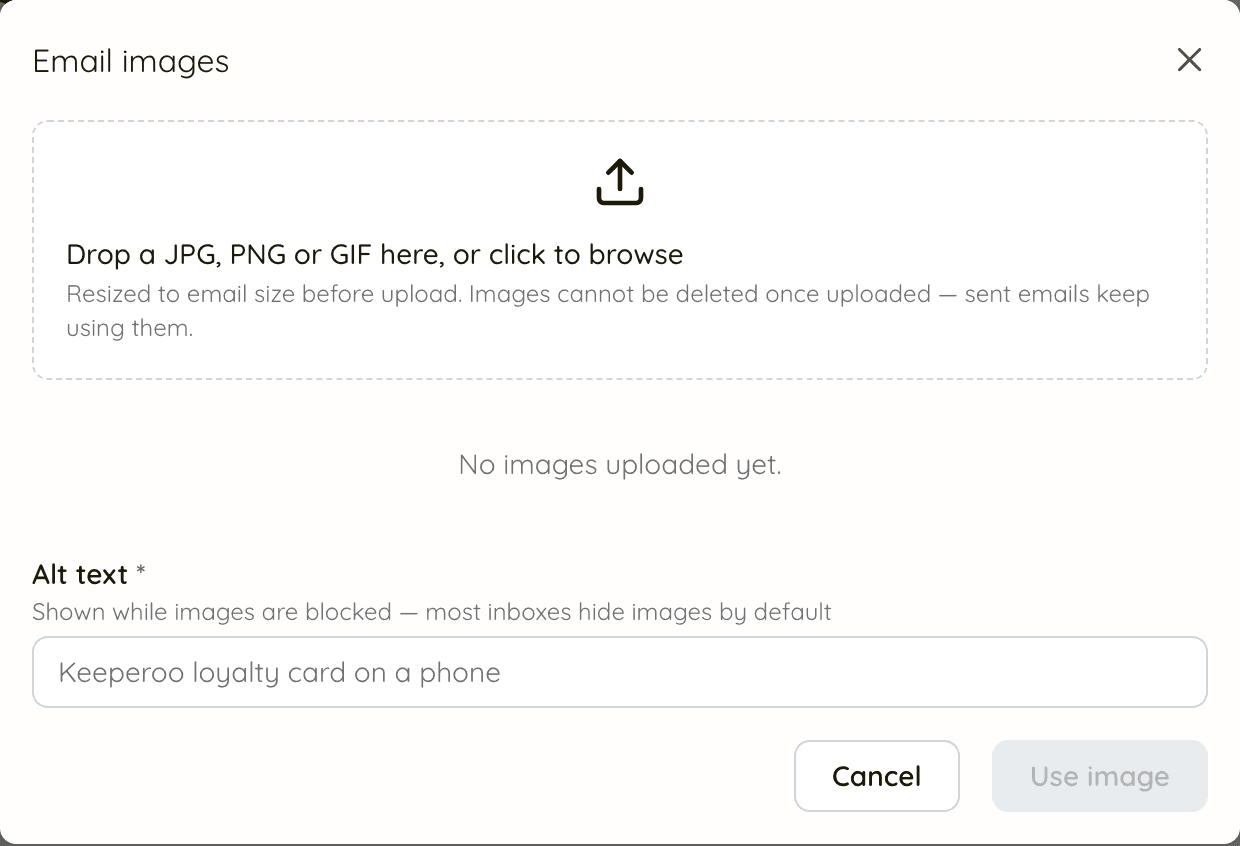
- Drag or click Image, then drop a JPG, PNG or GIF into the box. It is resized to email size before it uploads.
- Fill in Alt text, a few words describing the picture, such as “A tray of almond croissants”. Most inboxes hide images until the reader allows them, and the alt text is what shows in the meantime. You can’t add an image without it.
- Uploaded images can’t be deleted, because emails you have already sent keep showing them. Upload the photos you mean to use.
Step 6: Save
- Click Save at the top. “Unsaved changes” beside the undo buttons tells you when there is something to save.
- Undo and redo (⌘Z / ⇧⌘Z, or Ctrl on Windows) cover every change, not only typing.
What is added for you
- Your logo and business name at the top, from your business profile. If you change your logo later, every template picks it up.
- Your address at the bottom. The law asks marketing email to say who it is from.
- The unsubscribe line under that, with the lock icon. Every customer gets their own unsubscribe link. You can't remove it, and you don't need to do anything to make it work.
Part 2: Copy a template and change it
Step 1: Duplicate the template you want to start from
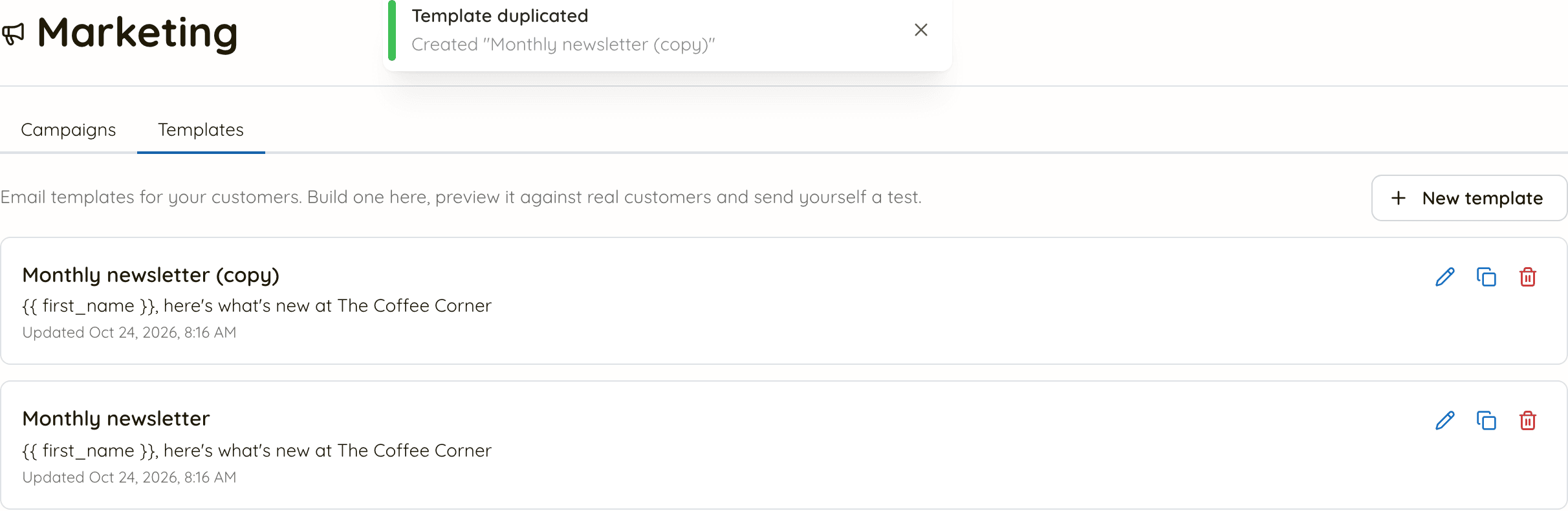
- On Marketing → Templates, find the template and click its copy icon (Duplicate).
- A copy appears at the top of the list, named “… (copy)”. The original is not touched.

Step 2: Open the copy and rename it straight away
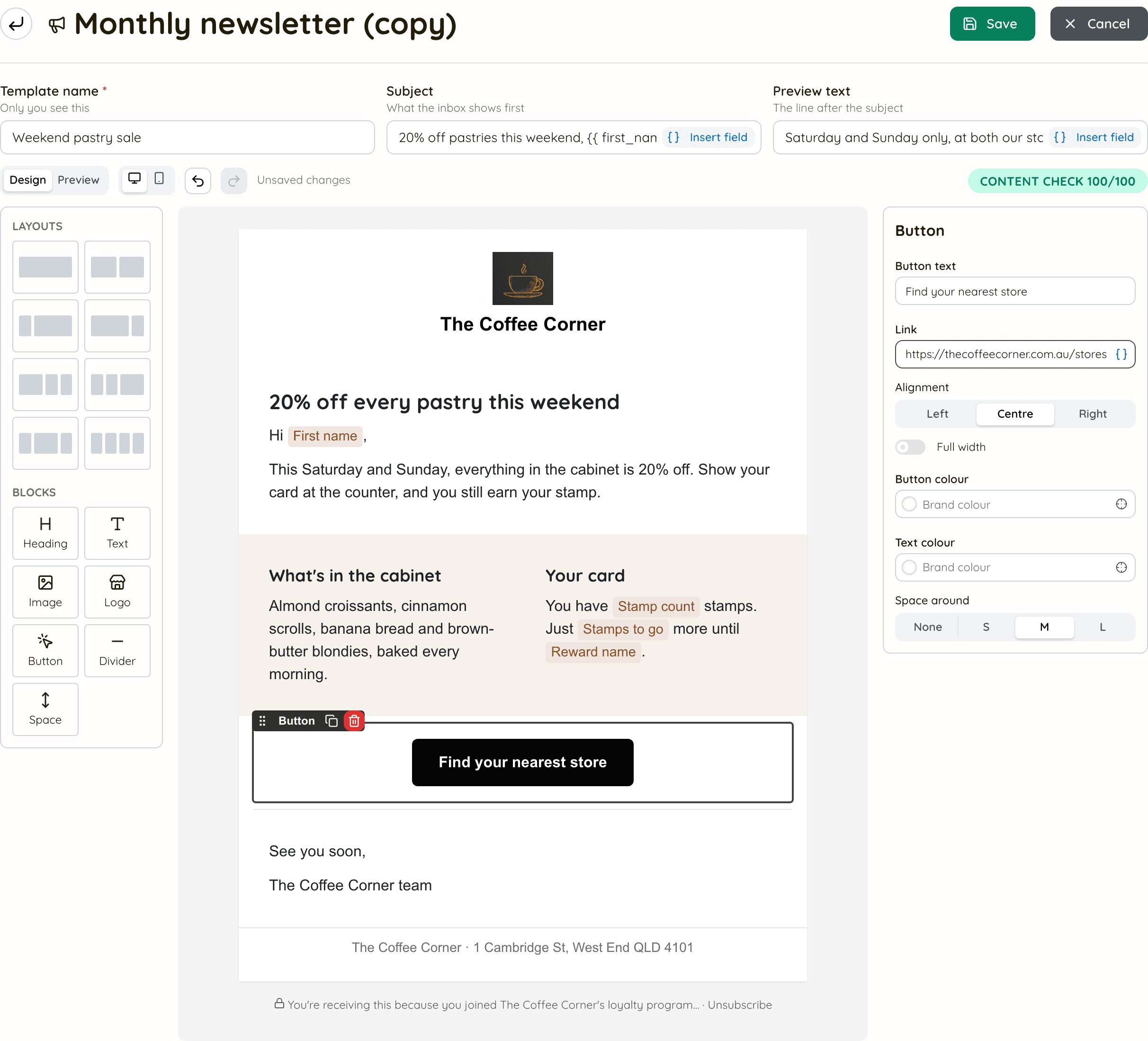
- Click the copy’s name to open it. Change Template name first, so the two are never mixed up. Here, the newsletter becomes “Weekend pastry sale”.
- Then rewrite the Subject and Preview text for the new email.
Step 3: Change only what needs changing
- Click into the heading and type over it. Do the same for any paragraph.
- Click the button to change its words and where it links, such as “Find your nearest store”.
- Everything you did not touch stays as it was: your logo and colours, the two-column layout, the customer fields, the sign-off and the footer. That is the point of starting from a copy.
- To take a block out, click it and use its red bin icon. To repeat one, use its copy icon.
Step 4: Check it, preview it, save it
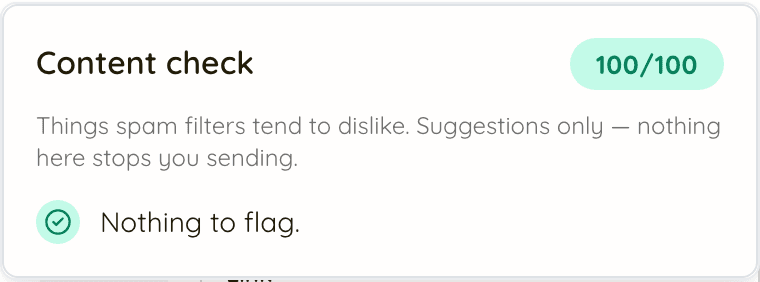
- Content check at the top right scores the email for things spam filters dislike: a subject in capitals or with “!!”, a subject too long for a phone, phrases like “act now” or “click here”, or almost no text. Each one comes with a suggested fix. It only makes suggestions and never stops you sending.
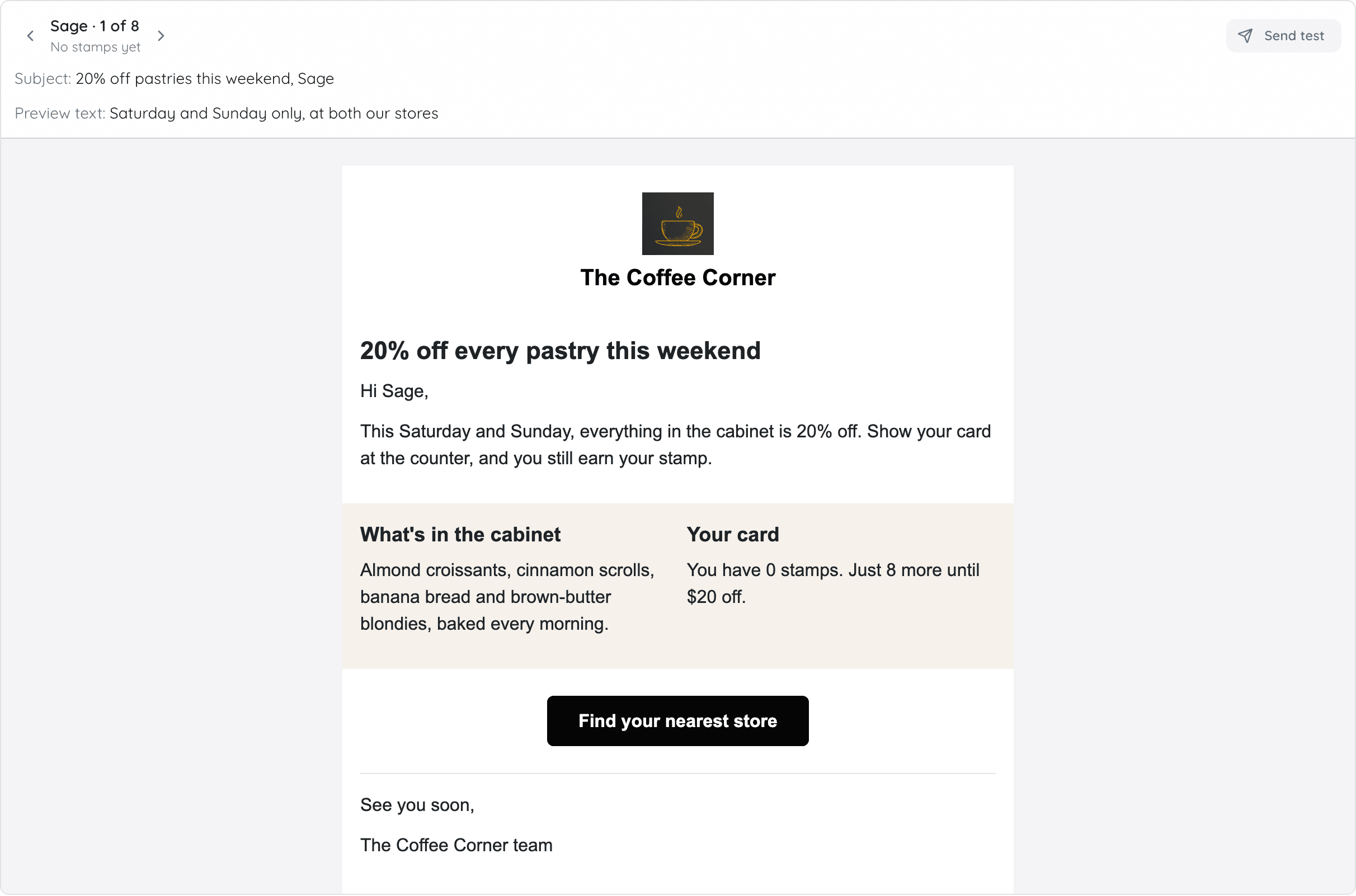
- Switch to Preview to see the email as real customers will get it, with their names and stamp counts filled in. Use the arrows to step through them. The awkward cases come first: no name, no stamps, nearly at a reward.
- The monitor and phone icons switch between desktop width and phone width.
- Click Save.
Good habits
Keep one tidy template to copy from
- Keep a template with your layout, colours and sign-off, and only placeholder words. Copy it for every new email, so you never start from blank and never overwrite last month's.
- Name copies for what they are and when: "Pastry sale, Oct", not "Newsletter (copy) (copy)".
Before you use a template in a campaign
- It has a subject. A campaign can't send a template without one.
- Every button links somewhere real. Click through them in a test email.
- Step through the preview past the first few customers, especially anyone with no name or no stamps.
- Send yourself a test with Send test on the preview, and open it on your phone.
Changing a template after you have sent it
Editing or deleting a template never changes an email that has already gone out. A campaign keeps the version it was scheduled or sent with. To send something different, change the template (or a copy of it) and start a new campaign.
Next: send it
A template on its own goes nowhere. To send it to some or all of your customers, follow How to send a targeted email to the right customers.