Marketing
How to send a targeted email to the right customers
Pick a group of customers by how often they visit, which store they use and how loyal they are, then send them an email about a sale or an offer. Set it up in a few minutes, with a test and a final check before anything goes.
Why target at all
An email to everyone is easy, and it works best when the news really is for everyone. Most offers aren't. A 20% pastry sale at one store means nothing to someone who lives near the other one. A "we've missed you" email to someone who was in yesterday is odd. Each email that doesn't fit makes the next one less likely to be opened, and more likely to be unsubscribed from.
Keeperoo already knows how each customer uses your card: when they last came in, how many stamps they have, where they stamp, and whether they have a reward waiting. A campaign uses that to send each email only to the people it is for.
Before you start
- You need a template with a subject. If you don't have one yet, start with How to create an email template.
- Marketing email is switched on per business. If you don't see Marketing in your dashboard, ask Keeperoo.
- Only the business owner can send campaigns. Managers don't see Marketing.
Step-by-step
Step 1: Start a campaign
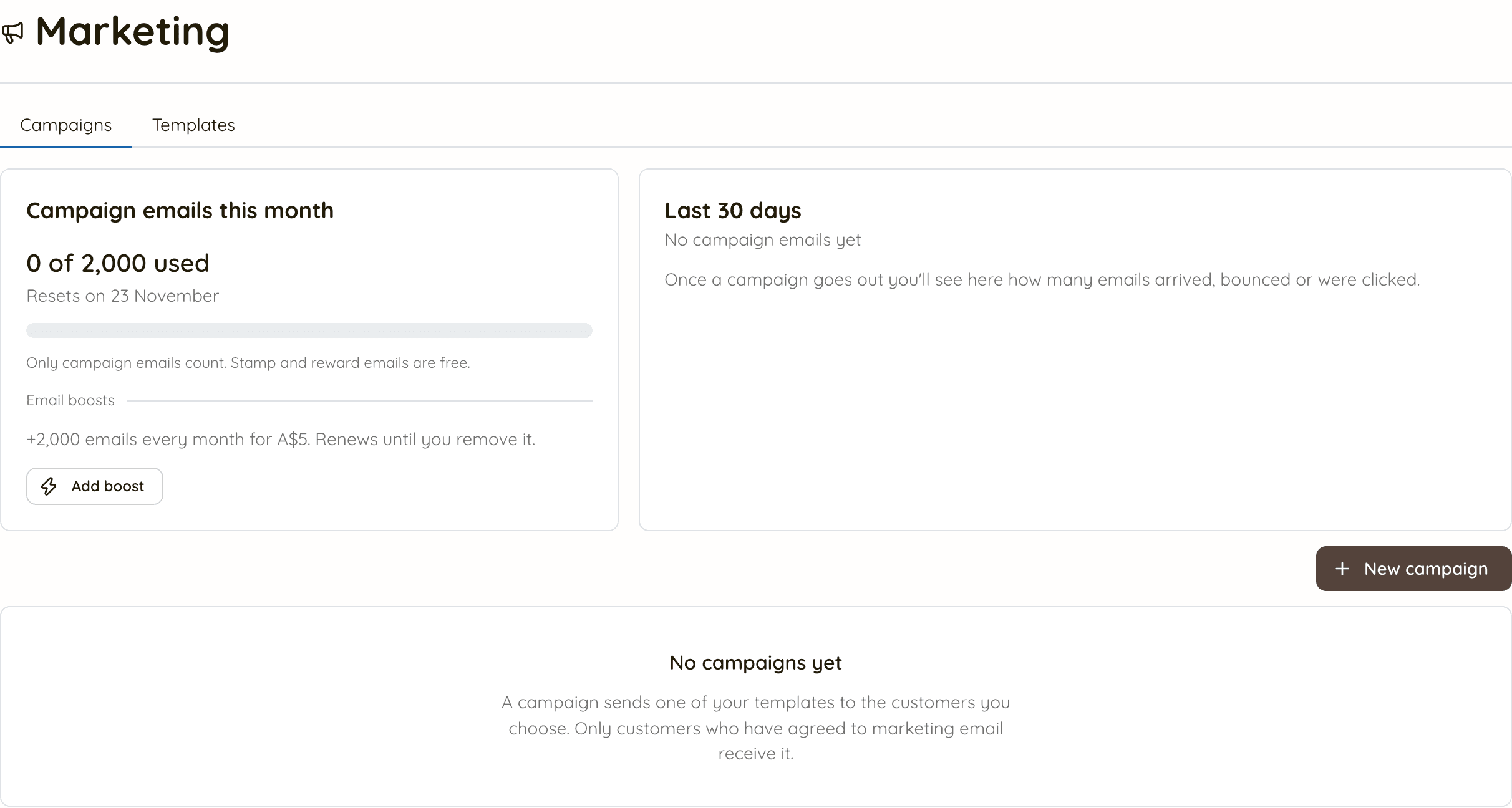
- Open Marketing. The Campaigns tab shows how many campaign emails you have used this month, and how your recent emails did.
- Click New campaign. It starts as a draft using your newest template with a subject. You can change the template later.
- Click the name at the top and give the campaign a name you will recognise later, such as “Pastry sale: West End regulars”.
Step 2: Choose who gets it
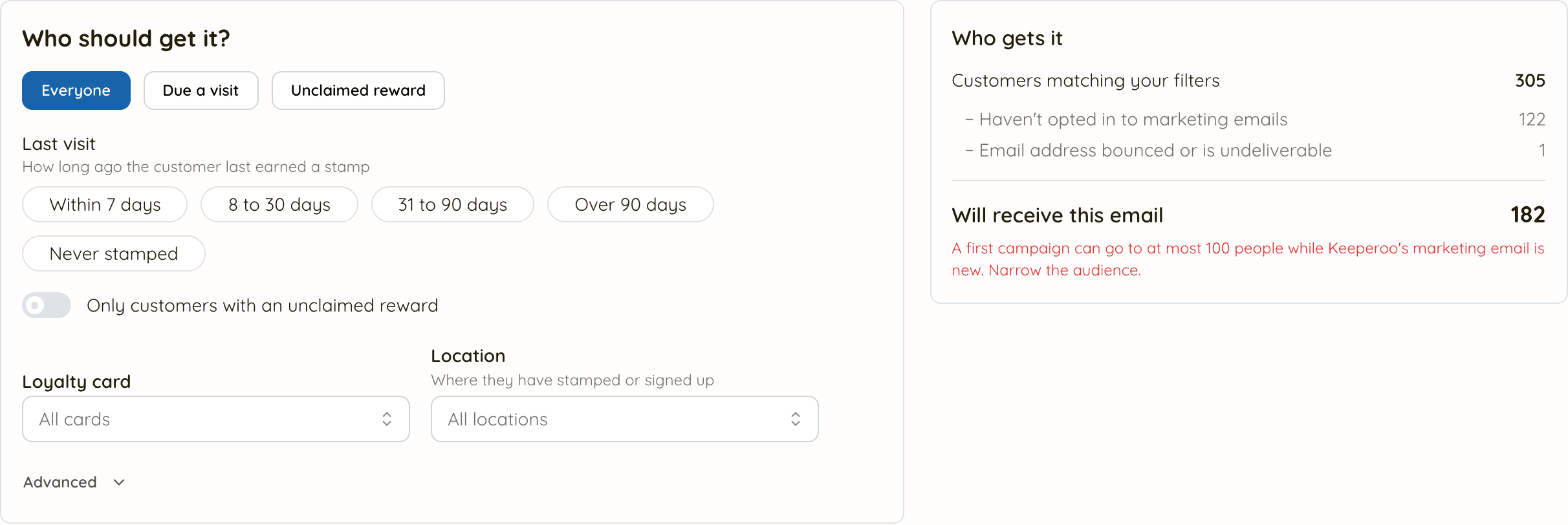
- The Audience step starts with Everyone. On the right, Who gets it counts your customers, takes away everyone who can’t be emailed and says why, and ends with the number who will get it.
- Narrow it down with the filters (see “The filters, and what each is good for” below). The count updates as you go.
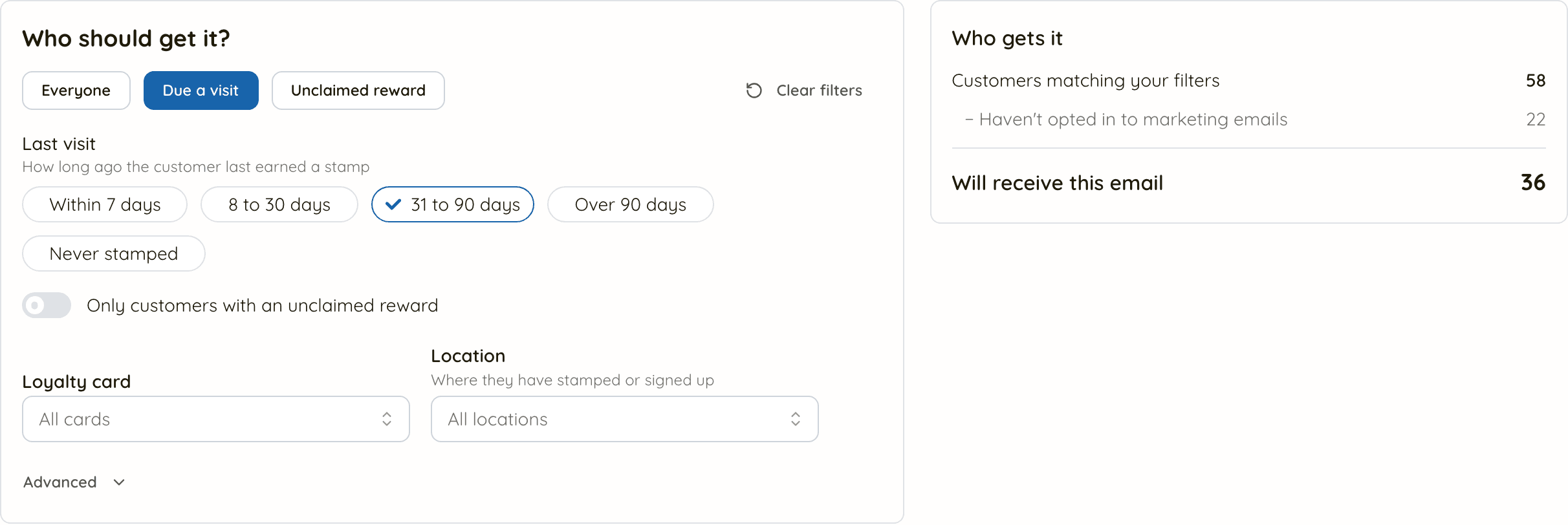
- A preset is one click: Due a visit (last stamp 31 to 90 days ago) or Unclaimed reward.
Step 3: Combine filters for a specific group
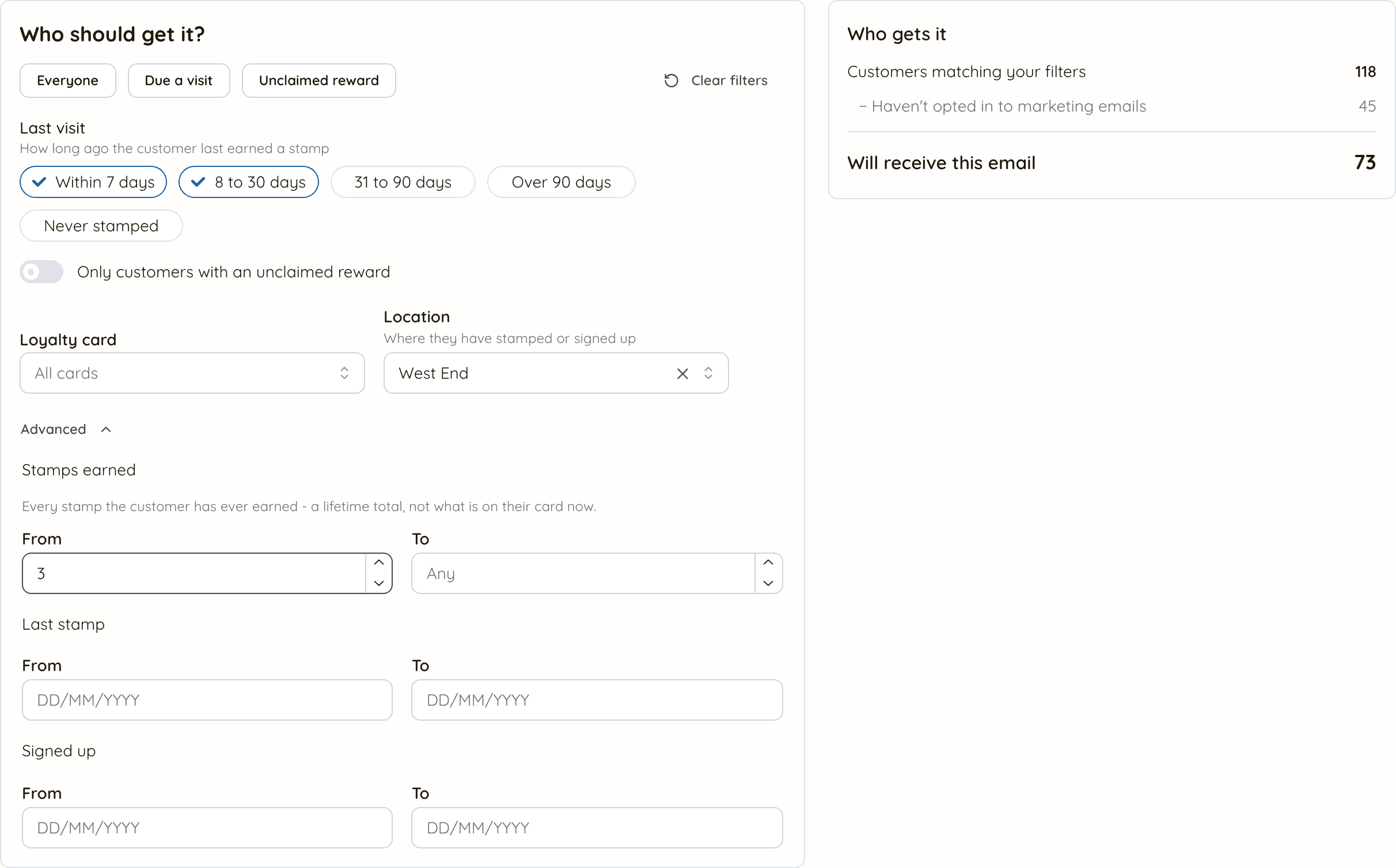
- Filters add together: a customer has to match all of them.
- For a weekend sale at one store, this example picks recent regulars at that store. Under Last visit tick Within 7 days and 8 to 30 days, set Location to West End, and under Advanced set Stamps earned from 3, so only people who have been back a few times get it.
- Within one filter, the choices widen it: ticking two “Last visit” boxes means either one.
- Clear filters takes you back to Everyone.
Step 4: Pick the email and check it
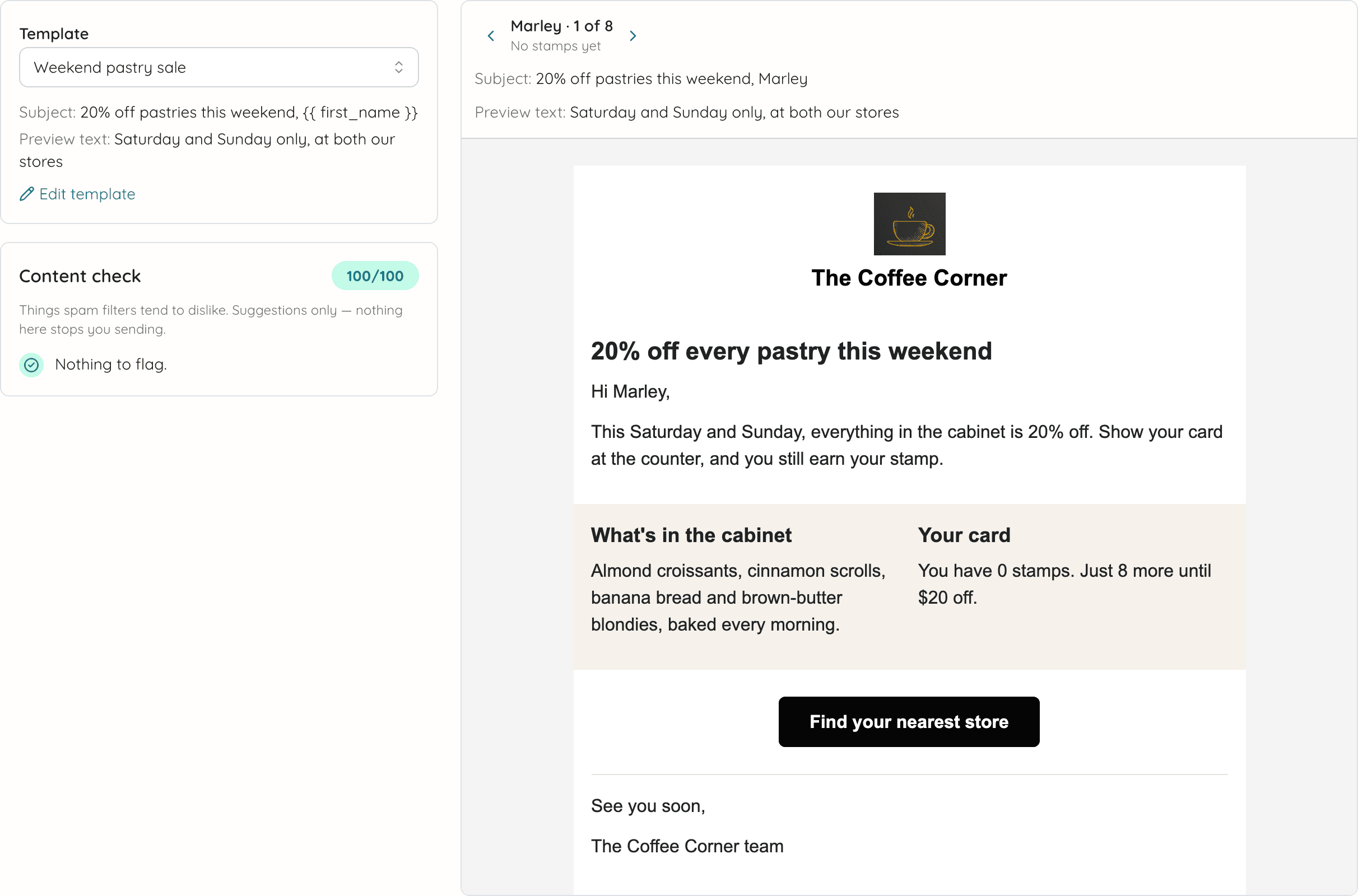
- Click Next. On the Content step, choose the template. The subject and preview text are shown under it.
- The preview on the right uses the people in this audience, not your customers in general. Step through them with the arrows.
- To fix something, click Edit template, save it, and come back. The draft keeps your audience.
Step 5: Send now, or schedule it
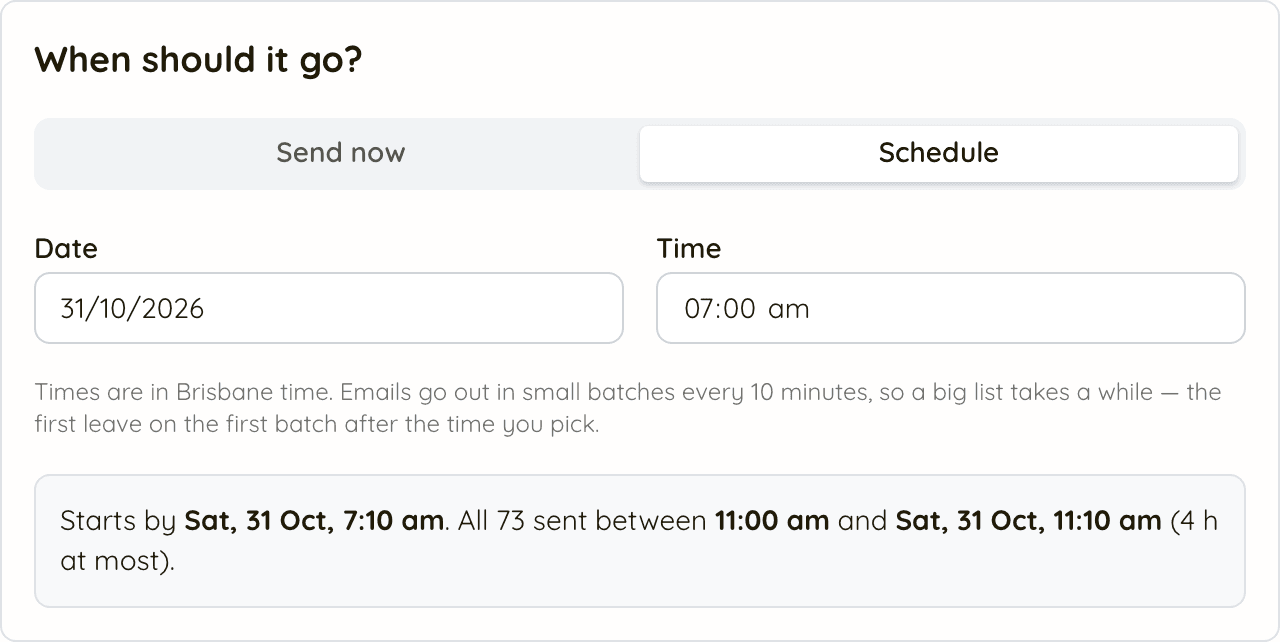
- Click Next. Choose Send now, or Schedule and pick a date from the calendar and a time.
- Times are your business’s own time zone. A sale that starts Saturday morning can be scheduled to arrive before you open.
- Emails go out in small batches every few minutes, so a list takes a while to finish. The box underneath says when the first ones leave and when the last should arrive.
Step 6: Send yourself a test
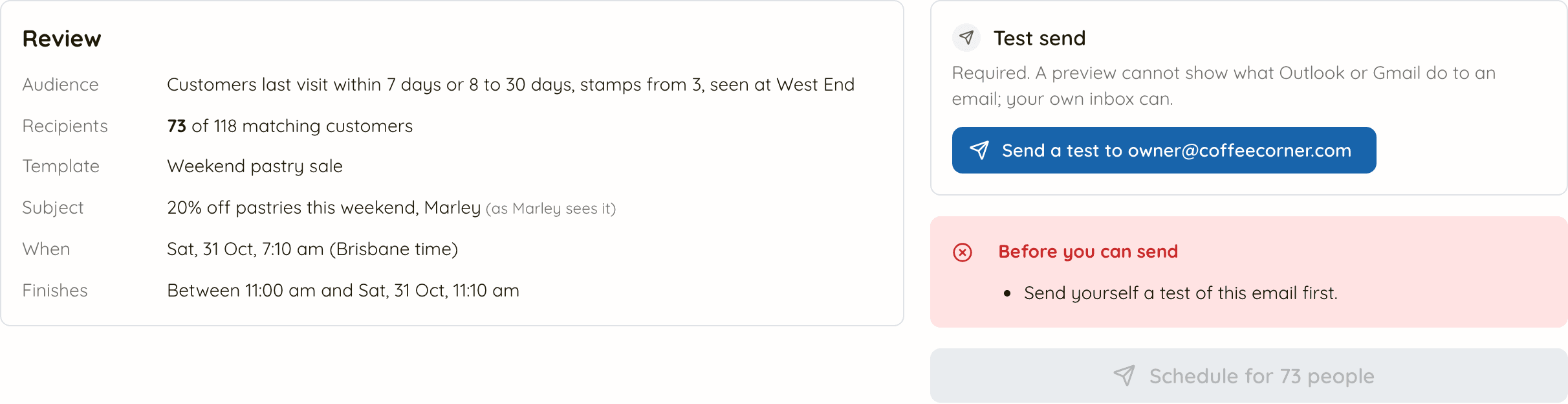
- Click Next to reach Review and send. On the left is everything that is about to happen: who, how many, which email, the subject as the first person will see it, and when.
- A test is required. Click Send a test to your email address, then open the test in your inbox, ideally on your phone too. A preview can’t show what Gmail or Outlook will do to the email; your inbox can.
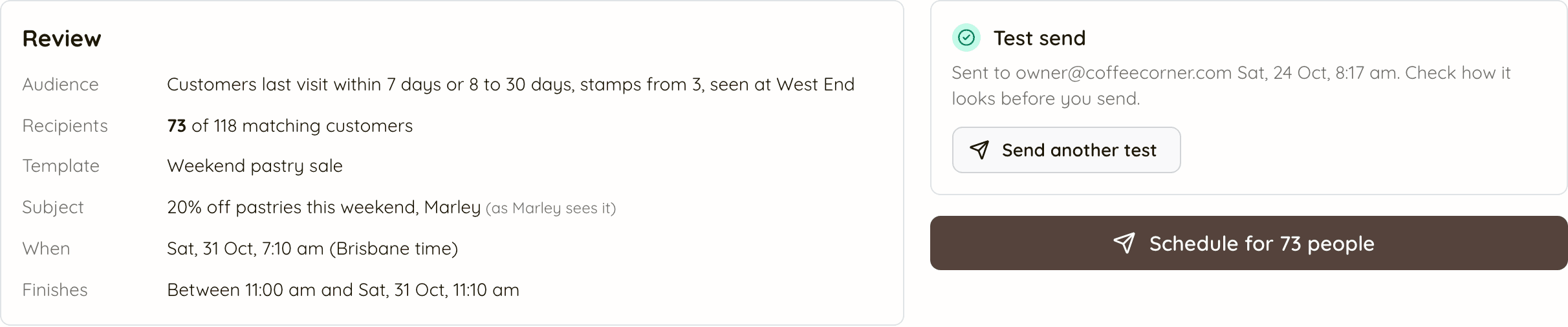
- If you change the email after testing, the test no longer counts and you will be asked for another.
- Anything that would stop the send is listed in red under Before you can send, with what to do about it.
Step 7: Send it
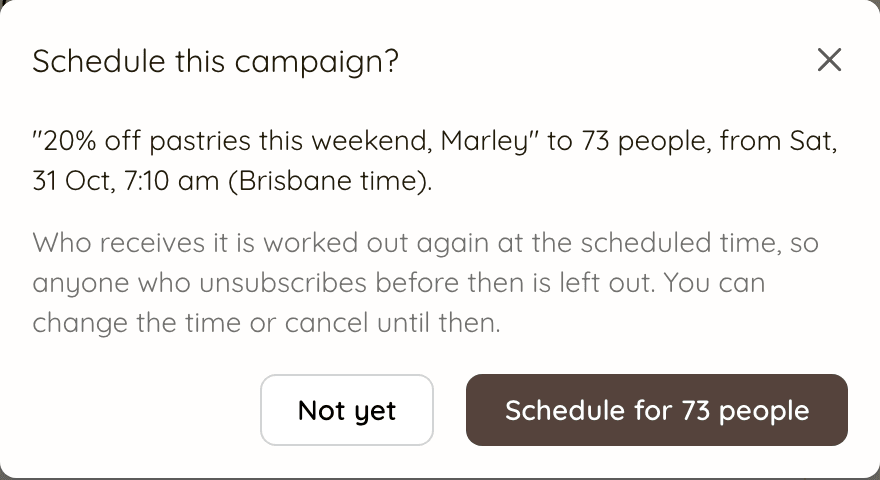
- With the test sent, the button comes alive. It says exactly what will happen, such as Schedule for 73 people.
- If there is a yellow Worth a look box, read it and tick “I’ve read these and want to go ahead”. These are warnings, not blocks, such as a send that would finish late at night.
- Click the button, check the confirmation, and confirm.
- A scheduled campaign works out who gets it again at the scheduled time, so anyone who unsubscribes or opts out before then is left out. Until then you can change the time or cancel it.
The filters, and what each is good for
The filters are about what customers do: when they visit, where, and how often. They are the same ones as on your Customers page, so a group you have looked at there can be emailed here.
Last visit
How long ago they last earned a stamp: within 7 days, 8 to 30 days, 31 to 90 days, over 90 days, or never.
Good for: Regulars (the first two) for sales and new products; 31 to 90 days to win back customers who are drifting.
Only customers with an unclaimed reward
They have earned a reward and not used it yet.
Good for: A friendly reminder to come and claim it. It almost always brings people in.
Loyalty card
Customers on one of your cards. Shown when you have more than one.
Good for: Coffee news to coffee-card holders, cake news to the cake card.
Location
Where they have stamped or signed up. Shown when you have more than one location.
Good for: A store-only sale, a new opening, or changed hours at one site.
Stamps earned (Advanced)
Every stamp they have ever earned, a lifetime total. It is not what is on their card now.
Good for: “From 10” for your most loyal customers; “to 1” for people who joined but have barely been back.
Last stamp (Advanced)
The date range of their most recent stamp.
Good for: Everyone who came in during an event, a promotion week, or before a renovation.
Signed up (Advanced)
The date range they joined your card.
Good for: A welcome offer to this month’s new members, or a thank-you to your earliest ones.
Keeperoo doesn't ask customers their age or gender, so there is no filter for them. If you collect date of birth on your signup form, a birthday email is better sent one to one than as a campaign.
Who never gets a campaign email
Some customers are taken out of every campaign, whatever your filters say. The Who gets it box lists each reason with a count, so the numbers always add up:
- Haven't opted in to marketing emails. Only customers who said yes are emailed, by ticking the box at signup or by you recording it on their customer page. Customers whose answer isn't recorded are left out too. This is usually the biggest number, and it is the law, not a setting.
- No email address on file. The box lists them by name, so staff can ask for one next time they are in.
- Email address bounced or is undeliverable. Mailing a dead address again only hurts the emails that would have arrived.
- Already emailed recently. A customer who has just had one of your campaigns is skipped, so nobody gets two in a few days. Their welcome email, sign-in codes and other emails about their card don't count.
- Same address on another customer record. One email per inbox, even if a couple share an address.
Growing the list you can email
Customers join the opted-in list when they tick the marketing box as they sign up, or when you record their yes on their customer page after asking them in person. A friendly line from staff at the till ("want to hear about our sales?") does more than anything else. More on consent.
Limits while you get started
- Campaign size. While Keeperoo's marketing email is new, each campaign has a size limit, lower for your very first one. If an audience is over it, the box says so in red. Narrowing the audience is usually the better email anyway.
- Monthly allowance. Your plan includes a number of campaign emails each month, shown at the top of the Campaigns tab. Stamp and reward emails don't count. If a campaign needs more than you have left, you can make the audience smaller or add an email boost there.
- Bounces. If a campaign bounces at an unusual rate, it is paused automatically and Keeperoo looks into it before it carries on. This protects the delivery of every business's email.
Ideas to get you going
Offers that suit a targeted send
- A sale at one store: Location, plus Last visit within 30 days. That is the example above.
- Win back the drifters: Due a visit, with a small reason to come in this week, such as a double stamp or a free extra shot.
- "Your reward is waiting": Unclaimed reward. Put the Reward name field in the subject.
- Thank your regulars first: Stamps earned from 20, a day before the sale opens to everyone.
- Welcome this month's new members: Signed up from the first of the month.
Before you press send
- The offer has an end date, and it is in the email: "This Saturday and Sunday".
- Staff know about it, so the first customer who mentions it isn't met with a blank look.
- You opened the test on your phone and every button goes somewhere real.
- It arrives at a sensible hour. Schedule it if now isn't one.
After it has gone
The campaign moves to Scheduled and sending at the top of the Campaigns tab, with a progress bar while it sends. You can cancel the emails that haven't gone yet; one that has arrived can't be recalled.
Once it has finished it moves to Sent with its results, such as how many were delivered and clicked, and how many bounced or unsubscribed. The Last 30 days box adds up all your campaigns. Compare like with like: a regulars-only email should do better than an email to everyone, and if it doesn't, the offer is the thing to change.