Marketing
How to export your customer list
Get your customers out of Keeperoo and into Mailchimp, Klaviyo or whatever you use to send email — with the consent answers attached, so you only mail the people who said yes.
What the export is for
Keeperoo collects the customer list, and email campaigns sent straight from Keeperoo are on the way. If you already use another email tool, or want to get started before then, the export is the bridge: a spreadsheet you download and upload into Mailchimp, Klaviyo, Campaign Monitor, MailerLite, Square, or anything else that takes a file.
It is also the plain answer to "is my data locked in?" — it is not. Every customer, every stamp total and every consent answer comes out as a file you own.
Step-by-step
Step 1: Filter the list first
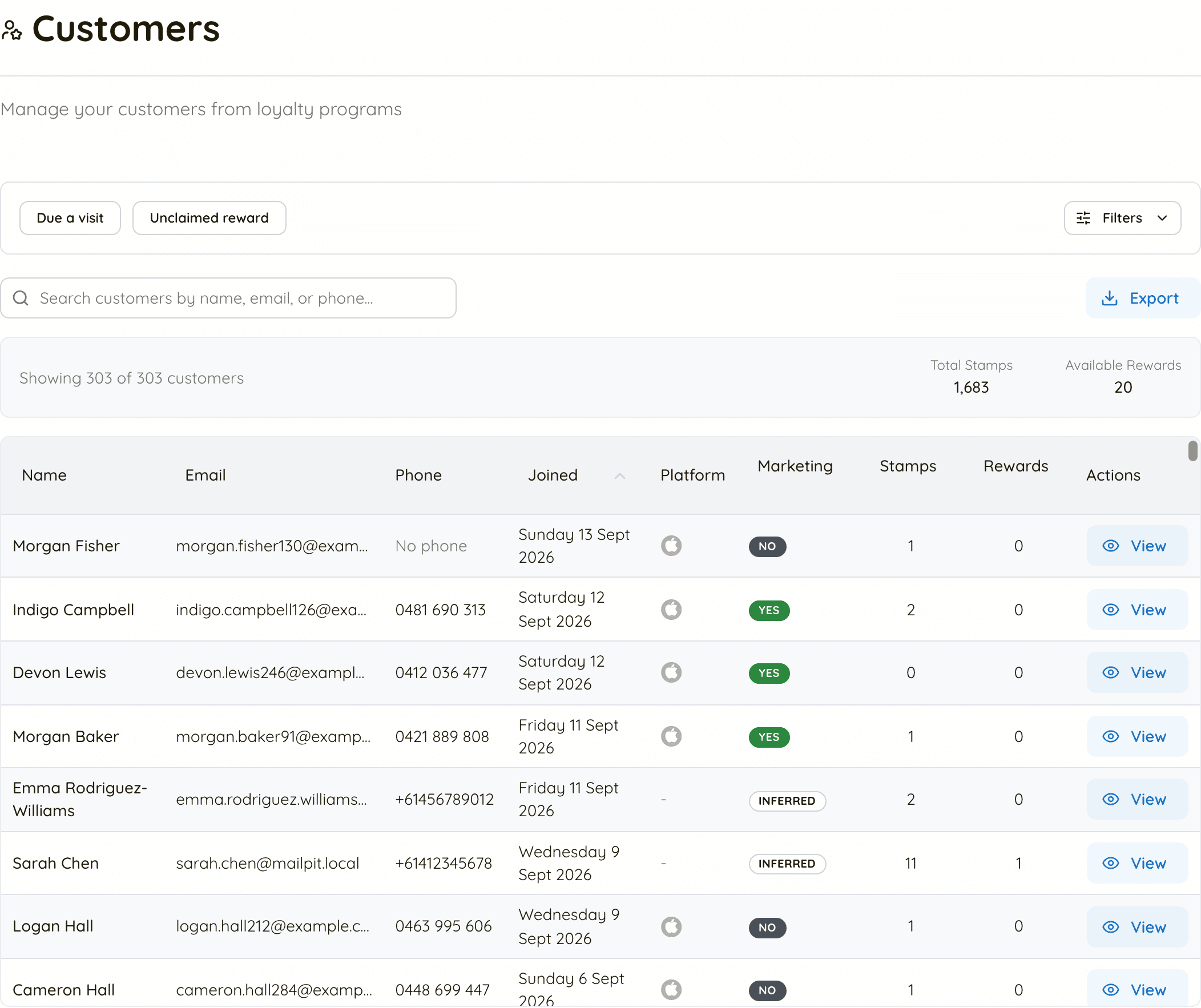
- Open Customers in the dashboard. The filter panel sits above the table.
- Use a preset if one fits: Due a visit (last stamped 31 to 90 days ago) or Unclaimed reward.
- Or build your own: search, activity, stamp counts, signup dates, a specific card, and marketing consent.
- The table updates as you filter. What you see on screen is what the export will contain — one set of rules drives both.
Step 2: Open the export dialog
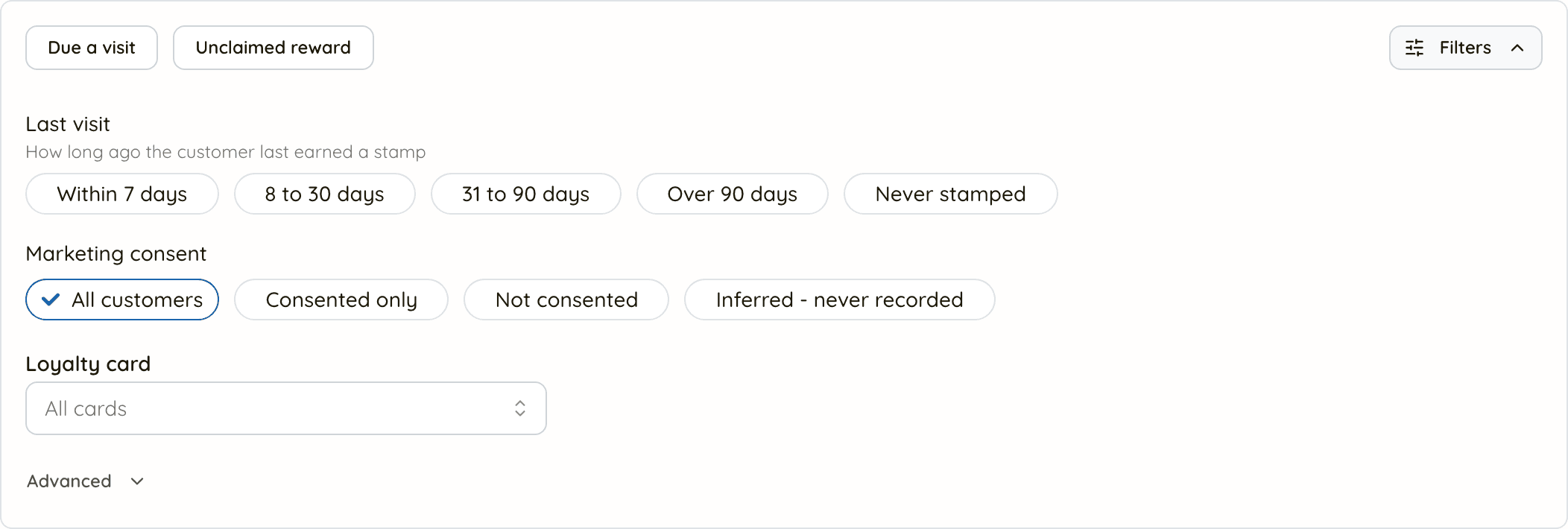
- Click Export. The dialog opens with the current filtered count already on the button.
- If you have filters on, choose Current filtered view or All customers. With no filters on, there is only one list, so the choice is not offered.
Step 3: Pick the columns for where the file is going
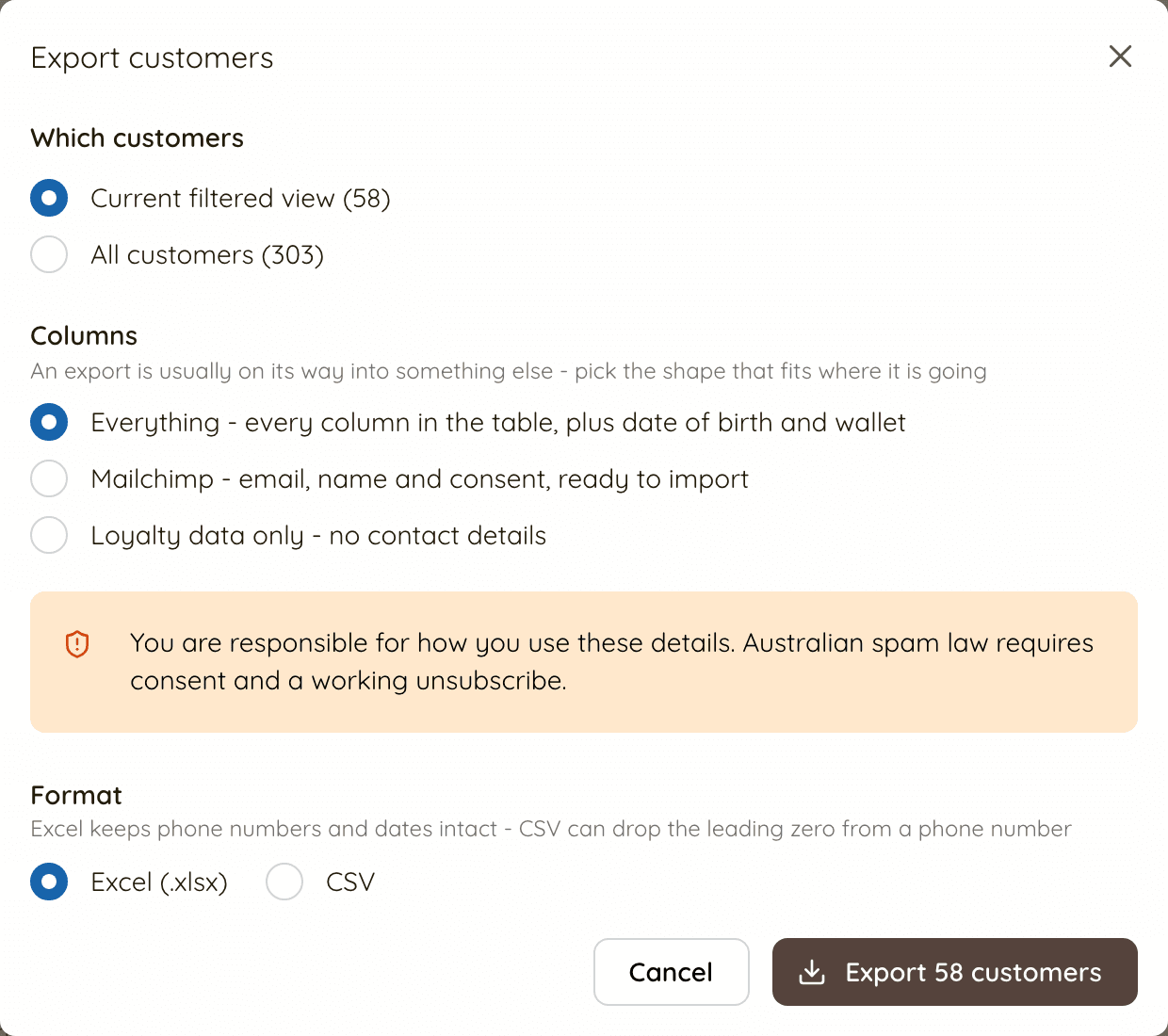
- Everything — every column in the table, plus date of birth and which wallet they use.
- Mailchimp — Email Address, Full Name and Marketing Consent, using Mailchimp’s own header names so the import needs no column mapping.
- Loyalty data only — no contact details at all. This is the one to hand to a supplier, a designer or anyone outside the business.
Step 4: Choose Excel or CSV
- Excel (.xlsx) is the safer default: phone numbers and dates keep their type, so a leading zero survives.
- CSV is the universal option — every email tool takes it — but a spreadsheet app may read
0412 345 678as a number and drop the zero. Dates go out asYYYY-MM-DDso they are unambiguous wherever the file lands.
Step 5: Export and check the file
- Click the Export button; the file downloads straight to your computer. Nothing is emailed and nothing is stored.
- The name tells you what it is:
coffee-corner-customers-filtered-2026-09-17.csv. - Open it before you upload it anywhere. Check the row count matches, and spot-check a phone number and a date.
The export dialog
Everything is on one screen: who, which columns, and which format. The button always says how many customers you are about to export, so there is no guessing.
Which columns you get
Everything
Name, email, phone, date of birth, marketing consent, signup date, total stamps, last stamp, rewards earned, redeemed and unredeemed, activity status, card barcode, when they joined the card, card status and wallet platform.
For your own records, your accountant, or a deeper look in a spreadsheet.
Mailchimp
Email Address, Full Name, Marketing Consent.
For importing into any email tool — not only Mailchimp. The headers are Mailchimp's own, so the mapping step usually needs nothing from you.
Loyalty data only
Name, signup date, stamps, last stamp, rewards, activity status, barcode — no email, no phone, no date of birth.
For anything leaving your business: a designer, a supplier, a report you are sending on.
Two columns that surprise people
- Total Stamps is a lifetime count. It is never reset when a reward is earned, so a customer on their fourth card can show 38 stamps against a 10-stamp card. It is a measure of how much they have bought, not where they are on the current card.
- Unredeemed Rewards counts rewards earned but not yet claimed — including any that have since expired. Treat it as "has something waiting", not as a bill.
What the Mailchimp export leaves out, and why
The Mailchimp column set is not just a narrower file — it applies two rules on top of your filters, because a mailing list is a different thing from a customer list:
- No email address, no row. A customer who joined at the till without giving an address cannot be emailed, so they are left out rather than imported as a blank.
- An explicit opt-out is never exported. If someone said no — at signup, in the customer portal, at the counter, or because you recorded it — they do not appear in the file at all.
- Customers whose answer isn't recorded are still included, marked
Not recorded. That is not the same as a no, and the file says so rather than guessing. Read the consent guide before you mail them.
The dialog tells you how many rows were dropped and why, so the number in the file never quietly disagrees with the number on screen.
Before you send anything
The export does not give you permission
Downloading a list is not the same as being allowed to email it. In Australia the Spam Act 2003 asks three things of every commercial message you send:
- You have the person's consent
- The message identifies your business accurately
- There is a working unsubscribe, and you honour it within 5 working days
The unsubscribe lives in your email tool, not in Keeperoo — so it is on you to switch it on and to bring those opt-outs back. What consent means and how to comply.
Before each send
- Export fresh — do not reuse a file from three months ago
- Set the marketing consent filter to Consented only if you want just the people who actively said yes
- Check the unsubscribe link in your email tool actually works, on a real send to yourself
- Make sure your business name and a real contact detail are in the footer
Importing into your email tool
Mailchimp
- Audience → Manage Audience → Import contacts → Upload a file, then pick the file
Email AddressandFull Namematch Mailchimp's own fields, so the column mapping step should need nothing from you- Map
Marketing Consentto a text merge field (or a tag) so you can segment on it later - Choose Subscribed only for rows marked
Yes. Import theNot recordedrows separately if you import them at all
Klaviyo, Campaign Monitor, MailerLite and the rest
- All of them accept a CSV upload; point them at the same Mailchimp-shaped file
- Map
Email Addressto email andFull Nameto a name property; carryMarketing Consentas a custom property or a tag - Klaviyo asks how the profile was collected when you import — answer honestly. "Signed up for a loyalty card and ticked the marketing box" is a real answer; "bought a list" is not
- If the tool offers an "existing subscribers" or double opt-in setting, prefer the one that asks the customer again. It costs you signups and buys you a clean list
Keeping the two lists in step
Once the file leaves Keeperoo it is a snapshot. Nothing syncs back automatically, so the two lists will drift apart unless you carry the changes across yourself:
- Re-export before each campaign rather than topping up an old list. New signups appear and opt-outs disappear, which is exactly what you want.
- Bring unsubscribes back. When someone unsubscribes in Mailchimp, open them in Customers and record the opt-out, so the next export already excludes them and staff can see it at the till.
- Customers can opt out themselves in the customer portal, and that change lands in Keeperoo immediately — but your email tool will not hear about it until your next import.
A file of customer details is a file of customer details
- Keep it on your own machine; don't email it around or drop it in a shared folder
- Delete old copies once they are imported — an export from last year is a liability, not an asset
- Use the Loyalty data only set whenever the file is going to someone outside the business