Customer Care
The customer portal
A page your customers can sign in to themselves, to see their stamps, put a card back on a new phone, and choose whether you may email them. Here is what it does and what it sends.
What it is
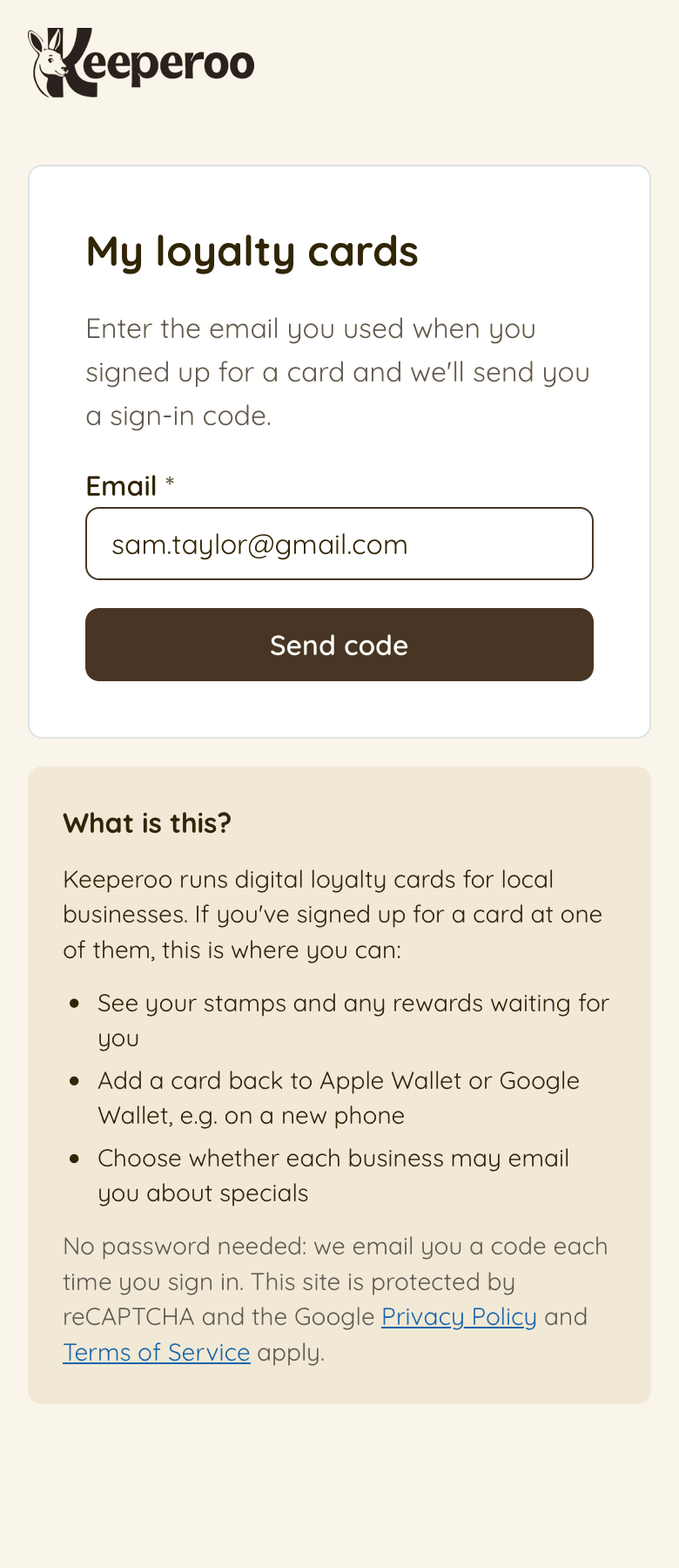
The customer portal lives at keeperoo.au/portal. It is the self-serve side of Keeperoo: no app, no password, and no phone call to you. A customer signs in with the email address they used at signup and sees every loyalty card that address holds — including cards at other Keeperoo businesses.
For you, the value is the questions it stops: "I got a new phone and lost my card", "how many stamps have I got?", and "take me off your list". All three are answered without anyone at the counter doing anything.
What a customer can do there
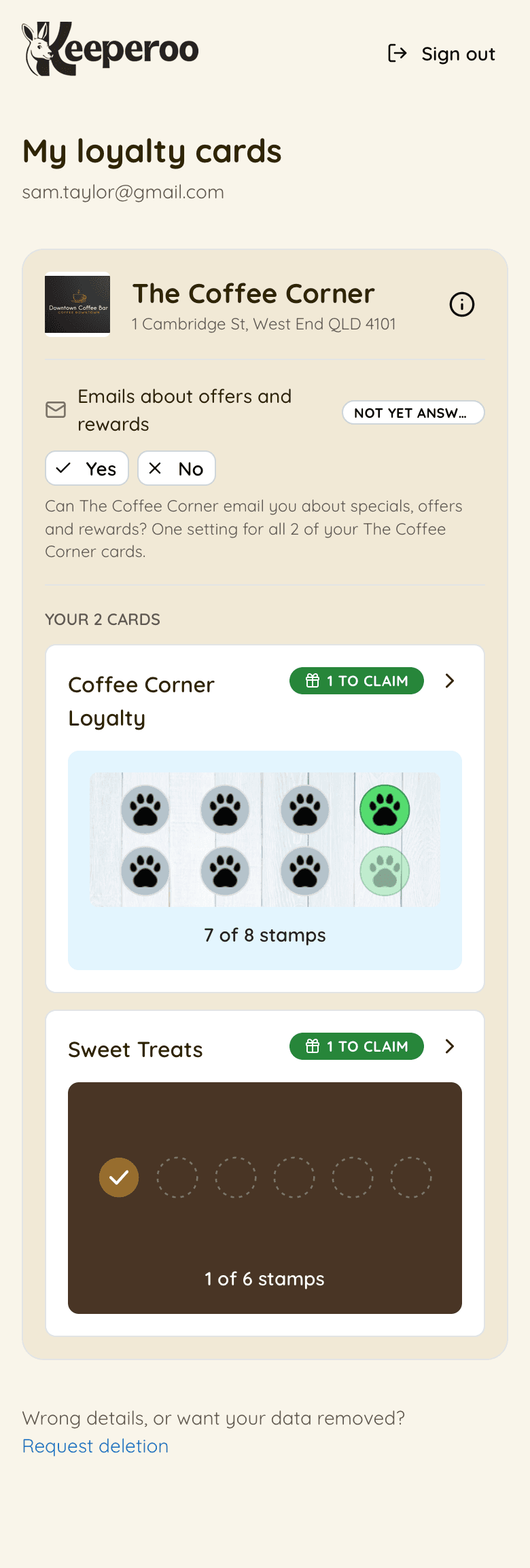
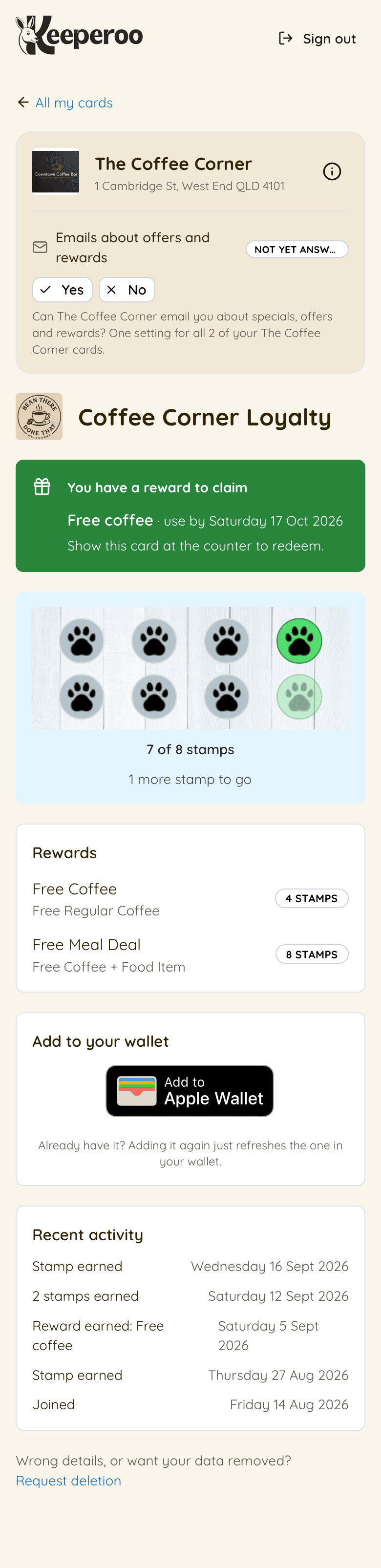
- See their stamps and rewards. The same stamp strip as the wallet pass, how many stamps to go, the reward tiers on the card, and anything waiting to be claimed with its use-by date.
- Add the card back to Apple Wallet or Google Wallet. This is the new-phone fix. Adding the same pass again updates the one they already have rather than creating a second, so it is safe to do as often as they like.
- Turn your marketing emails on or off. One setting per business, whatever number of cards they hold with you. See the consent guide for what happens to that answer.
- See their recent activity — stamps earned, rewards earned and redeemed, and the day they joined.
- Ask for their data to be deleted. That sends an email to Keeperoo support and is handled by a person, not by an automatic wipe.
How signing in works
Step 1: The customer goes to keeperoo.au/portal
- Either from the link in their welcome email, or by typing the address. There is nothing to install.
- They enter the email address they used when they signed up for a card.
Step 2: We email them a 6-digit code
- The code expires in 10 minutes and can only be used once.
- The email also carries a one-tap button, so on a phone they never type the code at all.
- They can request a new code once every 5 minutes.
- No password is ever set, and no password can ever be forgotten.
Step 3: They land on their cards
- One card at one business takes them straight to that card.
- Several cards, or cards at several businesses, gives them a list grouped by business.
- An email we have never seen gets the same "we sent you a code" screen as one we have — the portal will not tell a stranger whether an address is on file.
The emails your customers get
Keeperoo sends your customers the emails that look after their card, and, if you use Keeperoo's marketing email, the campaigns you write. Keeperoo never sends your customers marketing of its own.
1. The welcome email, sent the moment they join
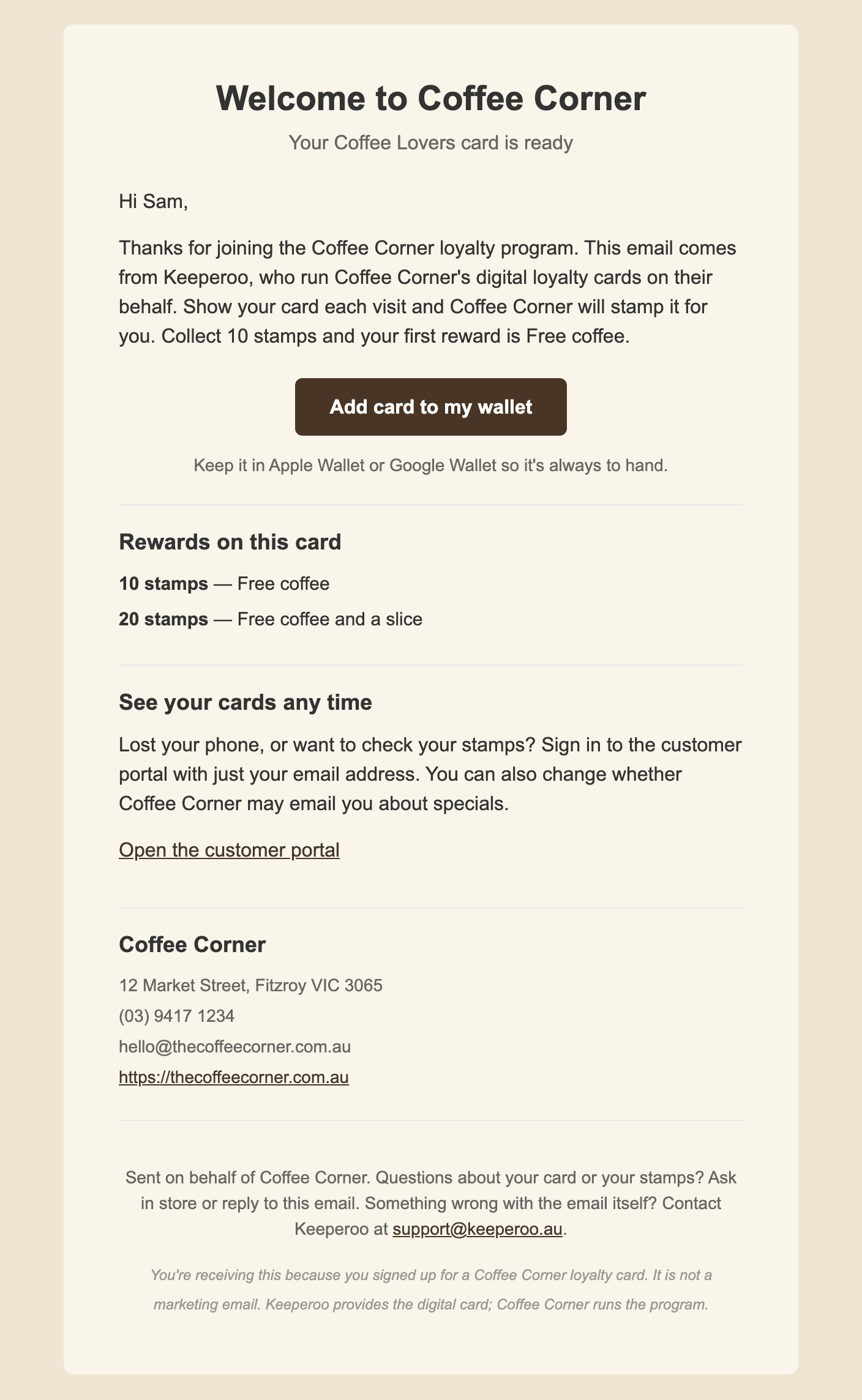
It comes from "Your Business via Keeperoo", and a reply goes to your business email address if you have one on file — so a customer who hits reply reaches you, not us. It carries your logo, your reward tiers, a button that adds the card to their wallet, a link to the portal, and your address, phone and website.
It goes to everyone who signs up, whatever they answered about marketing, because it confirms the thing they just did. It is also the only check we have that the address they typed is real: if it bounces, that customer's email is flagged in your dashboard.
2. The sign-in code, when they ask for one
A 6-digit code plus a one-tap button, and the names of the businesses whose cards that address holds. If someone tries to sign up for a card they already have, this same email arrives saying "you're already a member" with a button that opens the existing card — which is what they actually wanted.
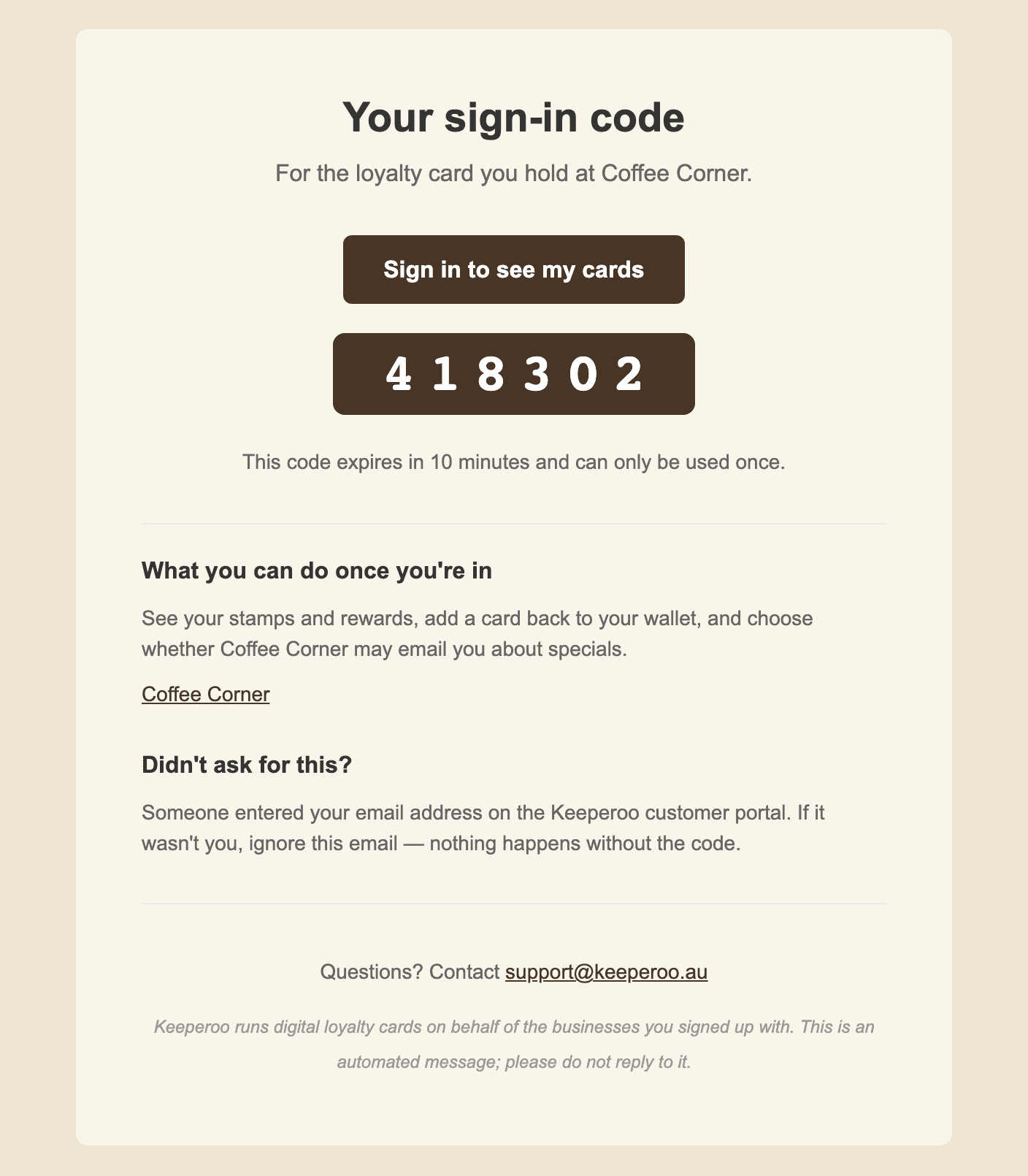
3. Your campaigns, if you send them from Keeperoo
With Marketing switched on for your business, the specials and offers you write there are sent by Keeperoo for you. They are your emails, not ours: they come from your business name, and they only go to customers who said yes to marketing. That is checked again as each email goes out, so someone who opts out after you press send still does not get it. Every one has an unsubscribe link in the footer. See the campaign guide for how to send one.
If you use your own email tool instead, nothing changes: export your list and send from there.
4. Nothing from Keeperoo itself
Keeperoo does not send your customers specials, offers or newsletters of its own. If a customer says they are getting too much email from you, it is your campaigns, from the Marketing page or from your own email tool. Point them at the unsubscribe link in the email, or at the portal.
What you see at your end
- A consent change made in the portal is recorded against the customer, with the source shown as Customer portal and the time it happened. One made with the unsubscribe link in a campaign shows as Unsubscribe link. Open the customer in Customers to see the full history.
- It takes effect straight away in Keeperoo. Someone who opts out is left out of your next campaign, and out of any campaign already on its way to them.
- If you send from your own email tool, re-import. They drop out of the Mailchimp-shaped export straight away, but your email tool will not know until you import again.
- Re-adding a wallet pass does not create a duplicate customer, so your customer count and stamp totals stay honest.
Deletion requests
A deletion request emails Keeperoo support with the customer's address and the businesses they hold cards with. It is deliberately manual: nothing is deleted automatically, and you will hear about it before anything happens to a customer record of yours.
Telling customers it exists
Most customers will never need it, and the ones who do need it are usually standing in front of you looking upset about a new phone. Two things make that easy:
- The welcome email already links to it, so the answer is in their inbox
- Staff only need one sentence
"Go to keeperoo.au/portal and put in the email you signed up with — your stamps are all still there, you can add the card back to your phone from that page."
If they cannot remember which address they used, look them up in Customers and read it back to them. Everything else they can do themselves.
Common questions
"I never got the code"
- Junk folder first — it is the answer most of the time
- Check the address they typed matches the one on their customer record
- A new code can be requested once every 5 minutes; the old one stops working
"It says it can’t find any cards"
They signed up with a different email address. Look them up in Customers, tell them which address is on file, and they can sign out and try that one.
"Can I use it to give them a stamp?"
No. The portal is read-only for stamps and rewards — stamping and redeeming happen at the till in Scanaroo, or from the customer's page in the dashboard. That is deliberate: a customer cannot stamp their own card.