Customer Care
How to manage a customer’s points
Record a sale the till missed, give or take back points, handle a refund and undo a mistake, all from the customer's page.
Quick overview
Dashboard → Customers → the customer. The Points card records sales and adjustments, Rewards redeems, and Points history shows every change and undoes the latest sale.
Owners and managers can do everything here. Day to day, points are added at the till in Scanaroo; the dashboard is for the exceptions.
On the customer's page
Step 1: Find the customer
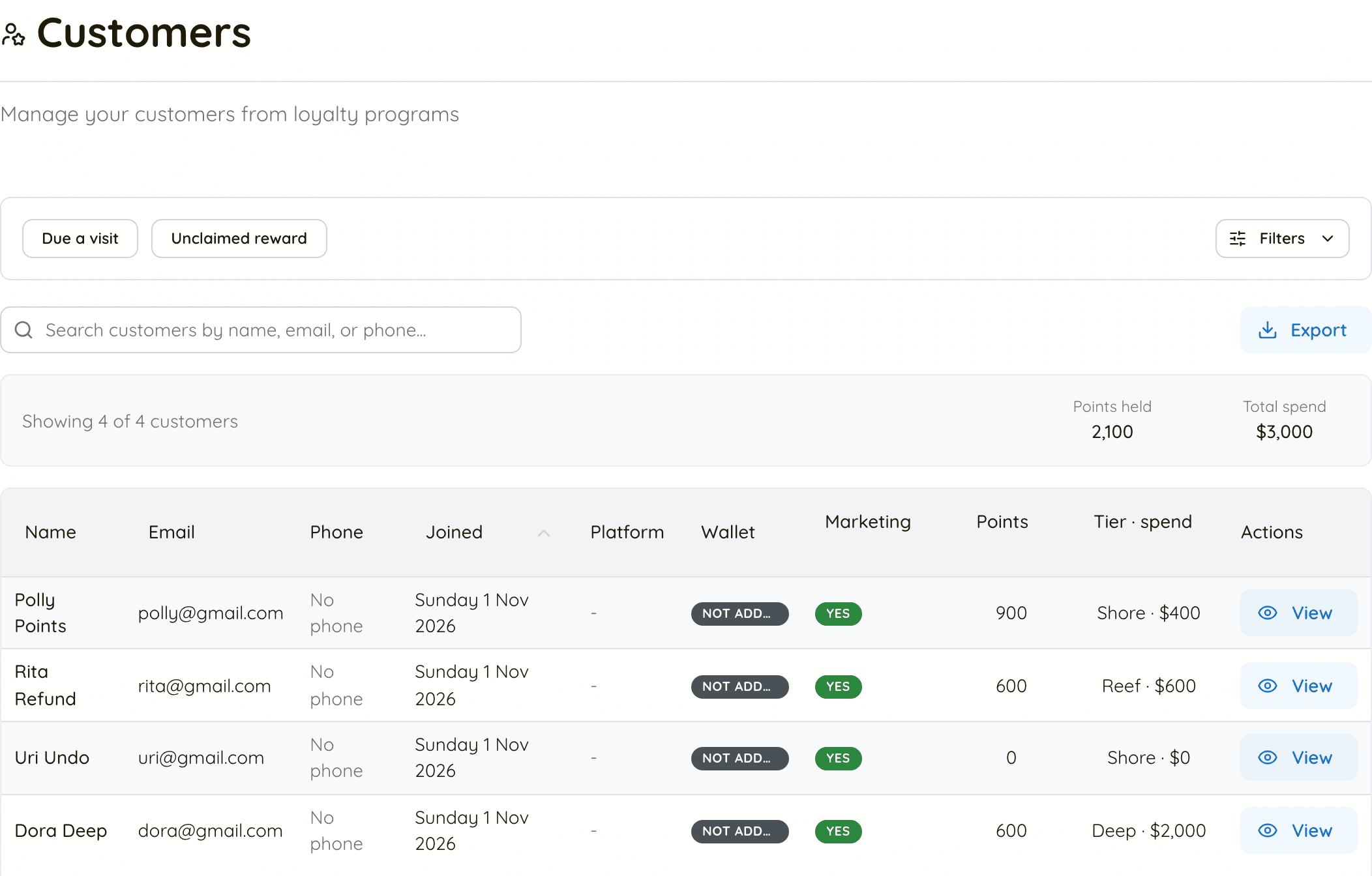
- Open Customers. On a points card the list shows each customer's Points and Tier · spend, and the summary above it adds up the points held and total spend
- Search by name, email or phone, then click
View
Step 2: Read the Points card
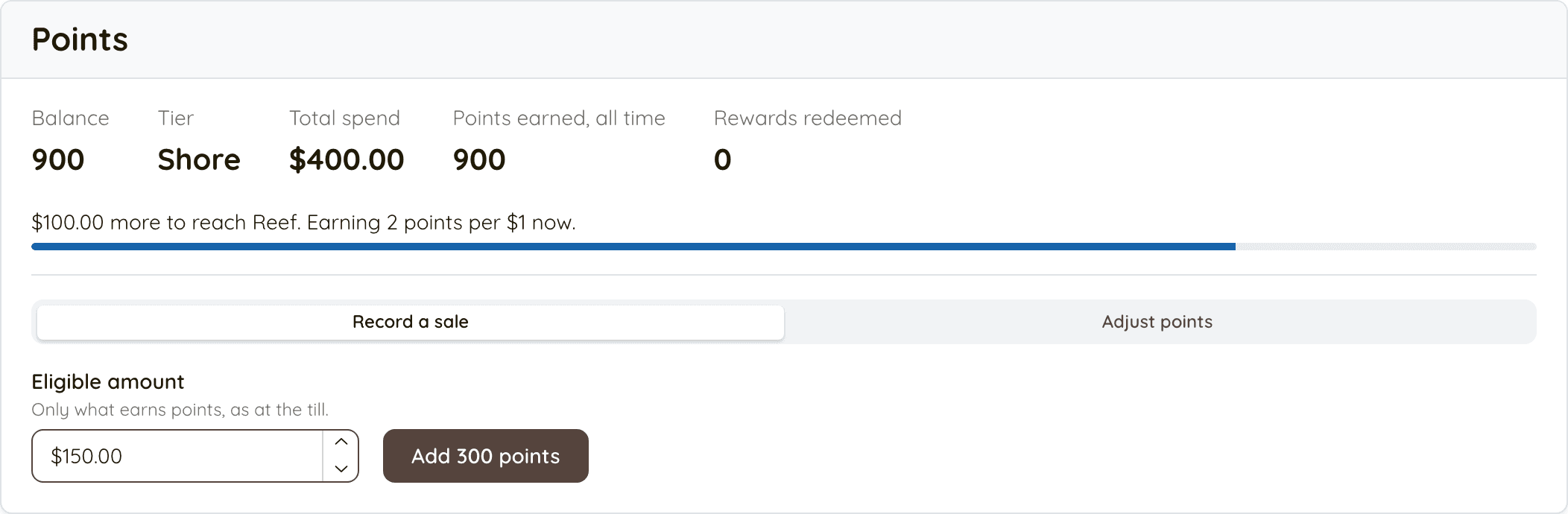
- Balance is what they can spend now. Tier and Total spend go together: the tier comes from the spend
- Under them: how far the next tier is, and what they earn per $1 now, e.g. $100.00 more to reach Reef. Earning 2 points per $1 now.
Step 3: Record a sale
- For a customer who forgot their phone, or a sale the till missed. With Record a sale selected, type the Eligible amount: only what earns points, as at the till
- The button shows the points, e.g.
Add 300 points. Click it, and the balance updates straight away: 300 points for $150.00. Balance 1,200. - It earns at the customer's tier and counts towards the next one, exactly like a sale on the till, and the card's largest-sale limit applies here too
Step 4: Redeem a reward
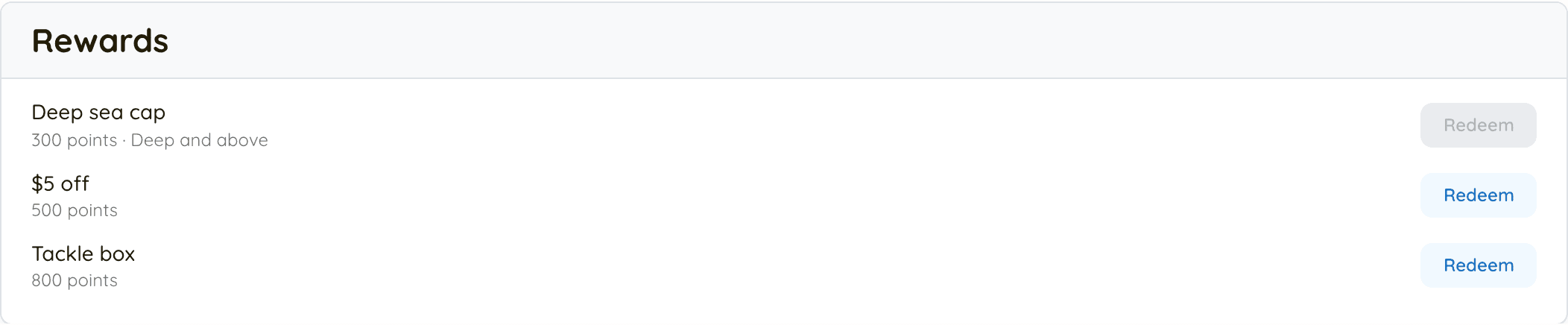
- The Rewards card lists every reward with its cost.
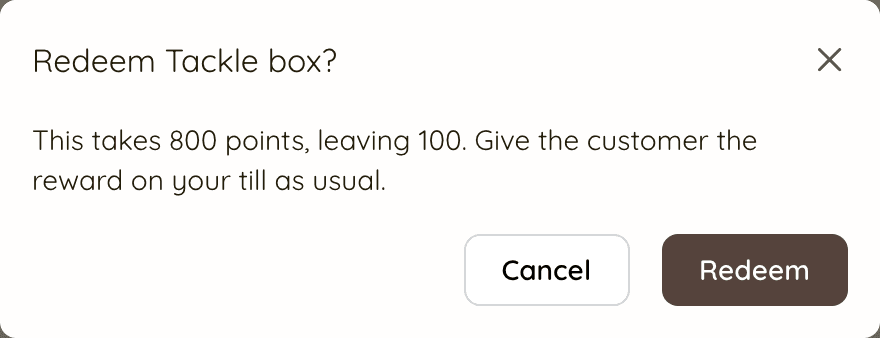
Redeemis only available on the ones this customer can have now; the others say how many points to go, or which tier they need - Click
Redeem, check the points and what they'll have left, and confirm. Then give the reward on your till as usual
Step 5: Adjust points, or record a refund
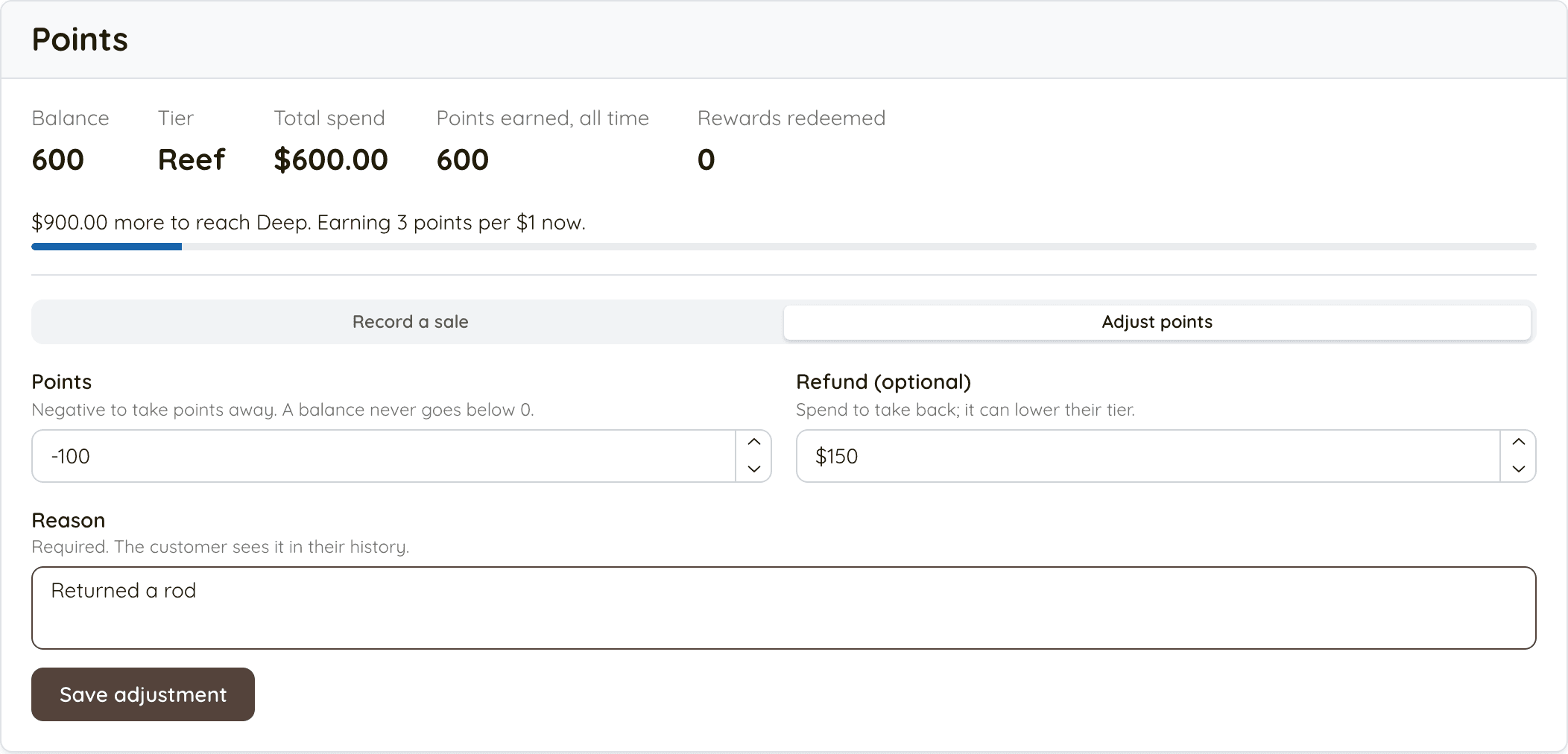
- Click Adjust points. Enter Points to add, or a negative number to take away. A balance never goes below 0: take more than they have and it stops at 0
- For a refund, also enter the Refund amount. That takes the spend back, which can move the customer down a tier. Take back the points that purchase earned too
- The Reason is required, and the customer sees it in their history in the portal, so write it for them: "Returned a rod", "Points from your paper card"
- Click
Save adjustment. Keeperoo confirms the new balance and tier, e.g. Points taken: 100. Balance 500, tier Shore.
Step 6: Undo a sale
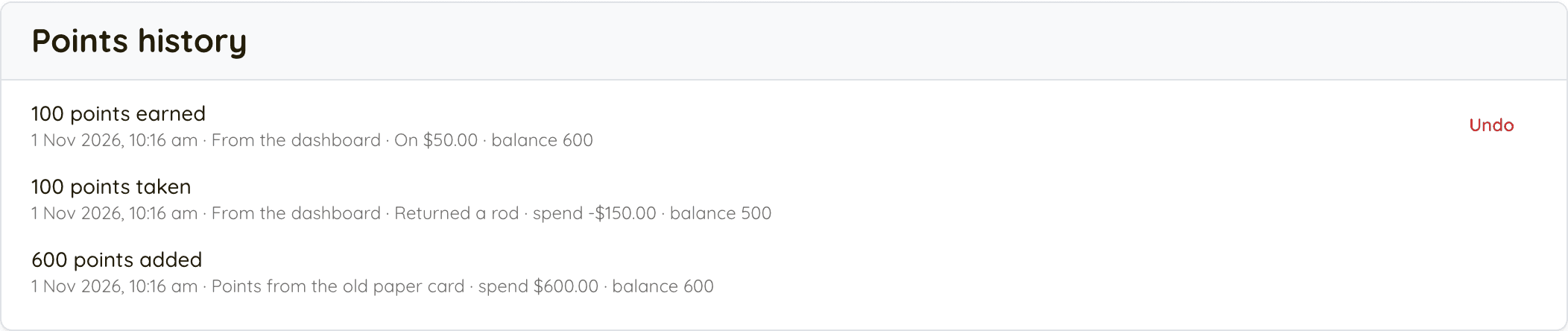
- In Points history, the card's most recent sale has an
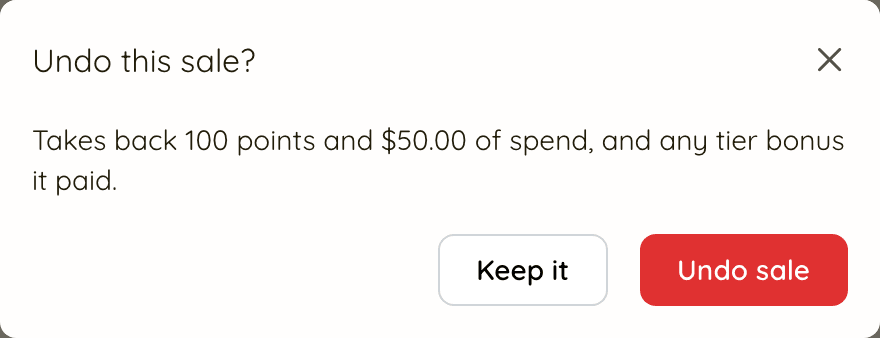
Undobutton for 48 hours, whichever till or person added it - Click it, check what it takes back (the points, that sale's spend and any tier bonus it paid) and click
Undo sale - The sale stays in the history, crossed out and marked Undone
Which fix to use
- Wrong amount, just now: undo the sale, then record it again with the right amount. On the till, its own
Undoworks for 30 seconds; from the dashboard, for 48 hours. - Only the latest sale can be undone. For an older one, or after 48 hours, use Adjust points instead.
- Points already spent: once the customer has used a sale's points on a reward, the sale can't be undone. Adjust the balance instead.
- Goods returned: an adjustment with a refund, so their tier reflects what they kept.
- Moving customers from a paper card or another scheme: an adjustment adding their points, with a reason like "Points from your paper card".
Customer asks why their balance changed?
Read them the Points history: every sale, reward, adjustment and undo is there with its date, whether it came from a till or the dashboard, and the reason. They can see the same list, in their own words, in the customer portal.
The points dashboard
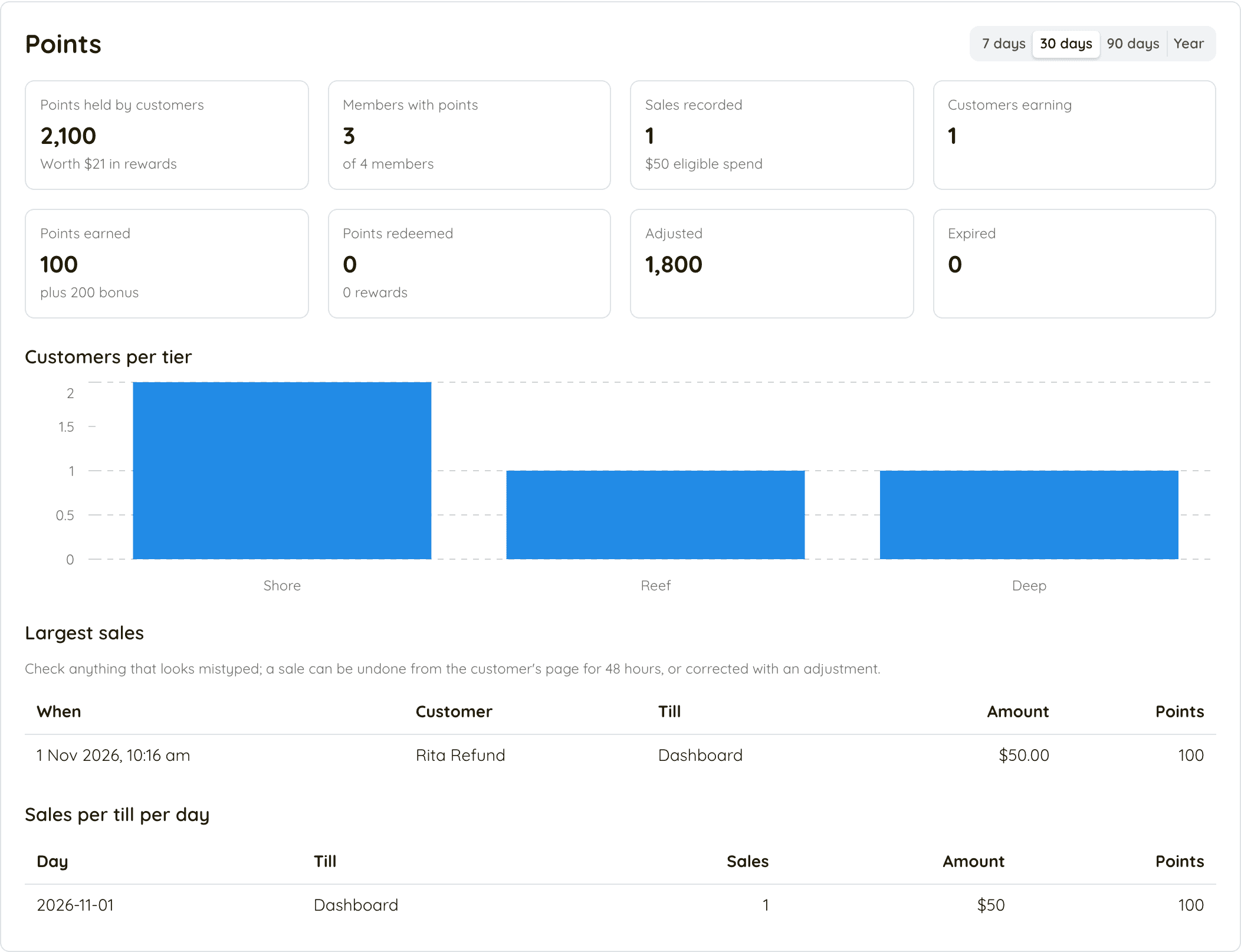
On a points card, your dashboard's Points panel shows, for the last 7, 30 or 90 days or the year:
- Points held by customers, and what they are worth in rewards at your point value
- Members with points, sales recorded, and customers earning
- Points earned (and bonus points), redeemed, adjusted and expired
- Customers per tier
- Largest sales: worth a glance each week for anything that looks mistyped
- Sales per till per day