Daily Use
How to add points and redeem rewards
Scan the card, type the amount that earns points, confirm. Rewards come off the same screen.
Quick overview
Customer shows their card → you scan it in Scanaroo → type the amount that earns points → confirm. To use points, tap Redeem next to a reward and confirm.
A points card works like a stamp card, except the customer earns points for every dollar instead of a stamp per visit. Your card sets how many points each $1 earns, and the rewards customers spend them on.
You'll need Scanaroo 1.5.0 or later. Older versions can open a points card but can't add points to it; update from the App Store or Google Play.
At the till
Step 1: Ask for the card
- As you ring up the sale: "Have you got our rewards card?"
- The customer opens the card in Apple Wallet or Google Wallet and shows you the QR code
- New customer? Point them at the signup QR code on the counter. It takes under a minute, and this sale still earns them points if they join before you scan
Step 2: Scan it
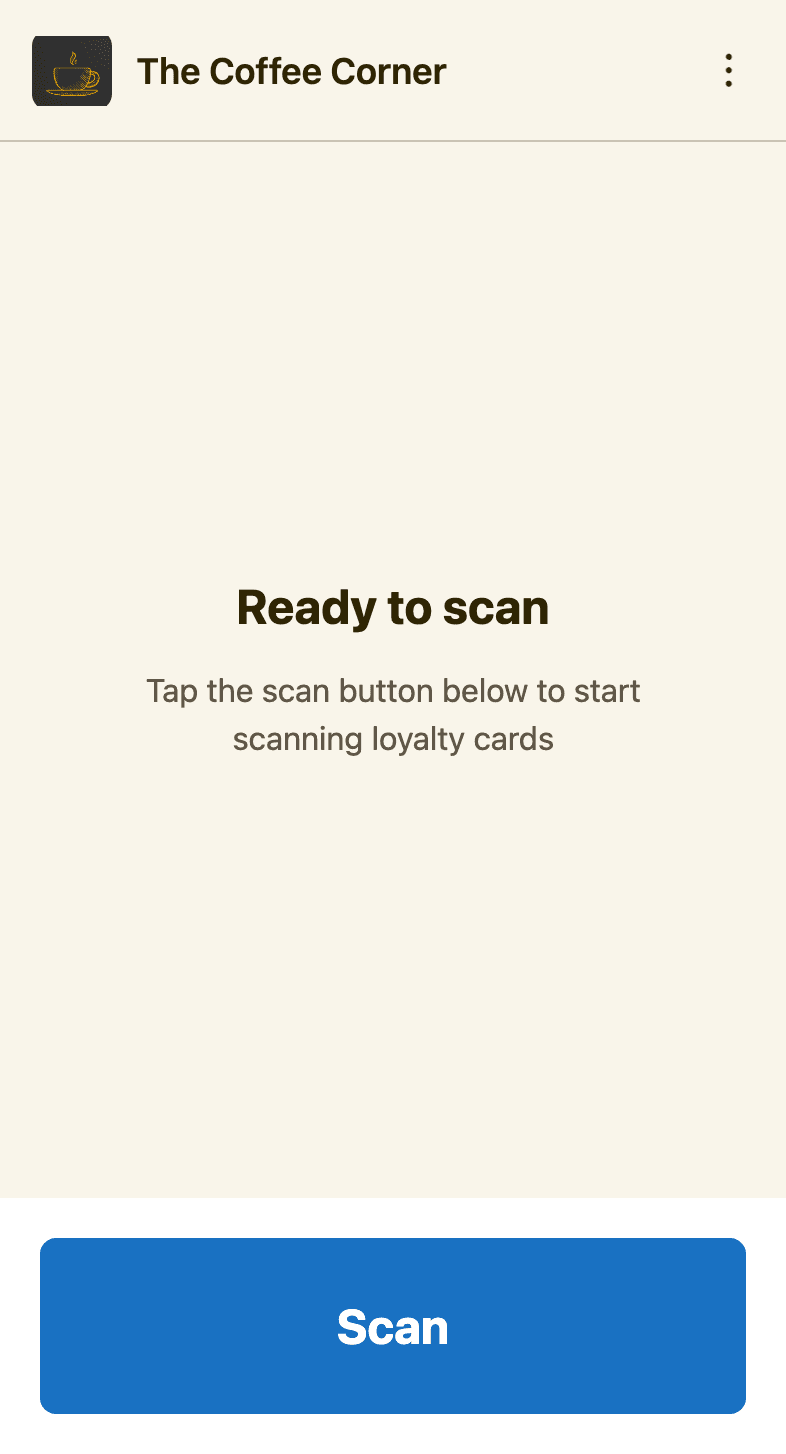
- Open Scanaroo. If it asks for the PIN, enter it and tap
Authenticate - Tap
Scanand point the camera at the customer's phone - Scanaroo opens the customer's card straight away
Step 3: Check the card
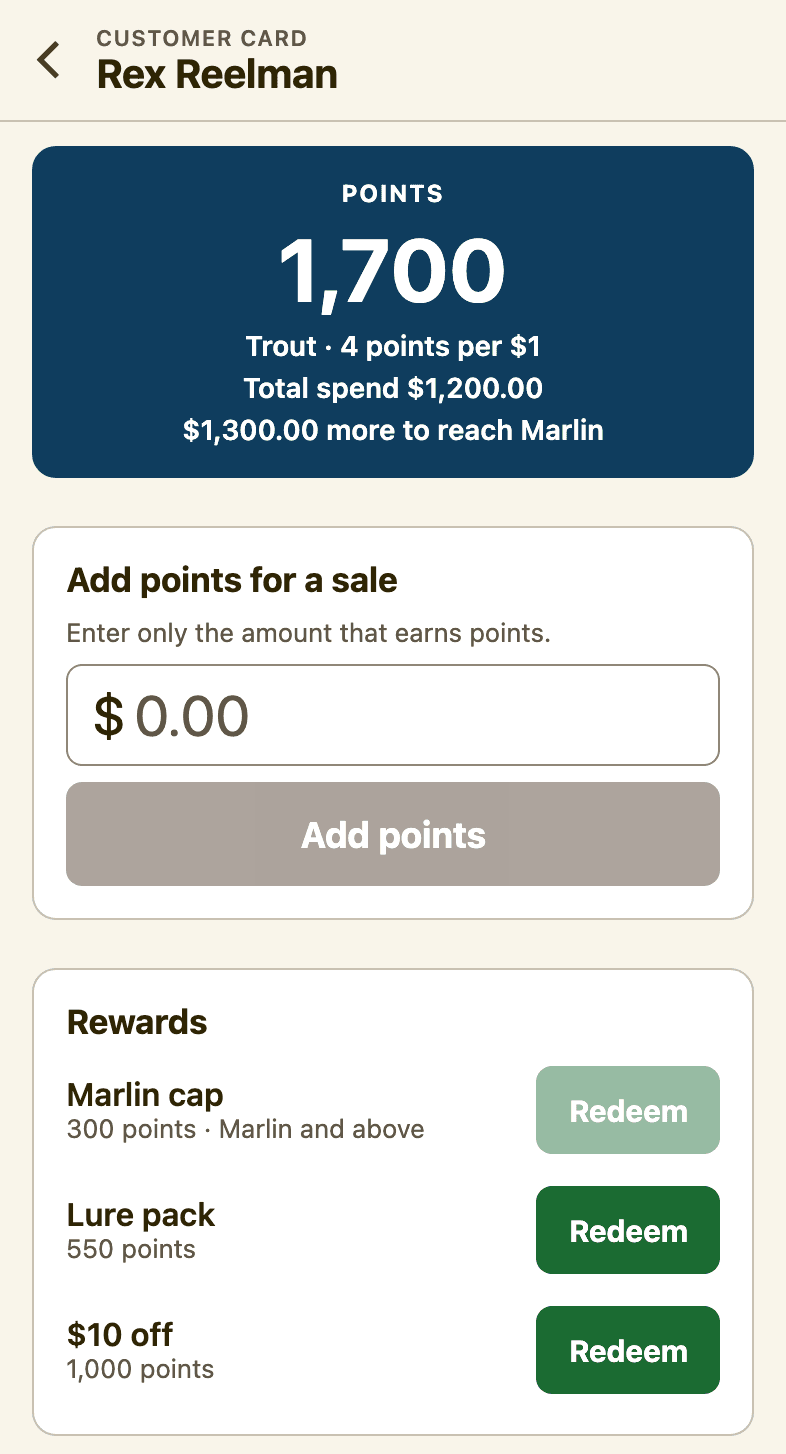
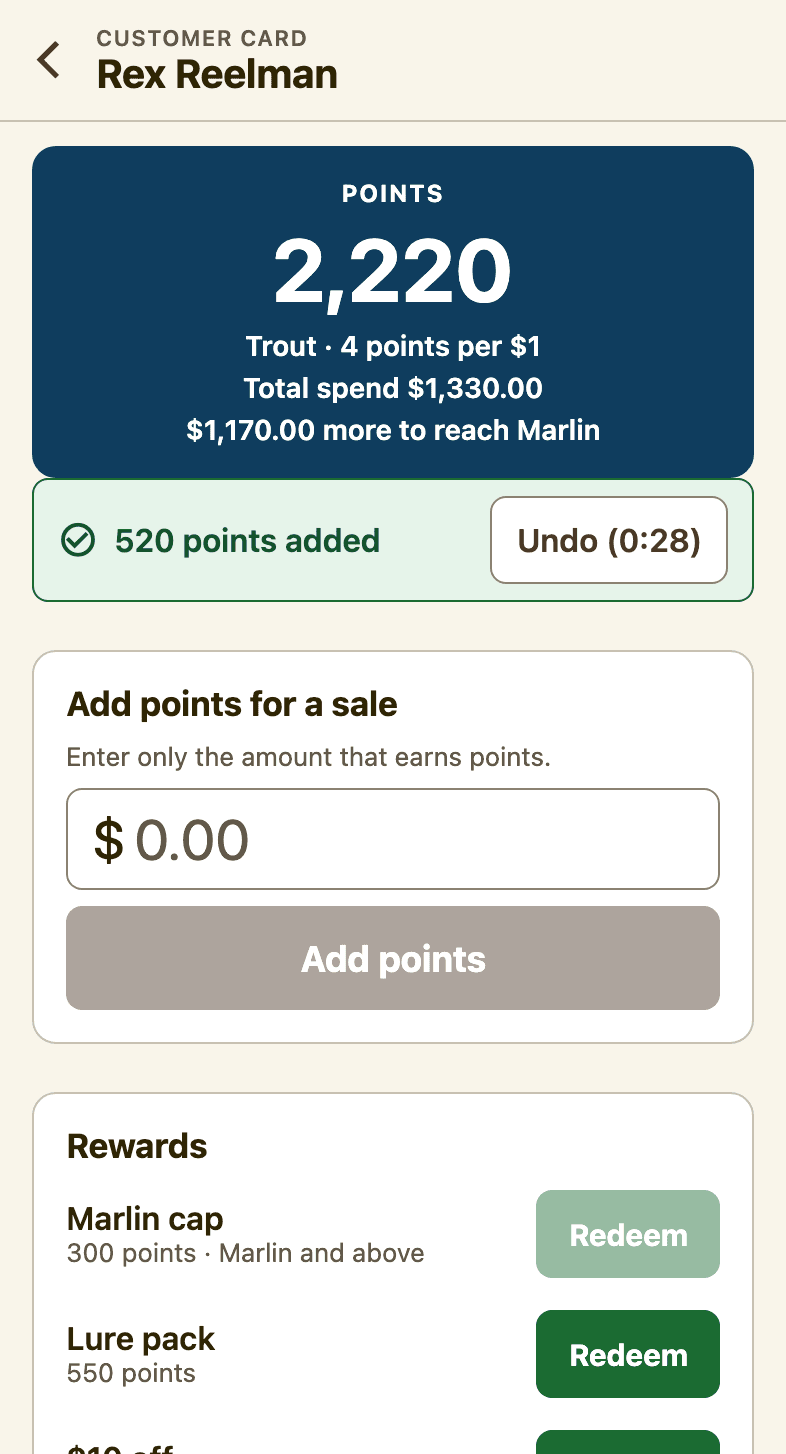
- The customer's name is at the top, so you can see you scanned the right person
- The big number is their points balance. Under it: their tier (if your card has tiers) and how many points they earn per $1
- Total spend and "… more to reach" show how close they are to the next tier. Worth a mention: "Another $50 and you're Trout!"
- If you see Not asked yet — check with this customer, ask whether they would like emails from you and tap
They want emailsorNo emails
Step 4: Enter the amount that earns points
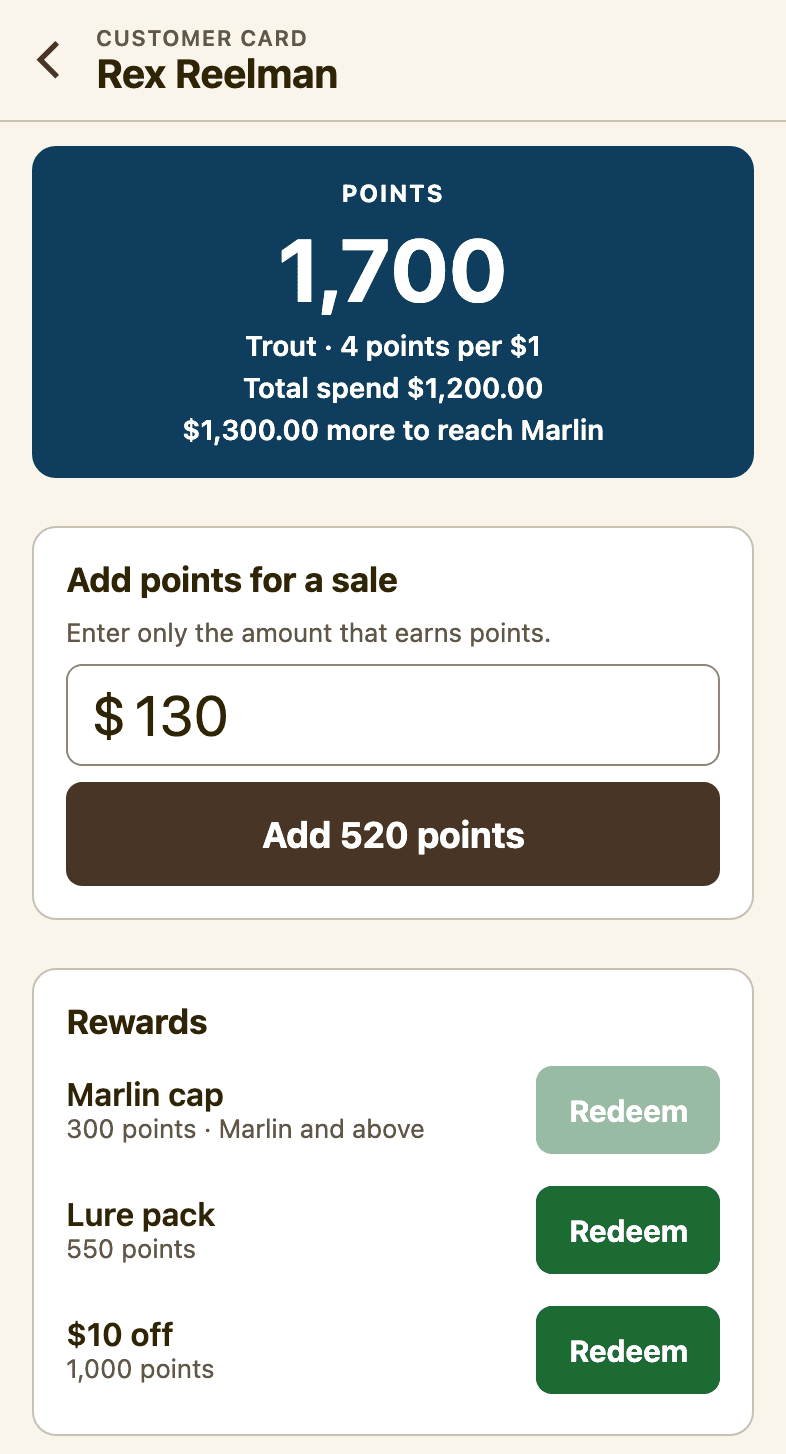
- Under Add points for a sale, type the dollar amount and Scanaroo shows the points on the button, e.g.
Add 520 points - Enter only the amount that earns points, not always the whole receipt. If a customer buys a $130 reel and $50 of bait and bait doesn't earn points, enter 130. Your manager will tell you what counts
- Cents are fine (
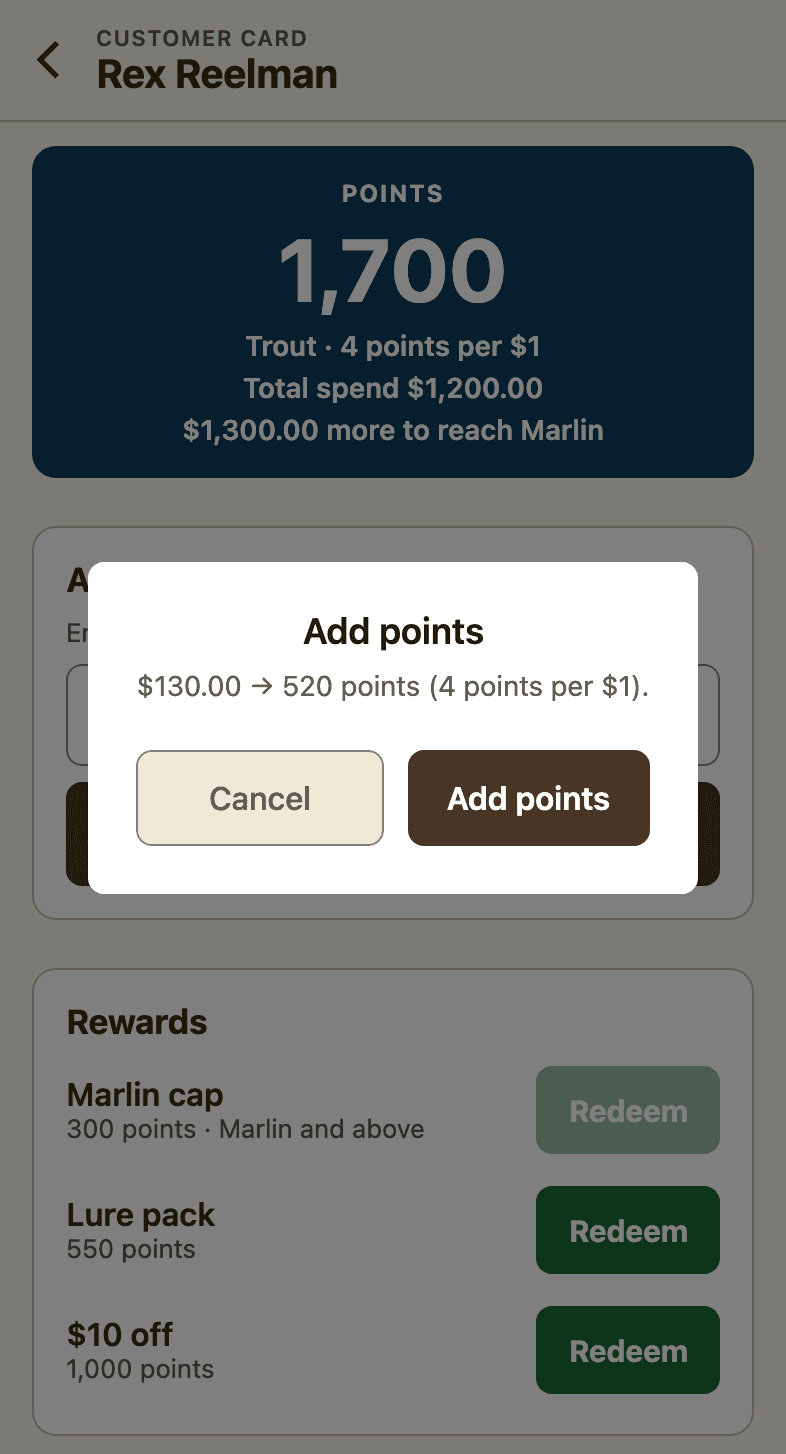
89.95). Points are whole numbers and round down, so $10.99 at 3 points per $1 is 32 points - Tap the button, check the amount on the confirmation, and tap
Add points. Cancel if it's wrong: nothing is saved until you confirm
Step 5: Done: check it against the receipt
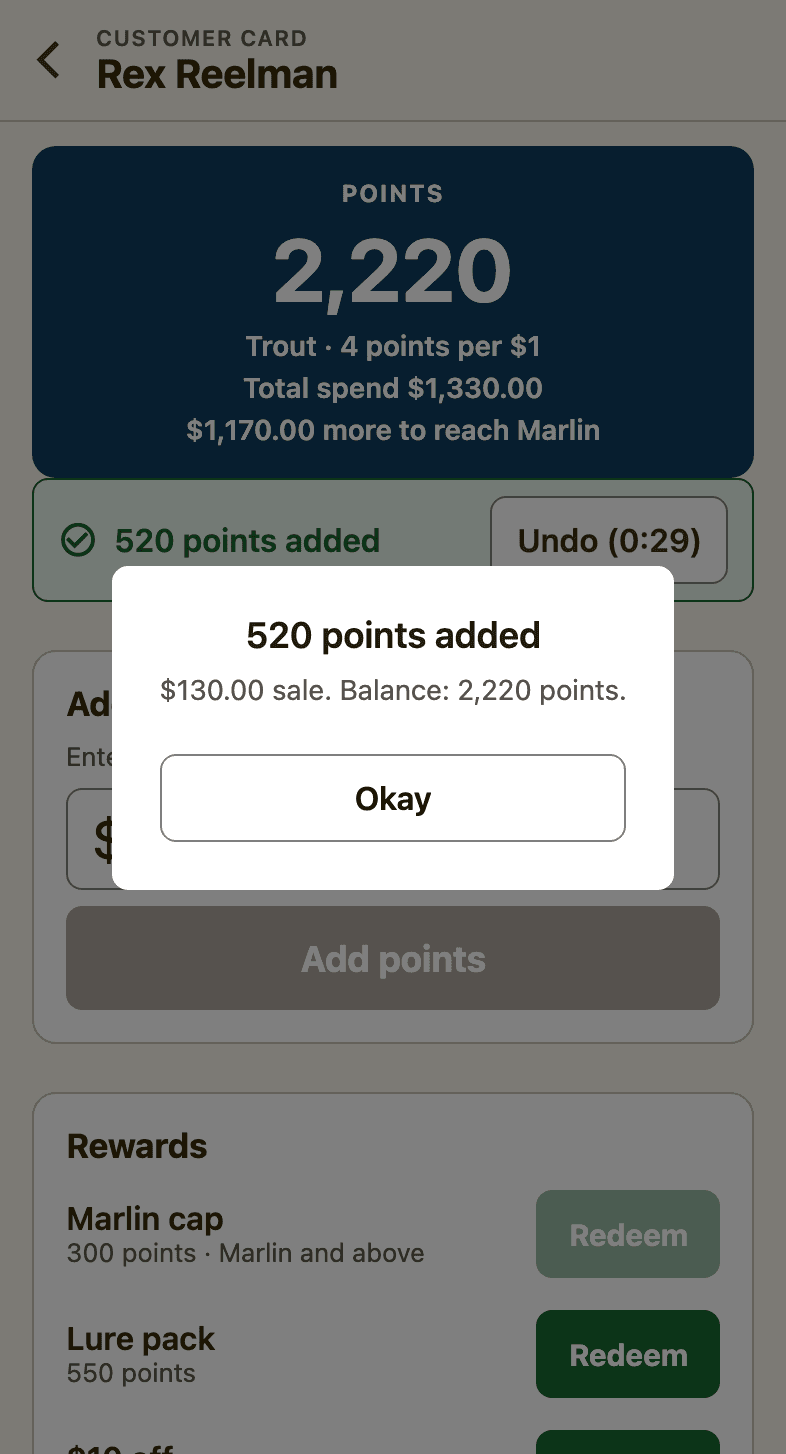
- Scanaroo confirms what was saved, e.g. 520 points added. $130.00 sale. Balance: 2,220 points. Tap
Okay - The card on the customer's phone updates within a few seconds
- Under the balance, 520 points added and an
Undobutton count down for 30 seconds, in case you spot a mistake
Step 6: Redeem a reward
- Rewards lists every reward on your card with its cost in points.
Redeemis only lit for the ones this customer can have today - A reward that needs more points says how many to go, e.g. 550 points · 160 to go. One for a higher tier says so, e.g. Marlin and above
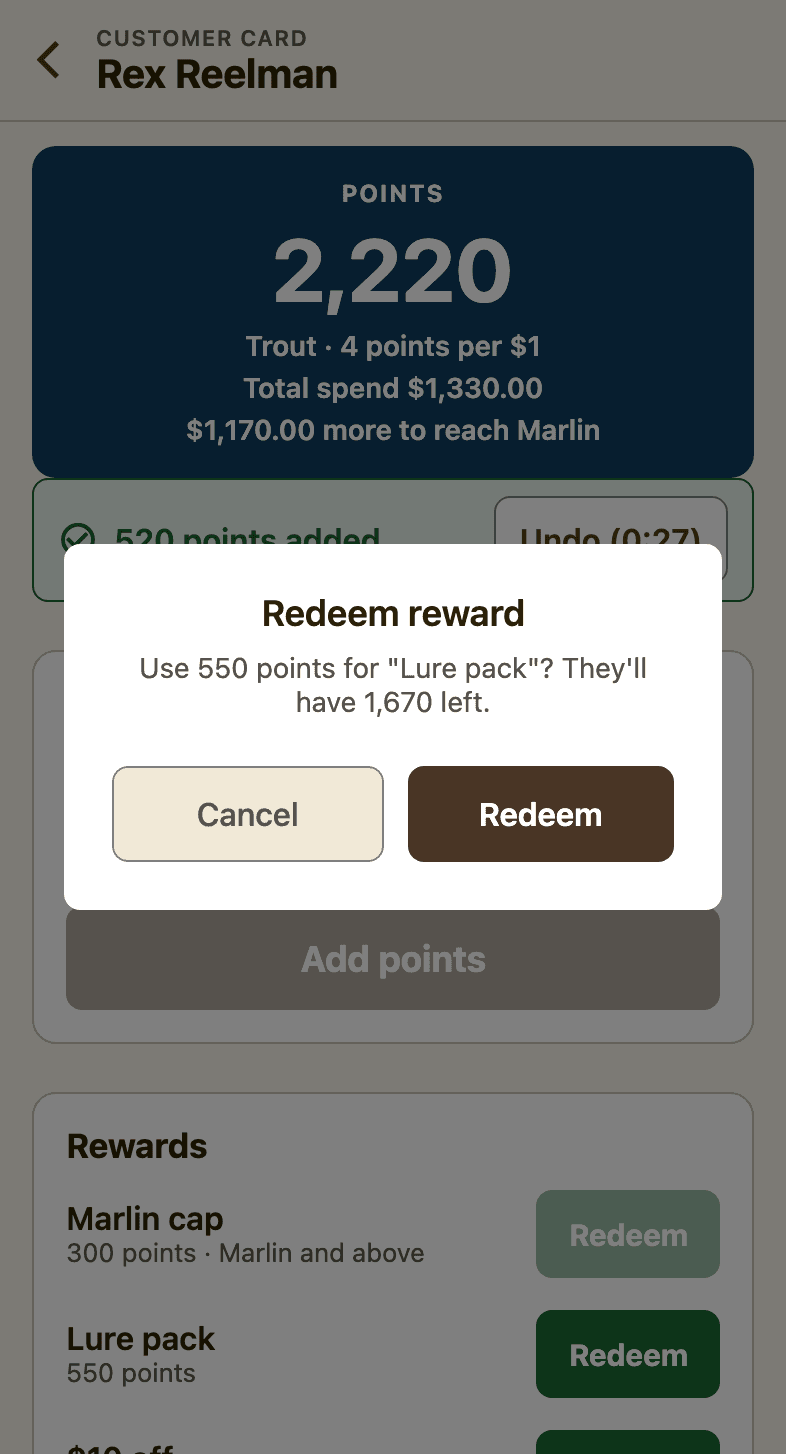
- Tap
Redeemnext to the reward, check the points and what they'll have left, and tapRedeemagain - Then apply the reward on your till as usual: take the $10 off, hand over the lure pack. Scanaroo only records it
- Want two rewards? Redeem them one after the other. Each one has its own confirmation
Tiers
If your card has tiers, customers move up as their total spend grows, and a higher tier earns more points per $1. Using points never lowers a tier.
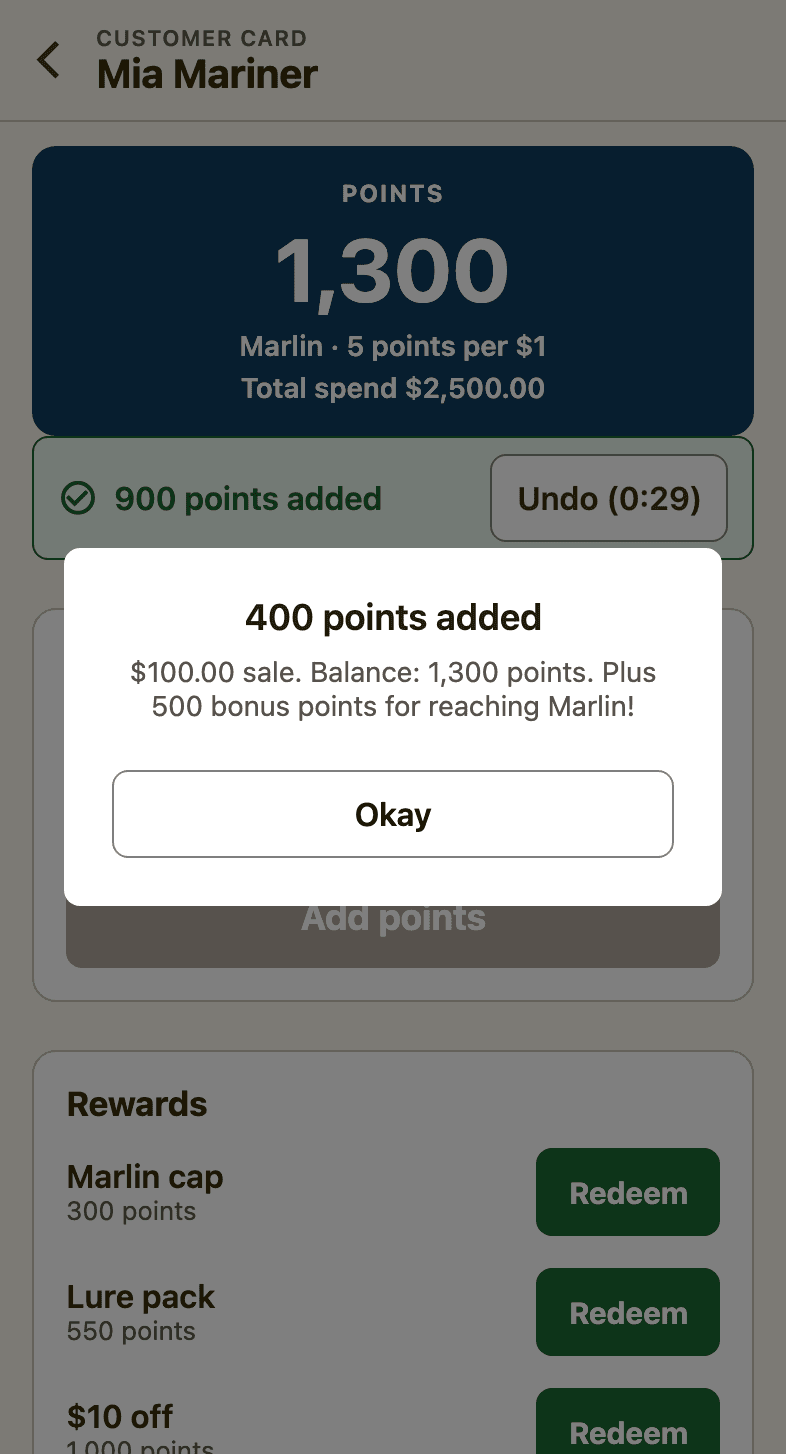
- The new rate starts from the next sale. A sale that takes a customer into a new tier earns at the tier they were on. Scanaroo tells you: They're now Trout: more points from their next purchase.
- Some tiers come with bonus points for reaching them, added once, with the sale that gets them there. Scanaroo says so in the same message.
When things don't go to plan
Typed the wrong amount?
- Straight away, on the till: tap
Undounder the balance within 30 seconds, thenUndo points. The points and that sale's spend come off, and you can enter the right amount. Scanning the same card again within the 30 seconds brings the Undo button back. - Later: the owner or a manager can undo the card's most recent sale from the dashboard for up to 48 hours, or correct the balance with an adjustment after that (see managing a customer's points).
- Only the till that added the points can undo them, and only the card's latest sale. Once the customer has spent those points on a reward, the sale can't be undone on the till; ask the owner to correct it.
Scanaroo says "One sale can be at most $2,000.00"?
Your card has a limit on one sale, $2,000 unless the owner changed it, to catch a slip of the finger (an extra zero turns $300 into $3,000). Check the amount. If the sale really is that big, ask the owner.
Customer forgot their phone, or it's flat?
Scanaroo can only add points to a card it can scan. The owner or a manager can add them instead: in the dashboard, open Customers, find the customer, and use Record a sale on their page. Keep the receipt handy so the amount is right.
"This card collects points. Update Scanaroo…"?
The till is on a version from before points cards. Update Scanaroo from the App Store or Google Play, log in again with your PIN, and scan the card again.
Customer asks what their points are worth in dollars?
Points cards show points, not dollars, on purpose. Point them at the rewards instead: "You've got 1,700, and the $10 off is 1,000."
Getting staff on board
- Agree what earns points. Write it on a sticky note by the till ("not bait, not gift cards") so every staff member enters the same amount.
- Read the confirmation. It shows the dollar amount you typed. A two-second glance catches most mistakes before they reach the customer's card.
- Say the number out loud. "That's 520 points, you're on 2,220 — enough for the $10 off whenever you want it."
- Practise on your own card. Add yourself as a customer, then let each staff member add a small sale and undo it during a quiet ten minutes.